Getting Started: What to Do First
Let's get you from zero to working with your AI assistant in Pane in under two minutes. Watch the video or follow along below.
Get involved: Subscribe · Discord · Twitter/X · Matt on X
1. Connect your AI
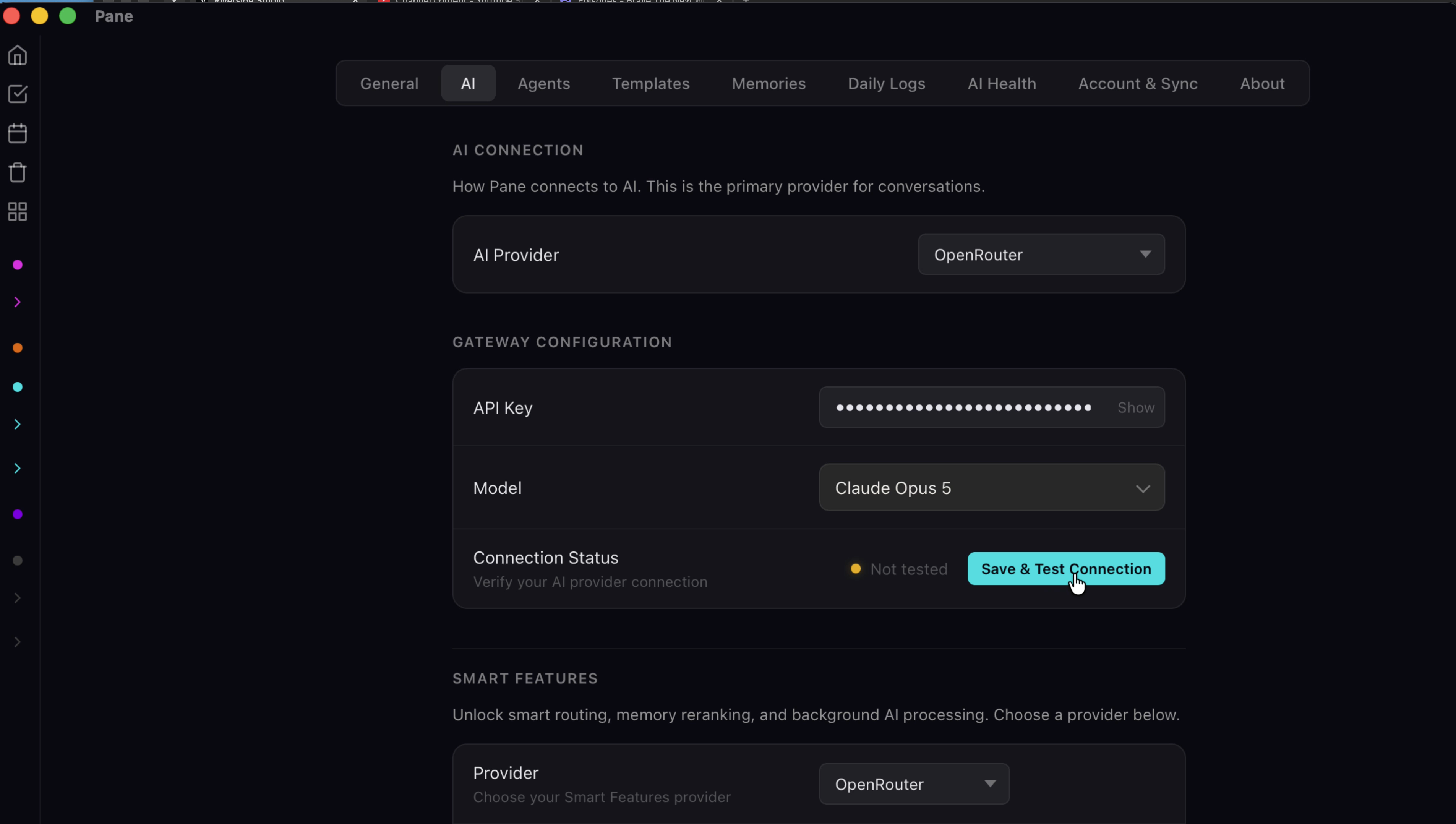
Open settings, go to providers, and paste your API key. Anthropic, OpenRouter, or Ollama if you're running local. Pick your model, and you're connected.
2. Create your first project
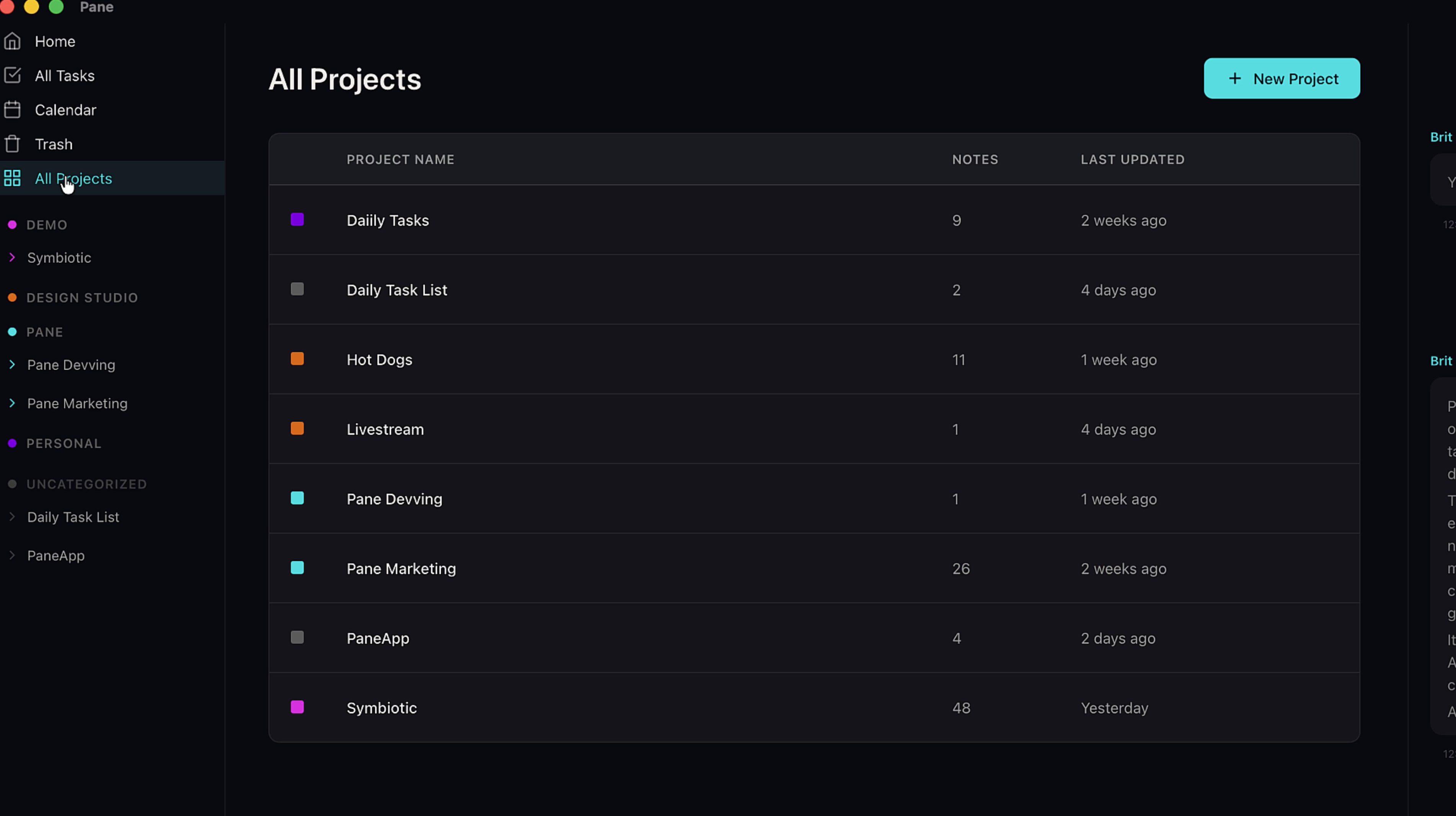
Hit New Project.
3. Name it
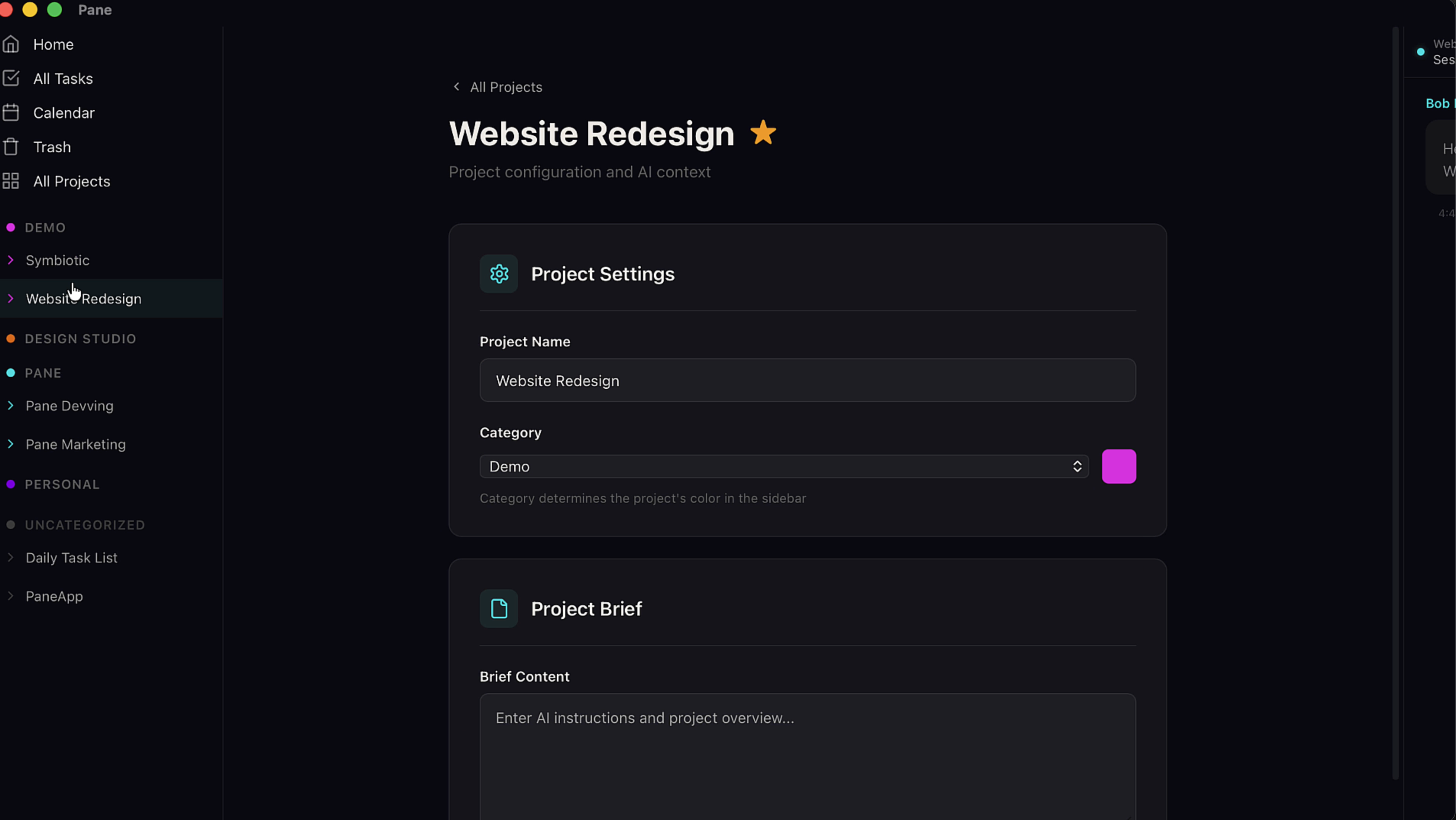
Give it a name. Let's call it Website Redesign.
4. Your board is ready
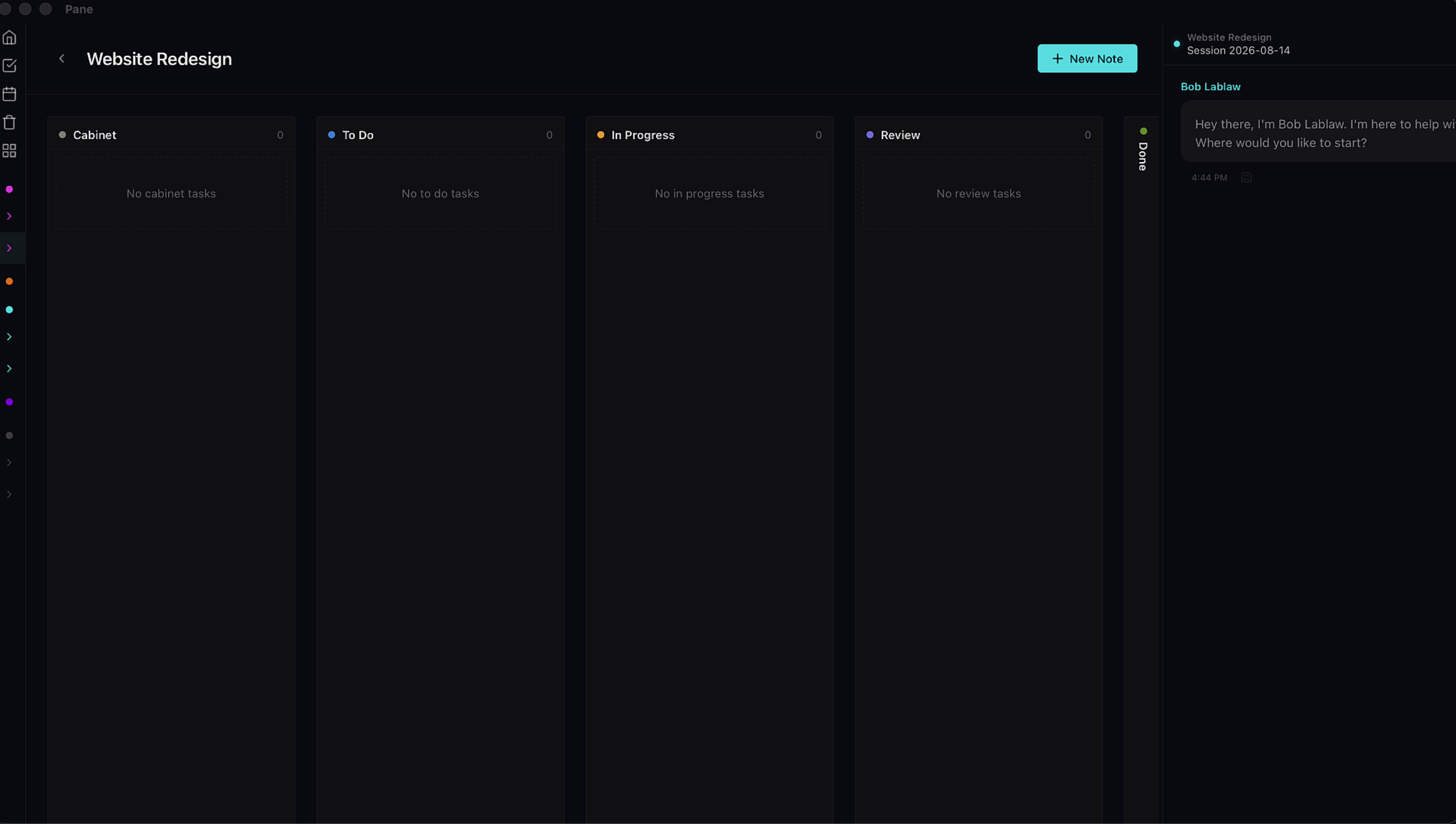
And there's your board: five columns, ready to work.
5. Tell your AI what you're doing
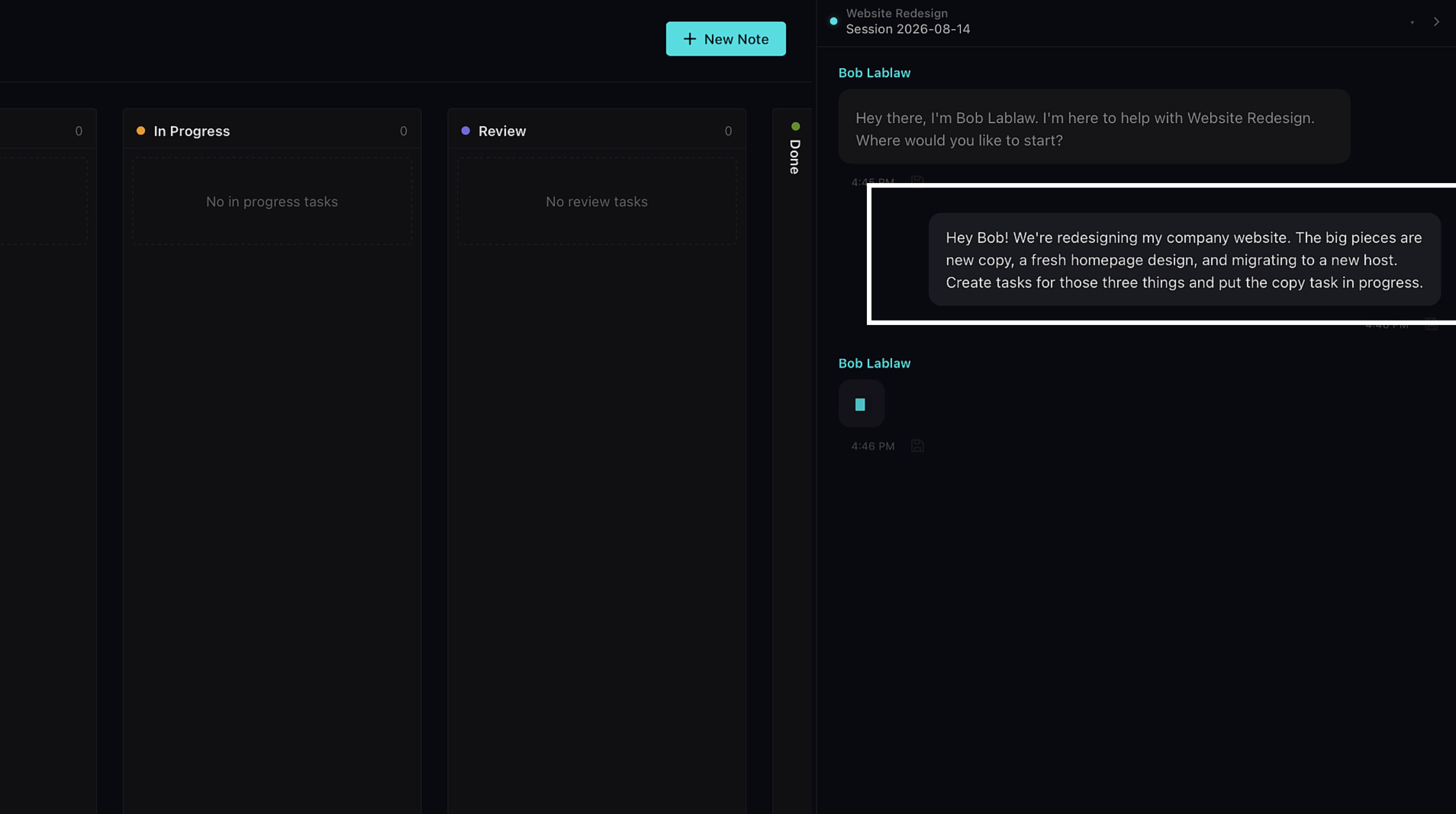
Open the chat and tell your AI what you're doing. Something like: "We're redesigning my company website. The big pieces are new copy, a fresh homepage design, and migrating to a new host. Create tasks for those three things and put the copy task in progress."
6. Watch the board fill up
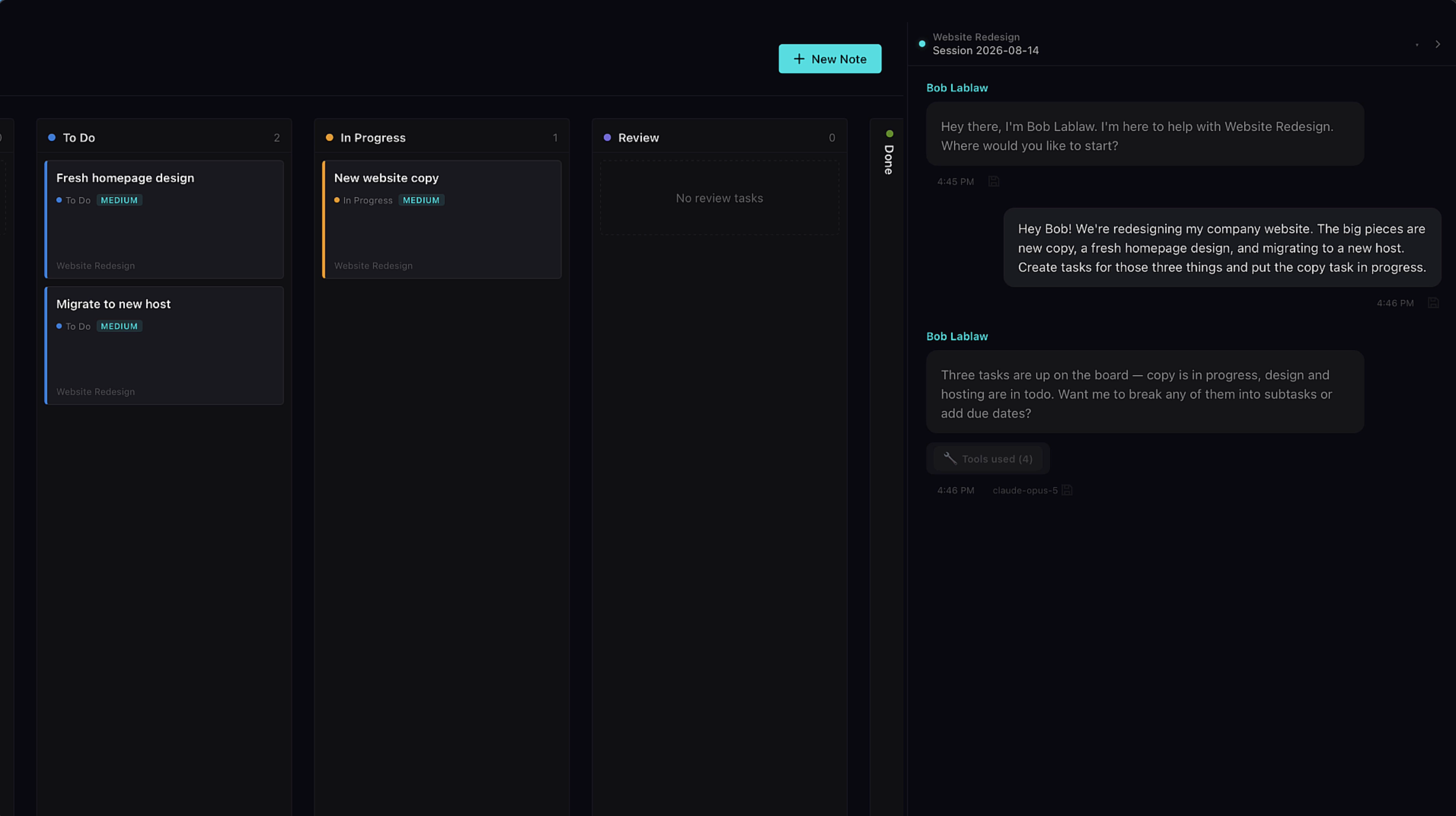
Look at the board. Three cards, right where they belong. That's the thing to understand about Pane: your AI isn't trapped in the chat window. It works the same board you do.
7. It's already remembering
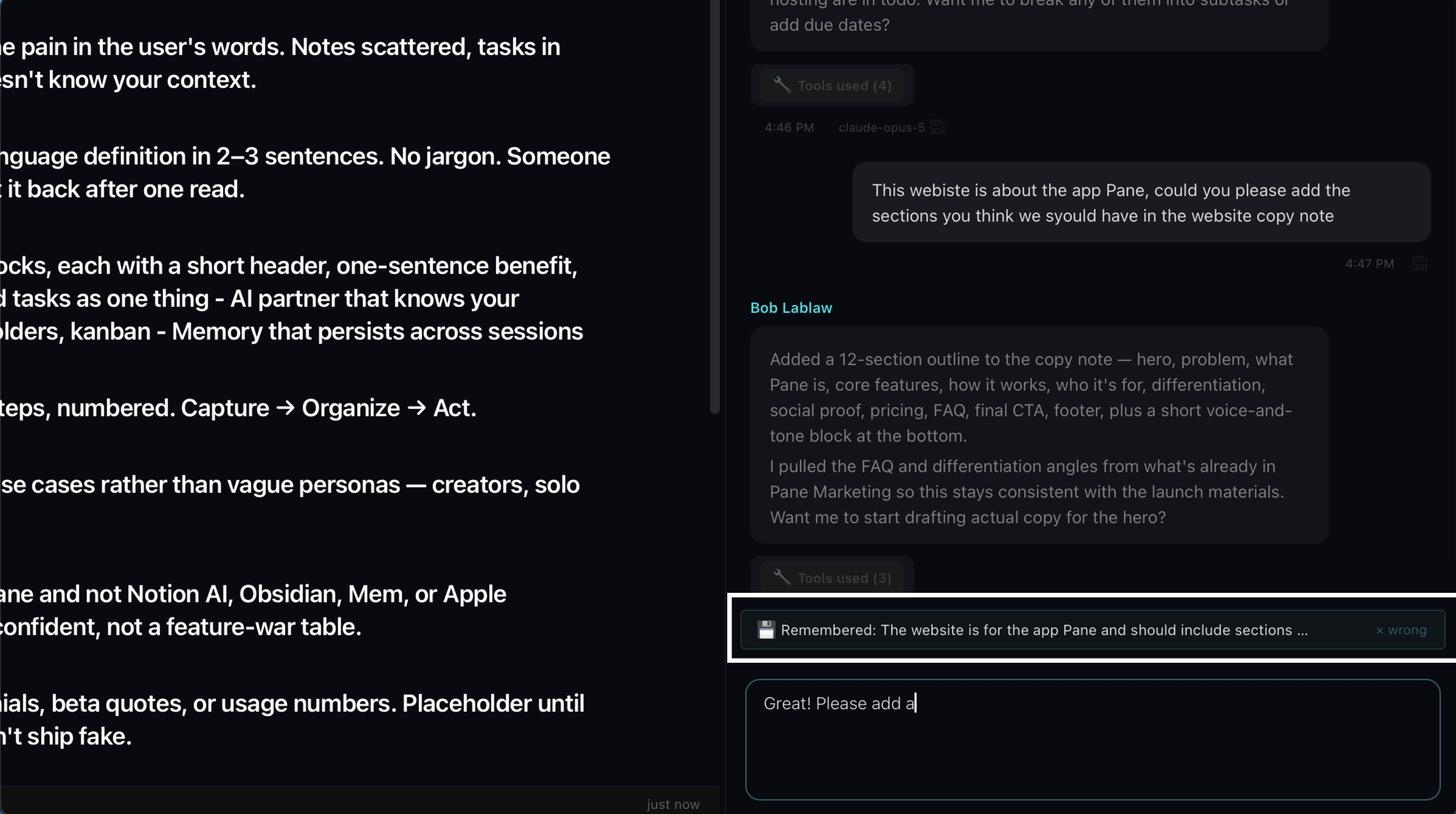
Pane has been remembering this whole conversation. What you're building, what you decided — it's all being kept in its robust memory system. Next session, your AI picks up right where you left off.
8. Go deeper
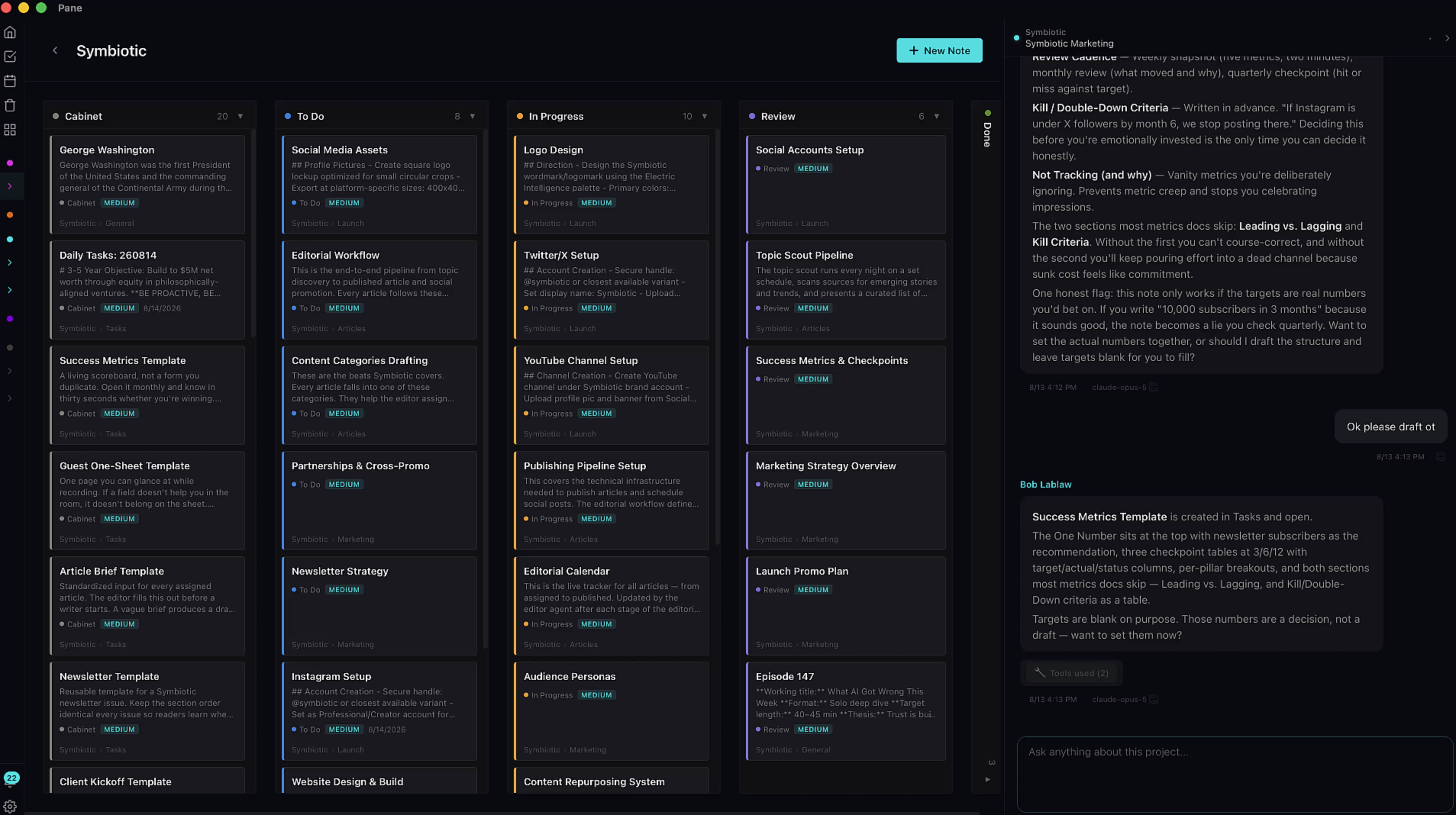
That's the start. When you're ready, go deeper: the memory system, smart features that cut your AI costs, templates, folders. There's a short video for each one.