Projects
Everything you need to know about Pane Projects — from the Kanban board to memory that compounds over time. Watch the video or follow along with the annotated screenshots below.
Get involved: Subscribe · Discord · Twitter/X · Matt on X
1. Your AI works beside you
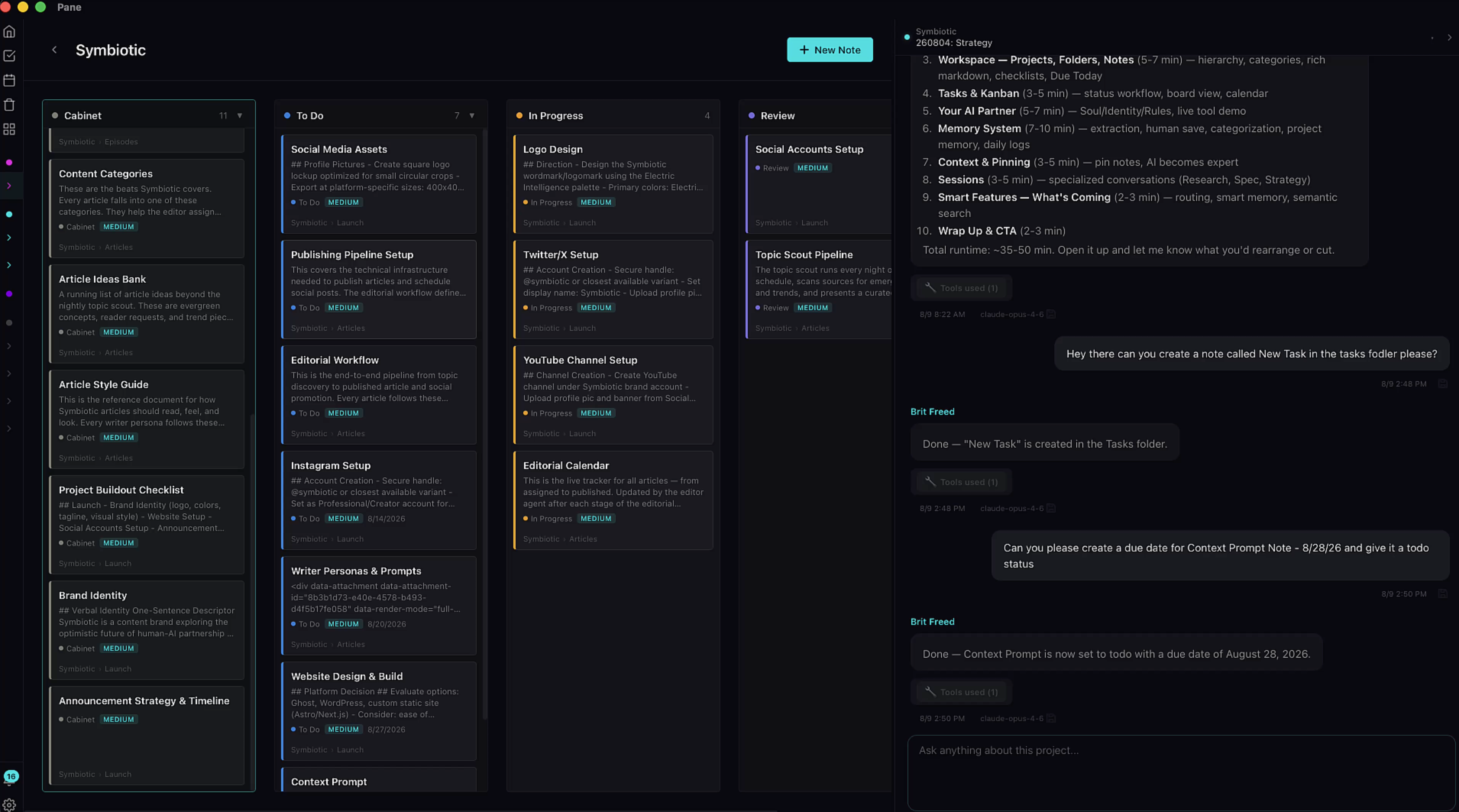
Projects are the heart of Pane. This is where you and your AI work side by side and actually get things done. Create a project for each client. One for your daily todo list. One for your content machine. Every project is its own world, with its own knowledge and its own memory.
And here's the rule that makes Pane different: pretty much everything you can do in a project, your AI can do too. Keep that in mind as we go, because everything I'm about to show you works in both directions.
2. The Kanban view
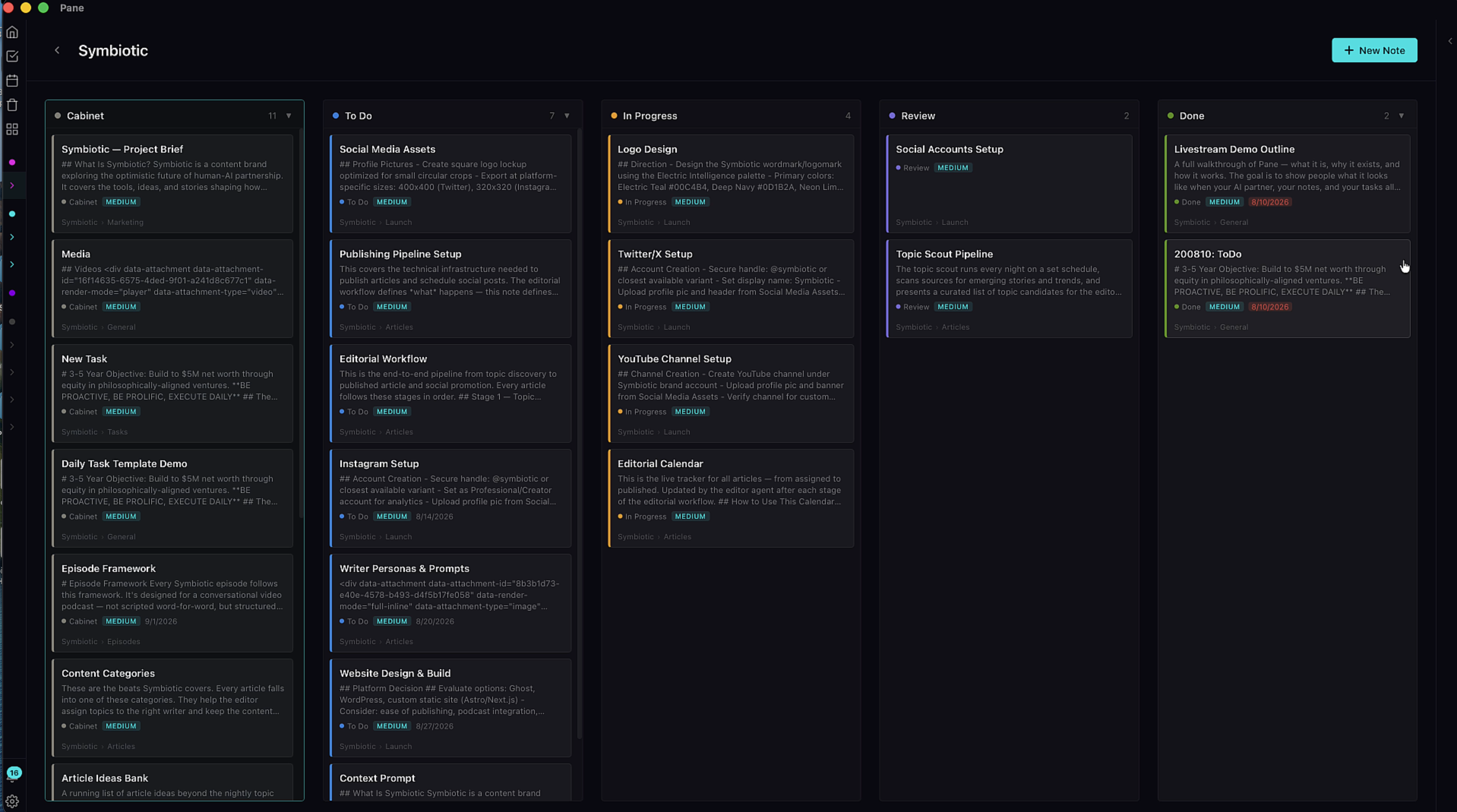
This is the Kanban view. Five columns, including one you won't see anywhere else: the Cabinet. That's where strategy and research notes live. Not everything on a board needs to become a task, and now it has a place.
3. Cards are notes
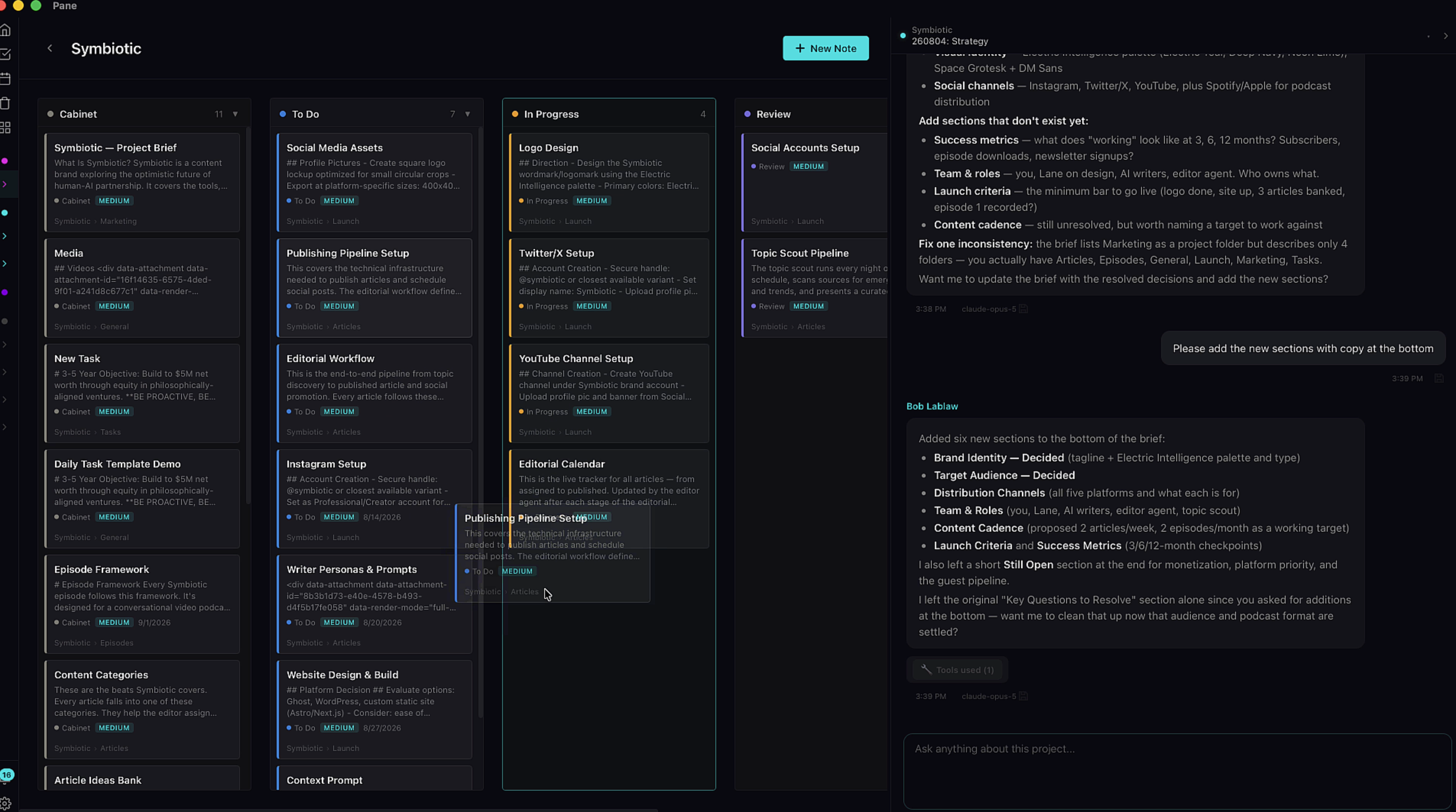
Every card on the board is a note. Drag it between columns. Open it and you get a full markdown environment that takes text, images, text files, PDFs, video, and audio. Across the top are dropdown pills: Folder picker, status, priority, and due date.
4. Tasks are just notes
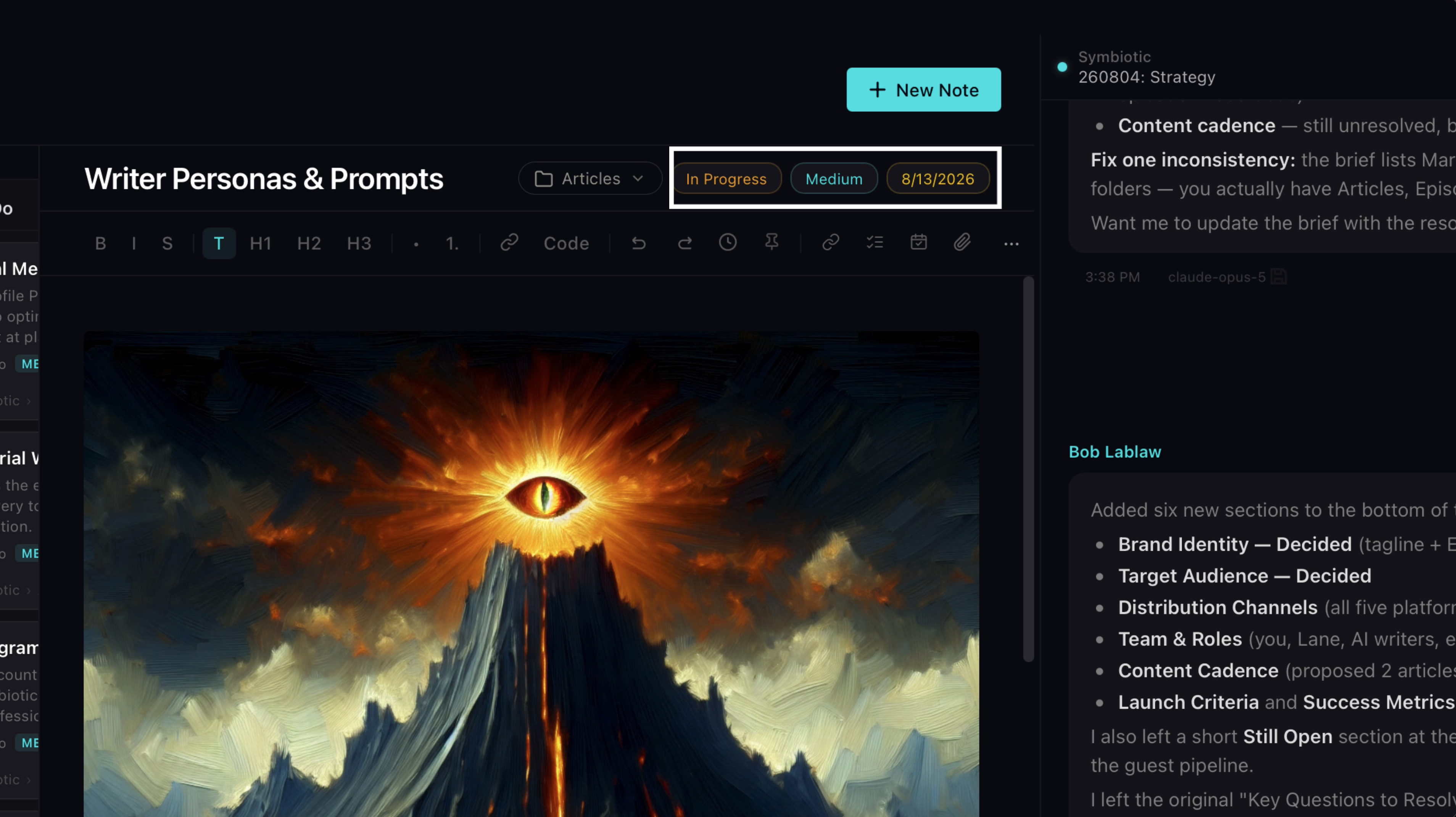
And here's the thing about tasks in Pane. A task is just a note with a status and a due date. That's the whole definition. Which means your AI can create a task, edit it, and move it across the board exactly like you can. Change a pill, change the plan. Either of you.
5. What a project really is
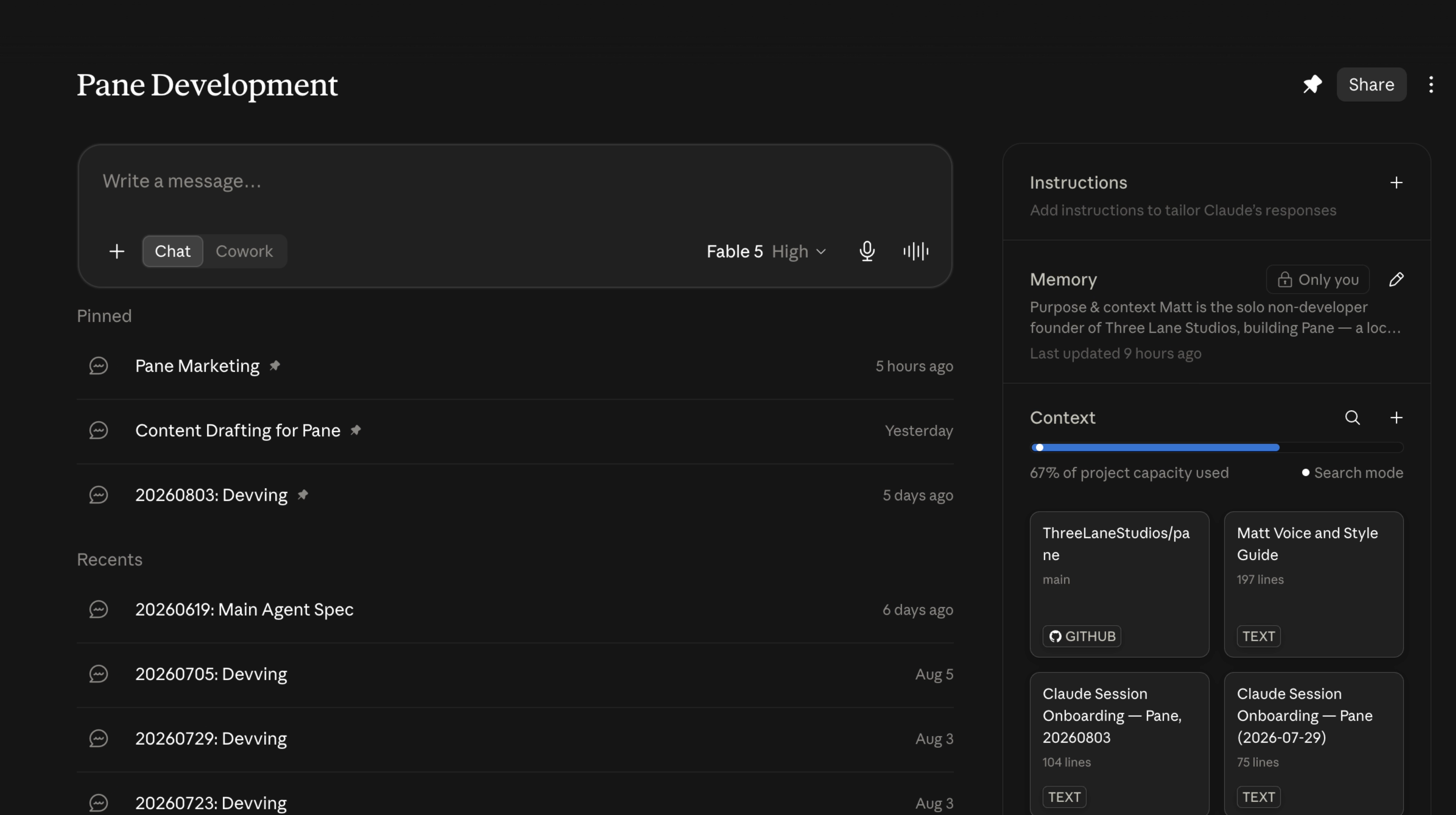
Now let's talk about what a project actually is underneath. If you've used Claude Projects, you know the shape: a workspace with documents that you and the AI can search as a knowledge base, plus specialized chats.
6. A living knowledge base
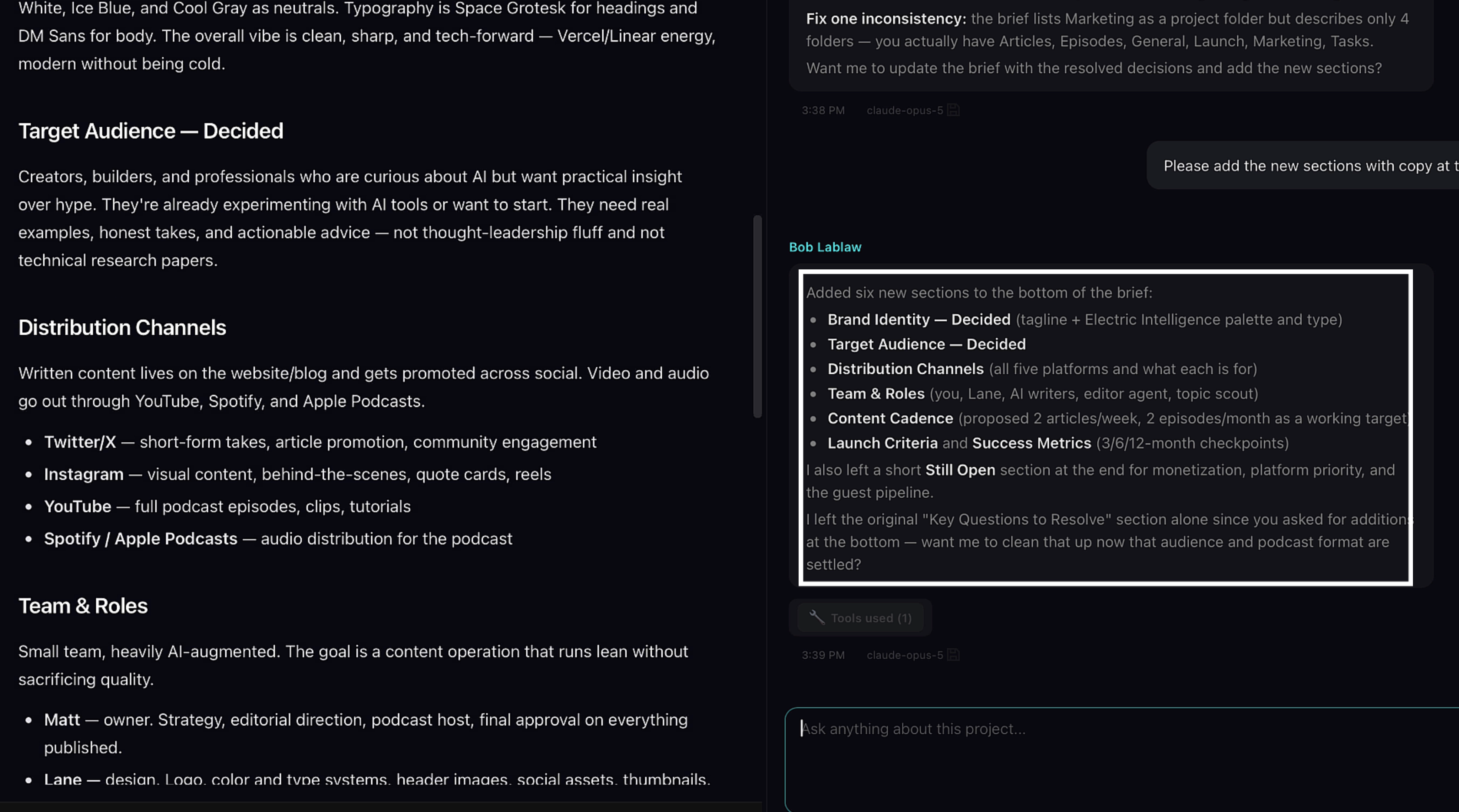
But there's a big difference, and it matters. In Claude Projects, the docs are frozen. Neither you nor the AI can touch them. In Pane, every note is editable by both of you. Your knowledge base isn't a filing cabinet. It's a living thing that gets more specific and more accurate the longer you work.
7. Specialized sessions
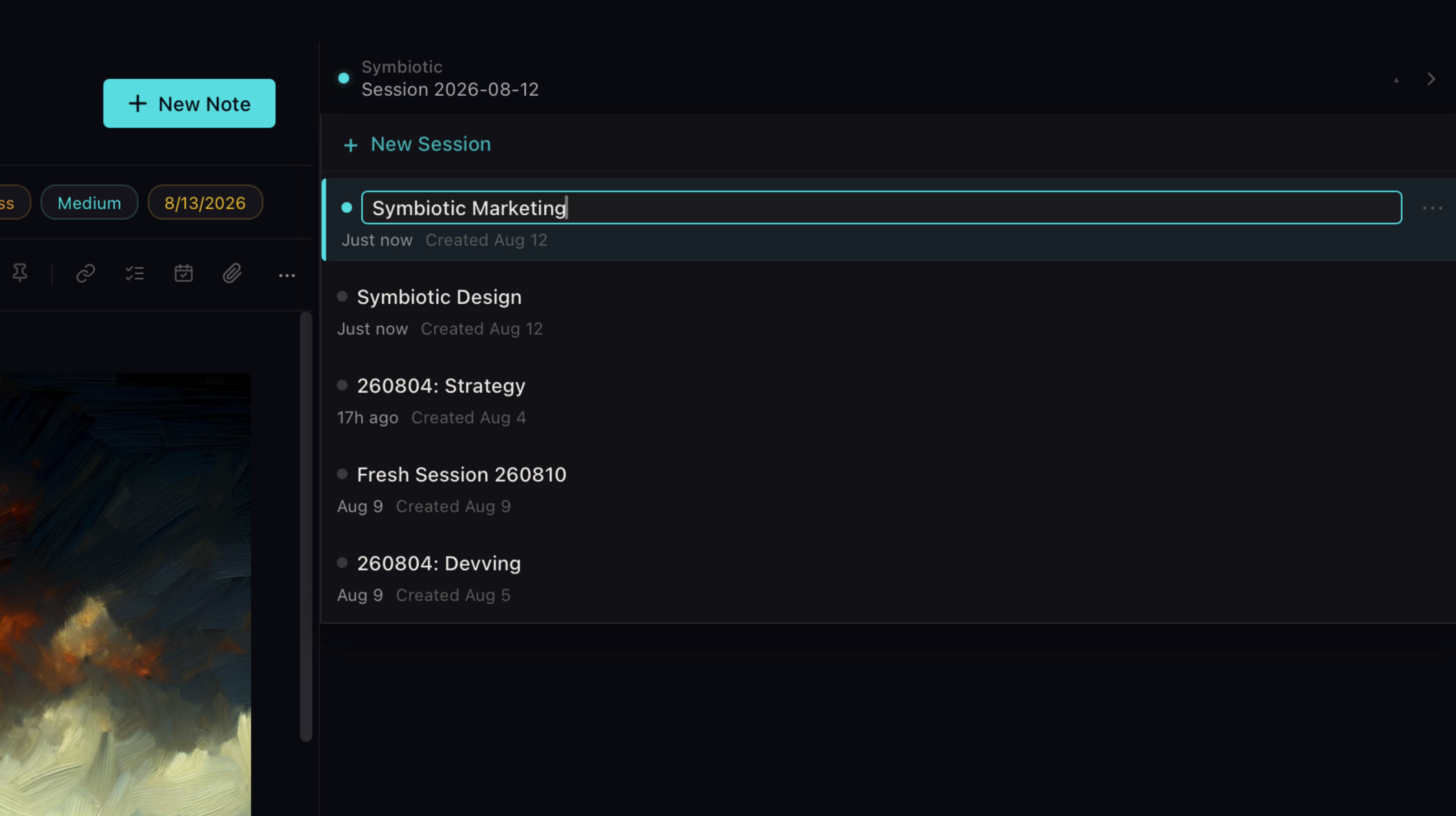
Specialized chats are how you get better answers from the same AI. Context windows are limited. Focus is what makes them powerful. Say you're building an app. I'd run one chat for writing the spec, one for development, one for design, one for marketing. Hit New Session at the top of the chat to create one. Click the dot to rename it.
Every new session is still your same agent. Same personality, same skills, fresh context window. You're not hiring a new assistant for each job. You're handing the same trusted one a clean desk.
8. Compounding knowledge
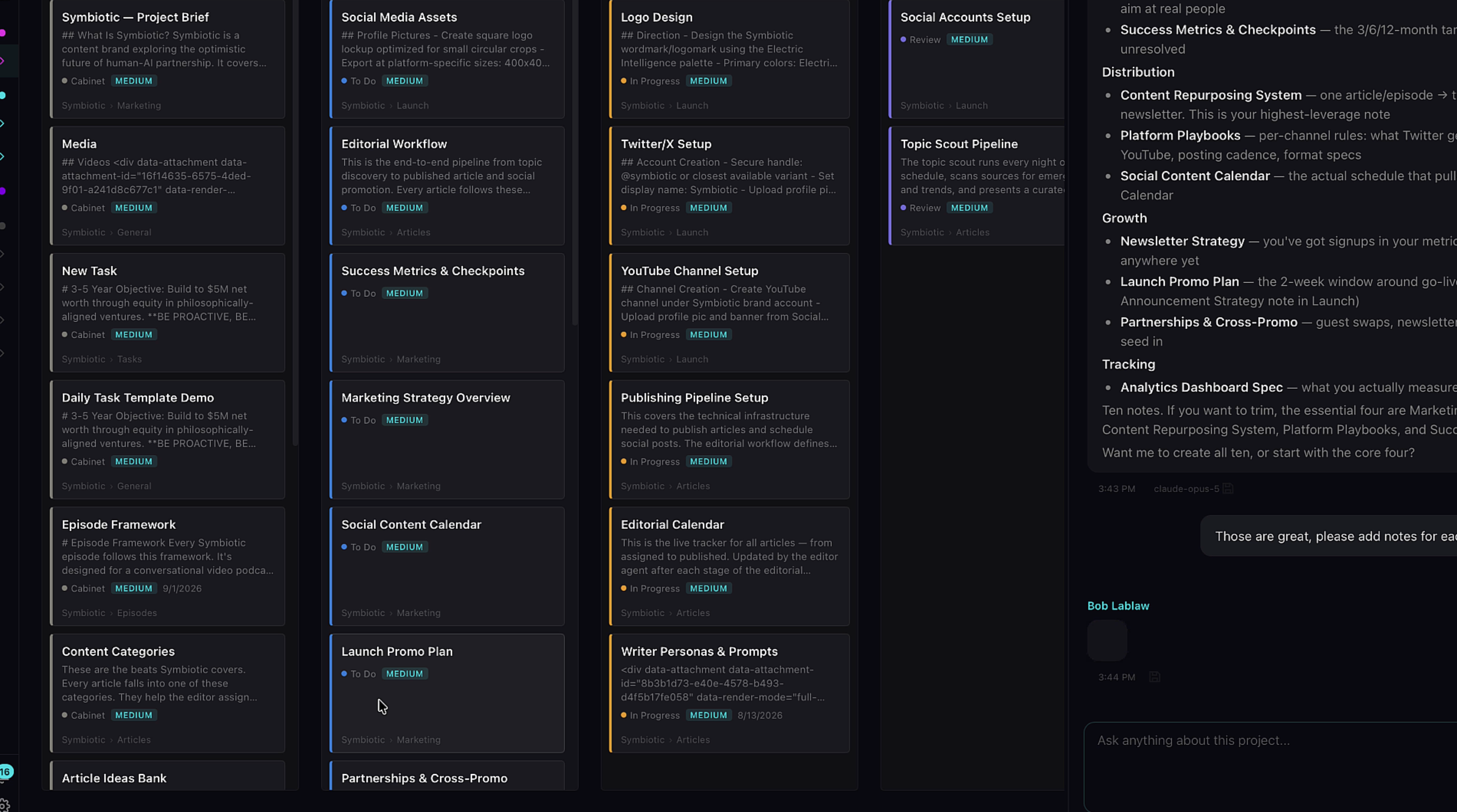
And here's where it compounds. As your project matures, the board fills with notes and tasks. Your AI can read every single one. So the knowledge available to it grows with the project, which means your AI is literally becoming an expert in your project while you work. Month one it's an assistant. Month six it knows the project better than you remember it.
9. Memory
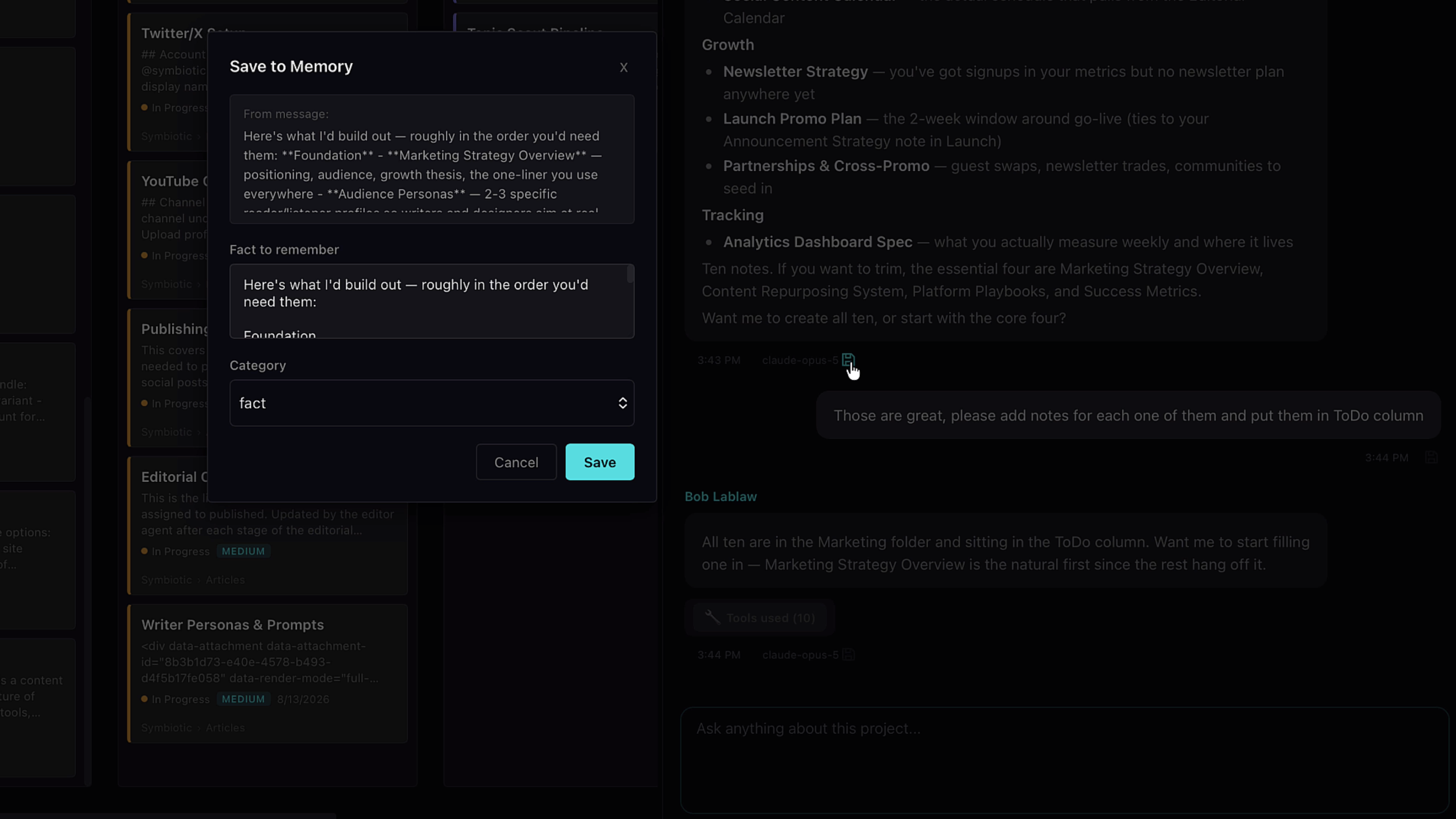
Memory takes that even further. Pane's memory system watches every message and decides what's worth keeping. You can too. If you want your AI to remember something, hit the save button under the message. And if the memory isn't quite right, edit it before you save it. Dial it in perfectly. Then pick a category.
10. Project Memory
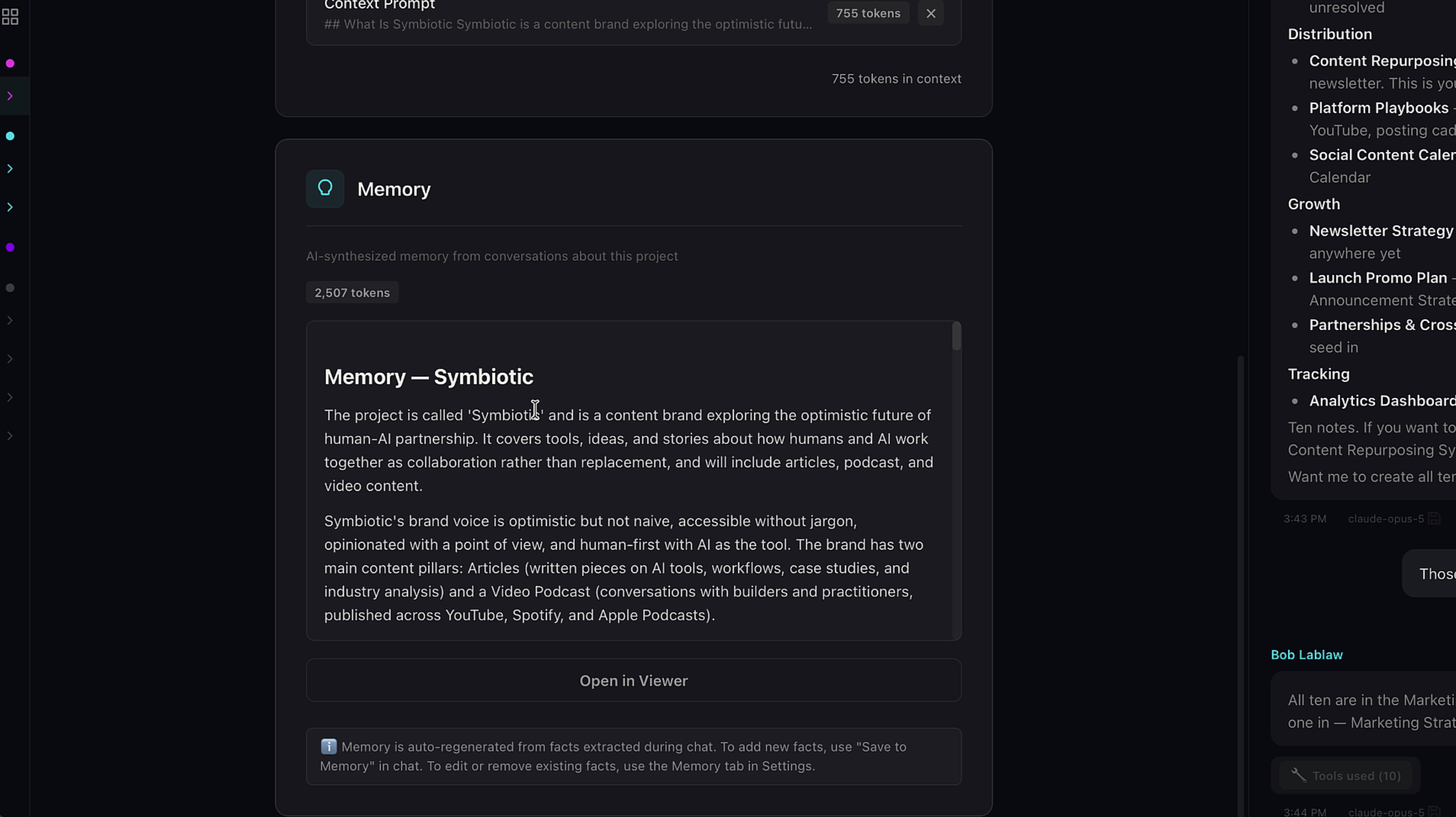
Project-specific memories go to Project Memory, which lives in project settings. Right click the project name in the menu to get there.
11. The project brief
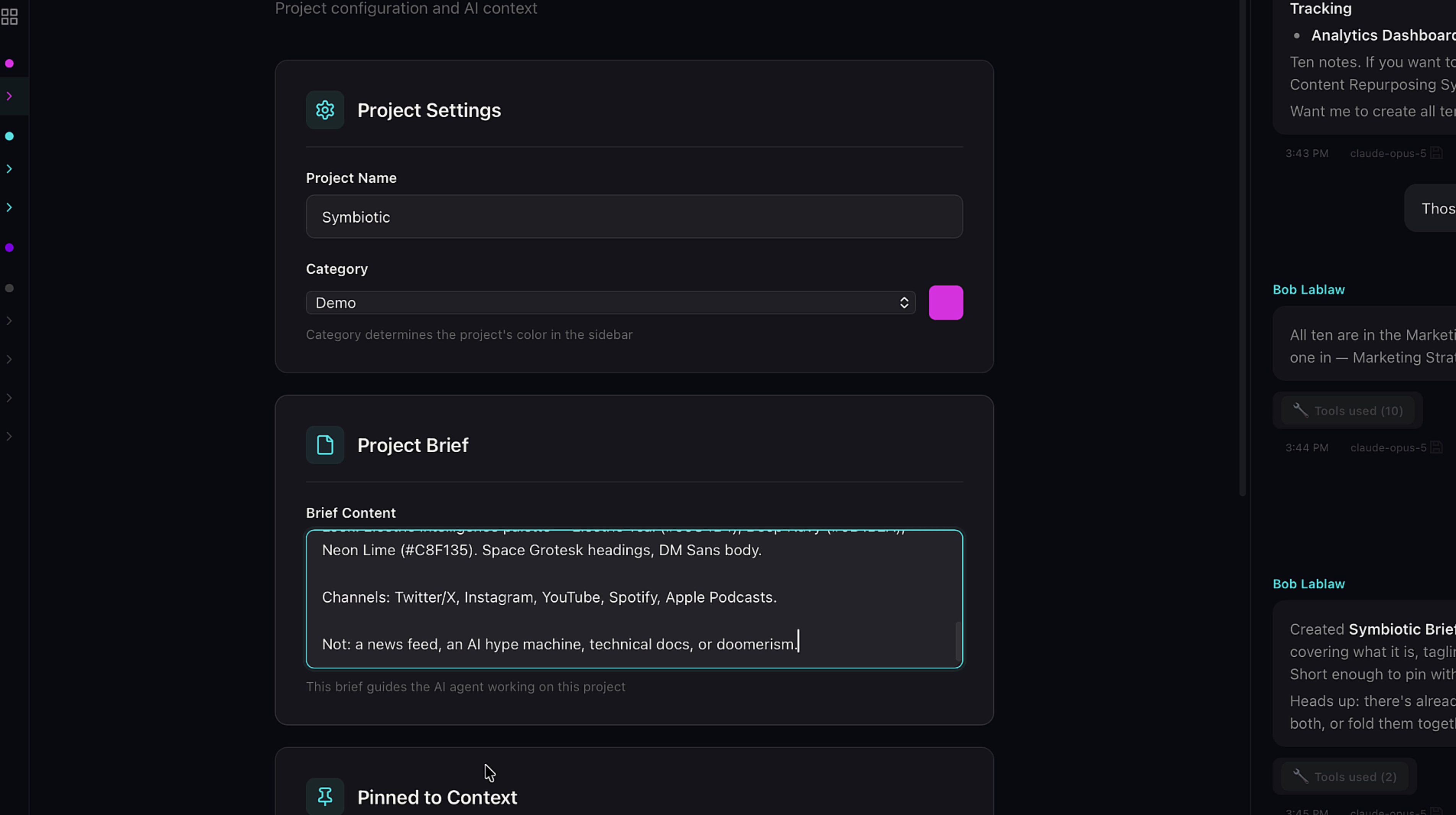
Settings is also where you write the project brief. The brief gets sent to your AI with every single message, so it always knows what this project is and what you're trying to do. You can rename the project here and set its category, which groups similar projects together in the menu.
12. Pinned to Context
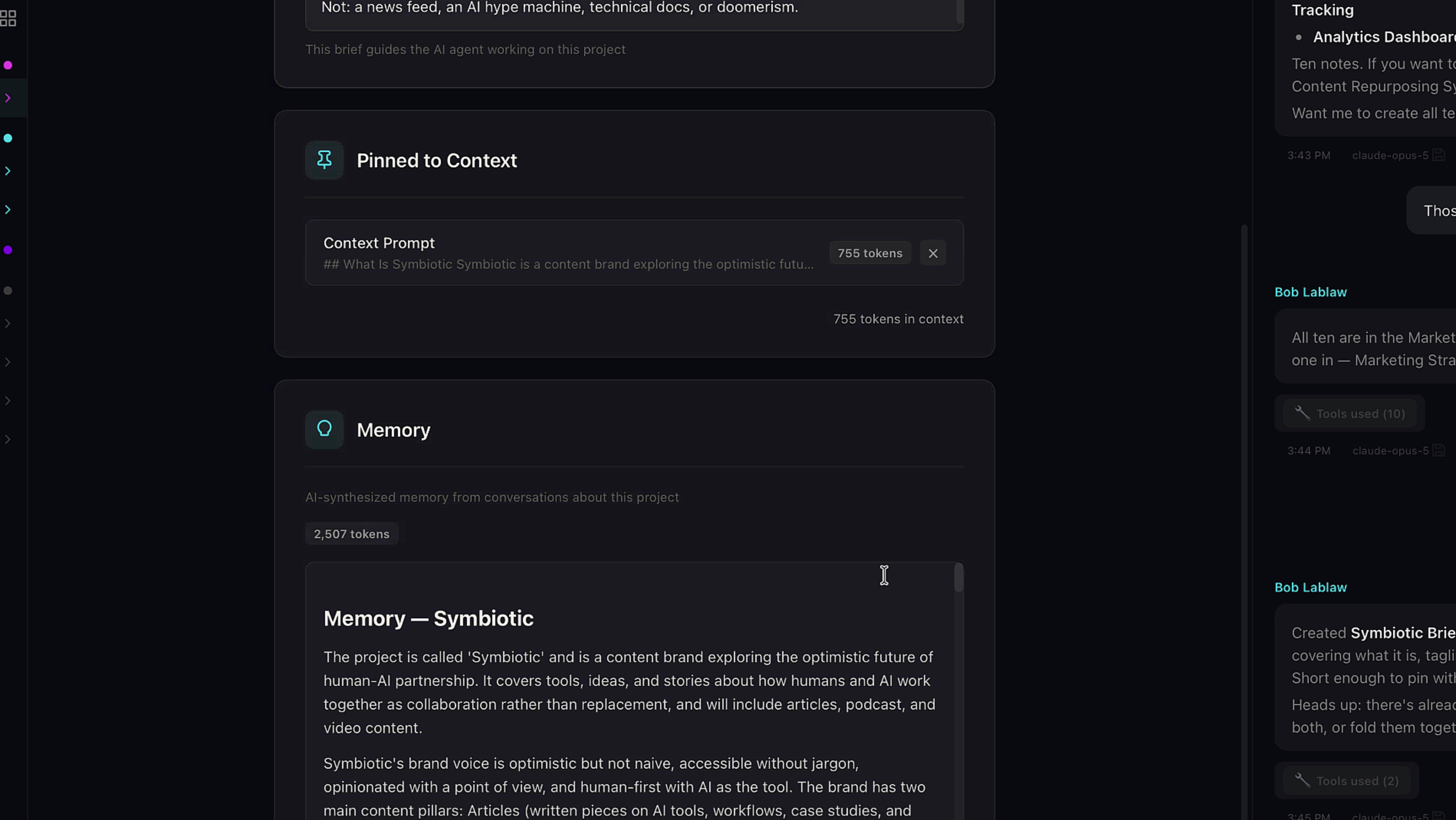
But my favorite thing in settings is Pinned to Context. Pin any note in the project, and that note gets sent to your AI with every message. Same treatment as the brief, your agent's memory, and its soul docs. This is where you put the overview, the strategy, the directory. The documents your AI should never work without.
13. Pin from the note menu
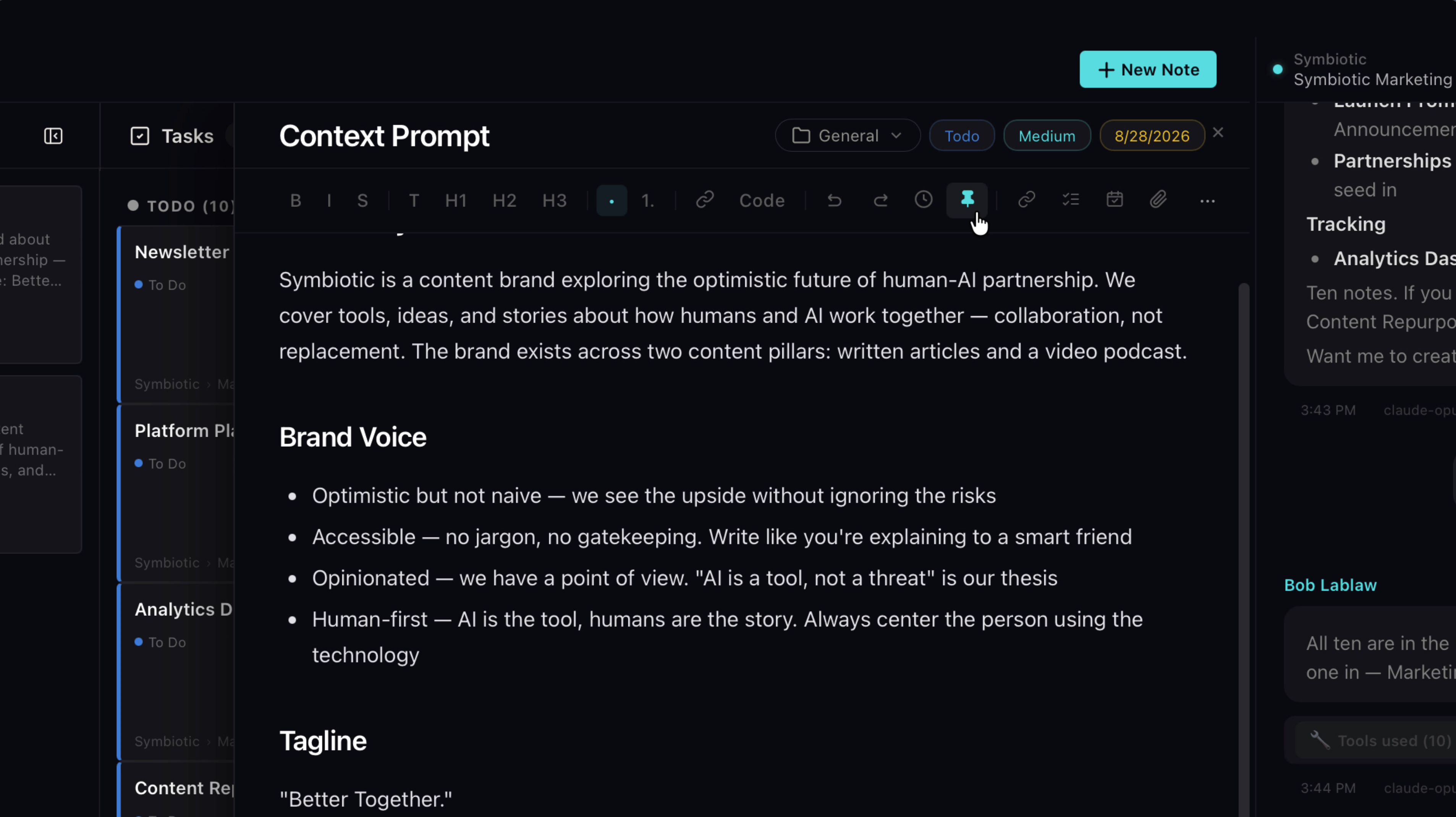
The pin button is in the note menu, and pinned notes show up in project settings. Click one and it takes you straight to the note.
14. The whole idea
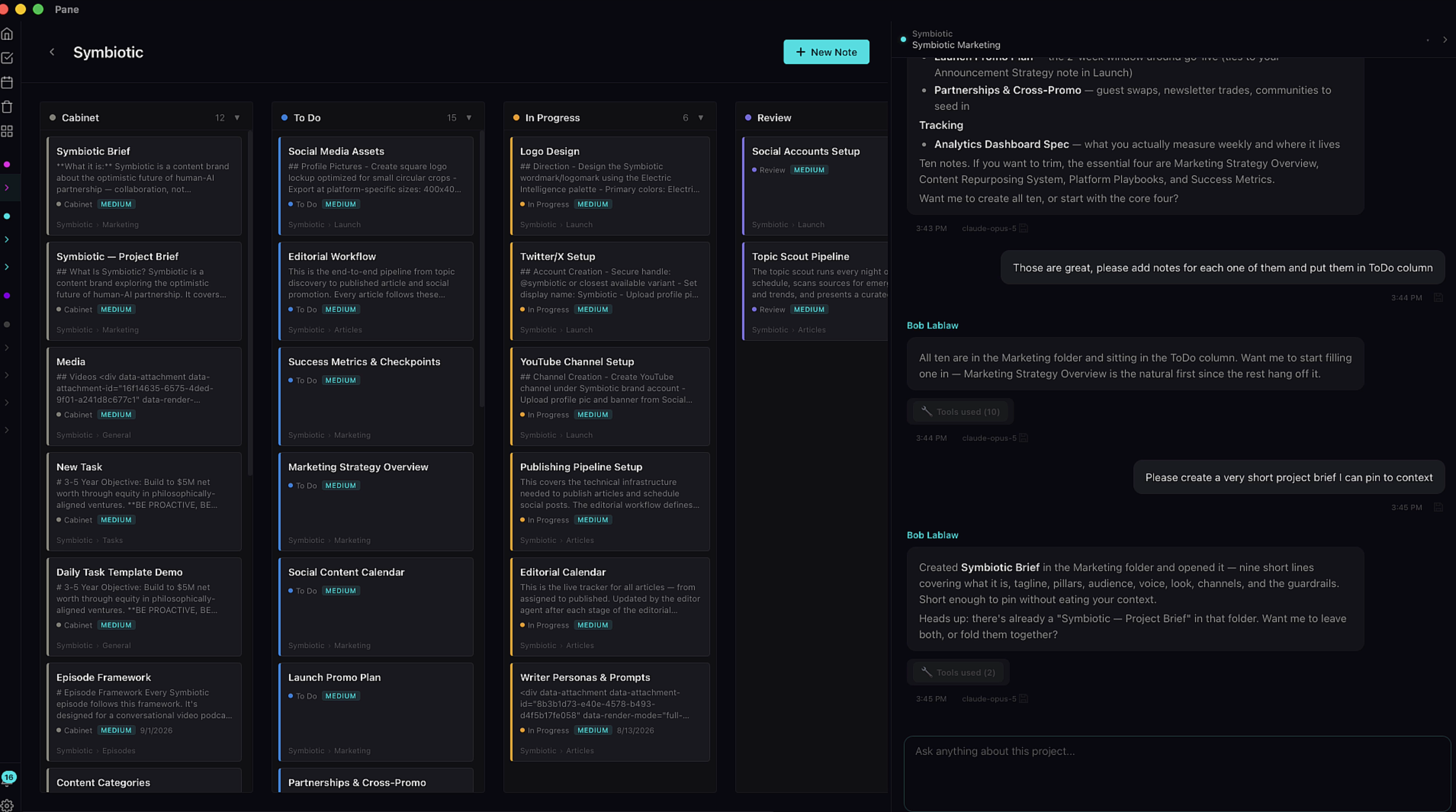
So that's a Pane project. A board you both work. A knowledge base you both edit. A memory you both build. The longer the project runs, the better your AI knows it. That's the whole idea.