Notes and Tasks
In Pane, the note is the primary content container. Everything you make lives in one. And here's the idea that makes notes in Pane different: a note and a task aren't two different things. A task is just a note with a status. Watch how that plays out.
Get involved: Subscribe · Discord · Twitter/X · Matt on X
1. The note is everything
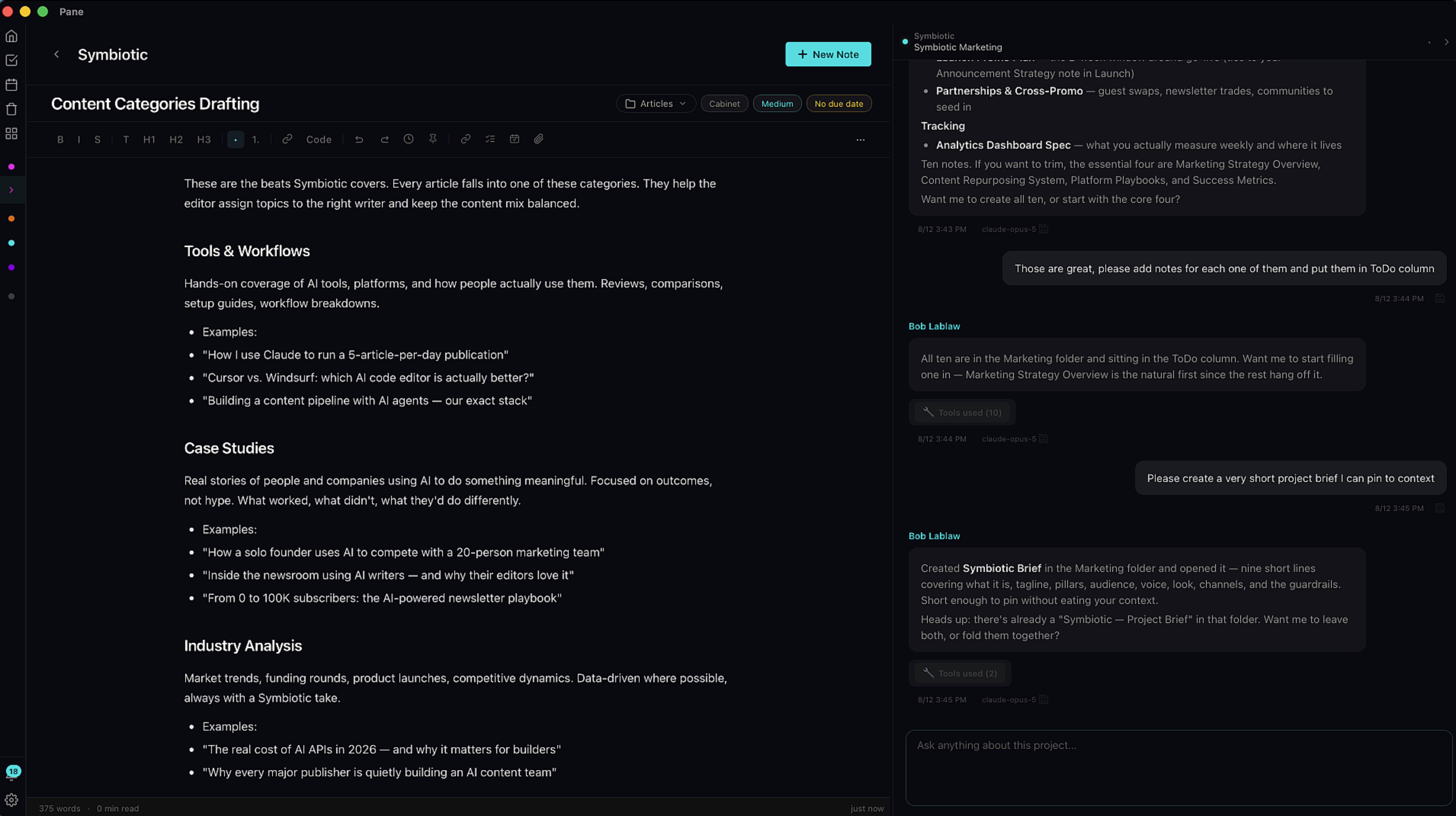
In Pane, the note is the primary content container. Everything you make lives in one. And here's the idea that makes notes in Pane different: a note and a task aren't two different things. A task is just a note with a status. Watch how that plays out.
2. Create a note
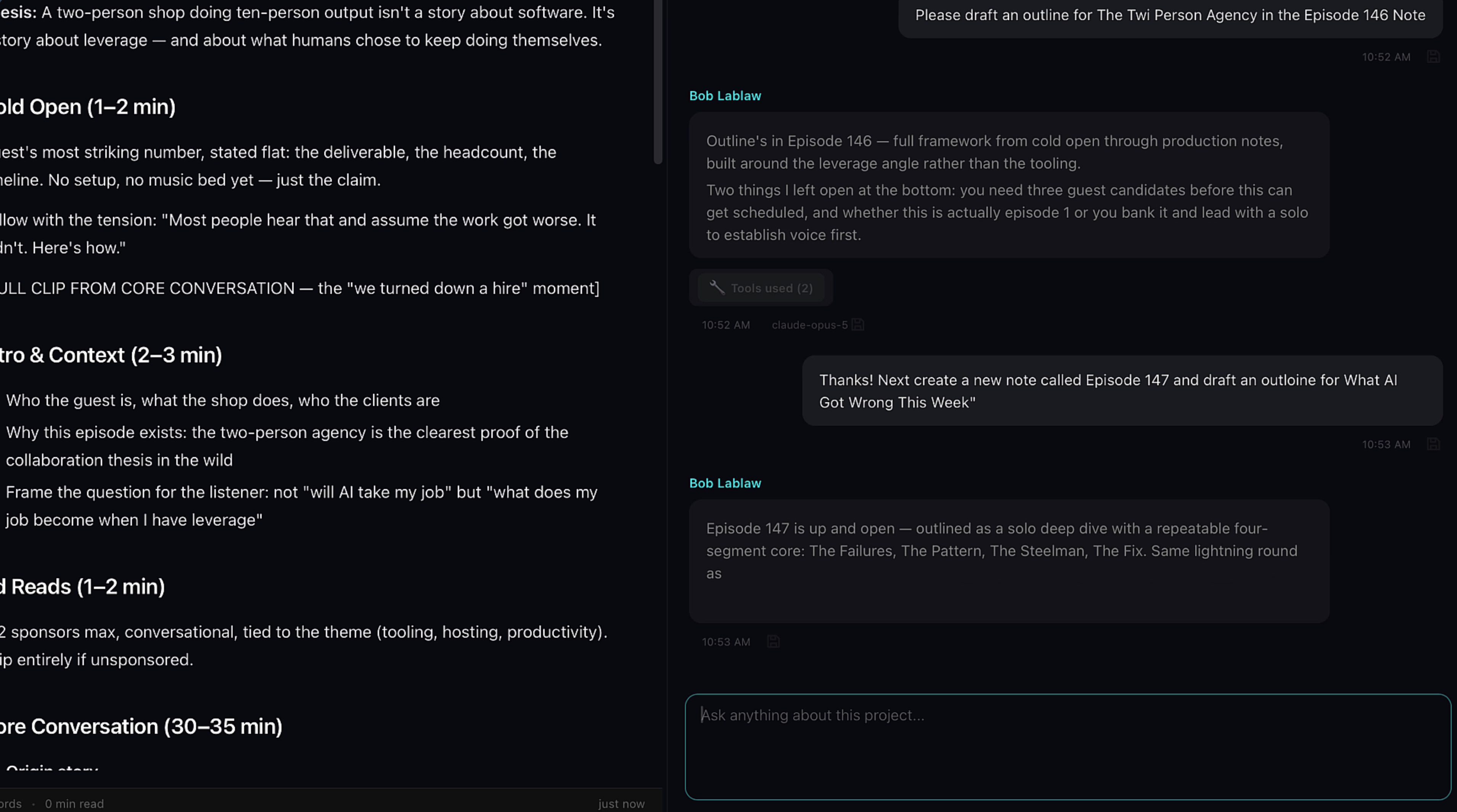
Create a note with the plus button at the top, or just ask your AI to make one.
3. A note becomes a task
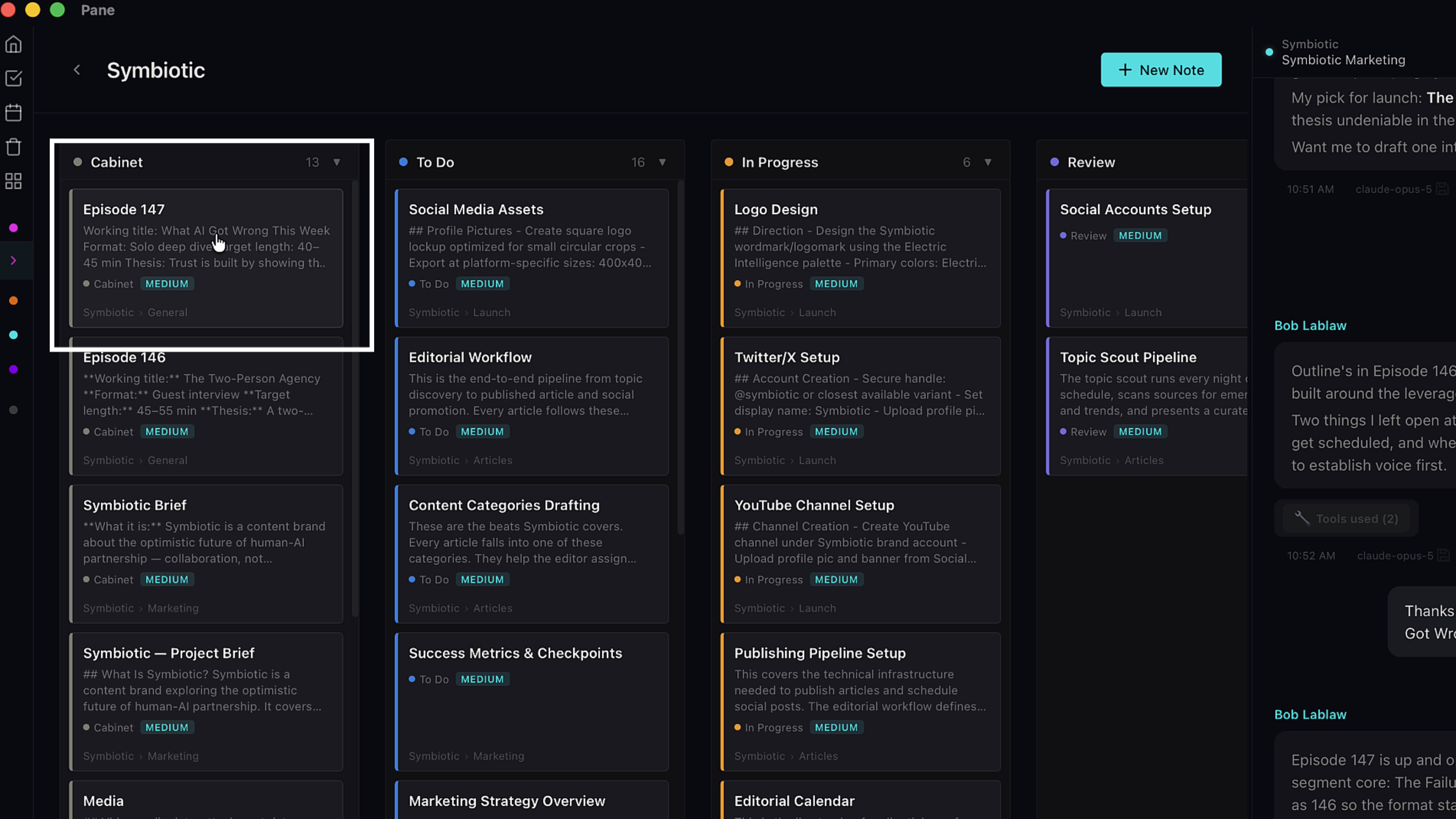
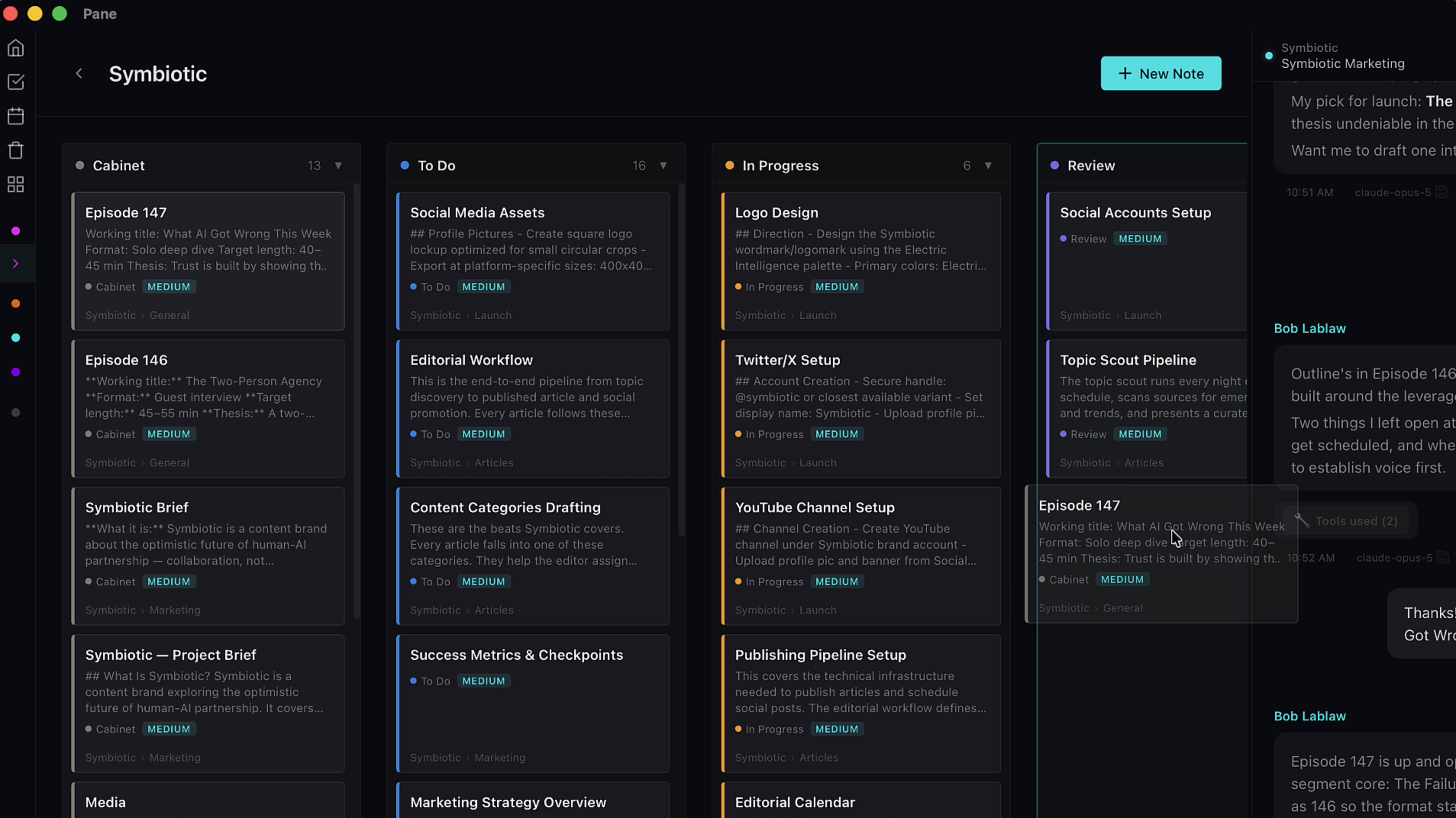
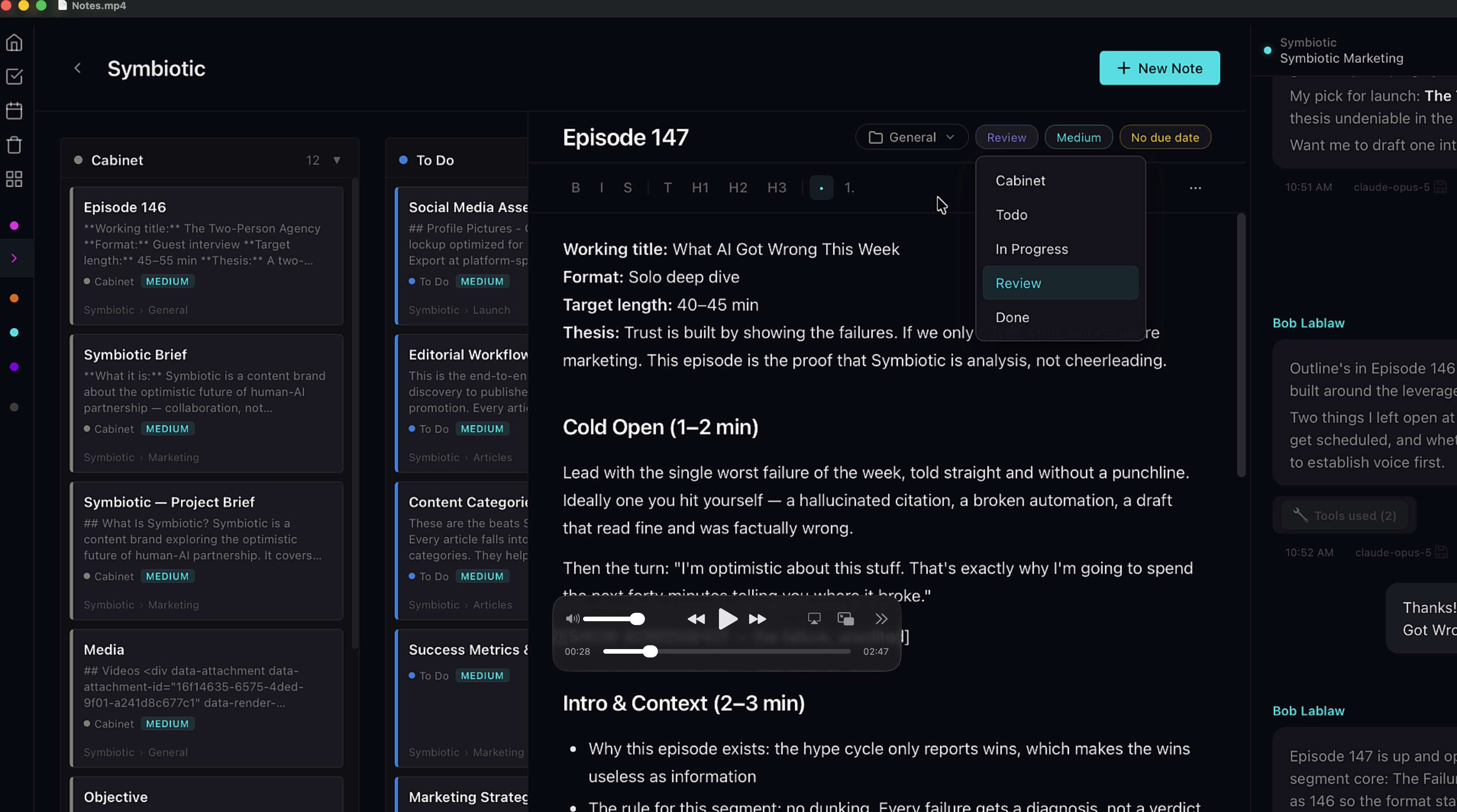
The editor opens, and a new card lands in the Cabinet column of your board. Now drag that card to another column, or change the status pill at the top. That's it. Your note is a task. No converting, no copying into a separate app. The research you wrote yesterday can become the work item you track tomorrow.
4. A rich markdown environment
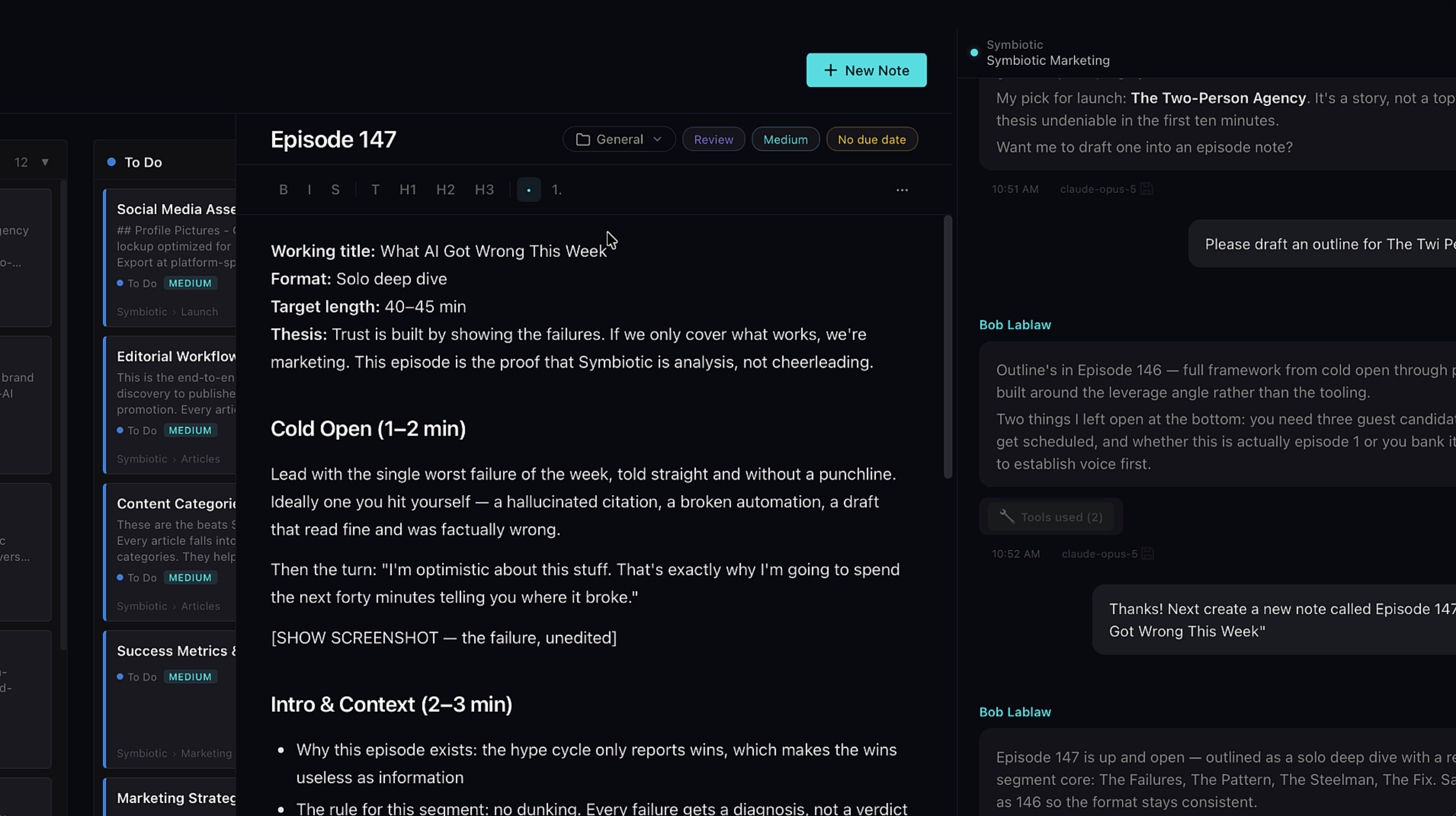
Inside, every note is a rich markdown environment. Store research. Draft the business plan. Write the article. Track your todos. You and your AI are both working in the same document, so nothing needs to be pasted between tools.
5. The daily note template
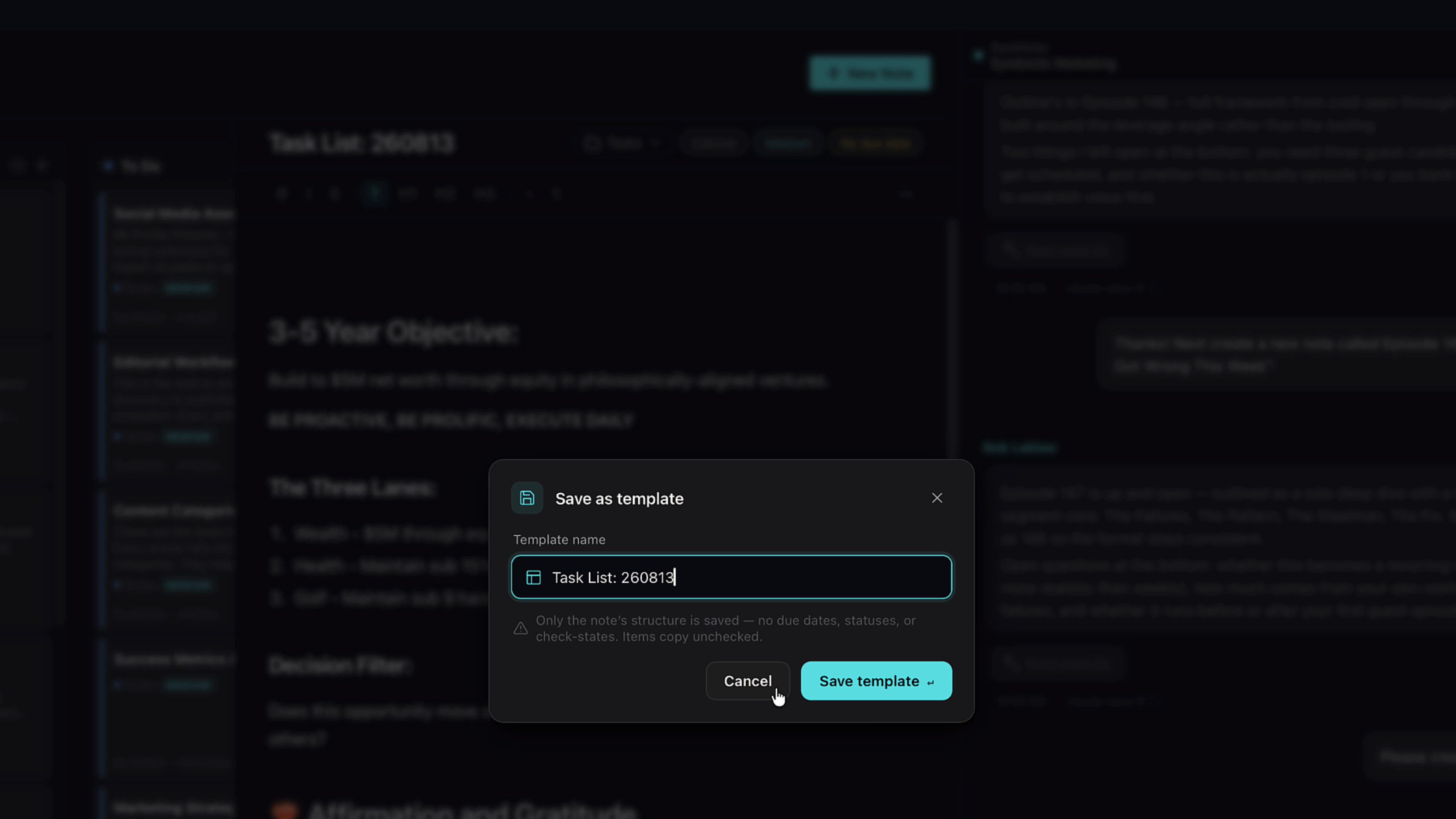
Here's how I use it every day: I keep a daily note in my Tasks project. I recommend building one as a template. Draft your ideal daily note once, hit the three dots, and select Save as Template.
6. Apply a template
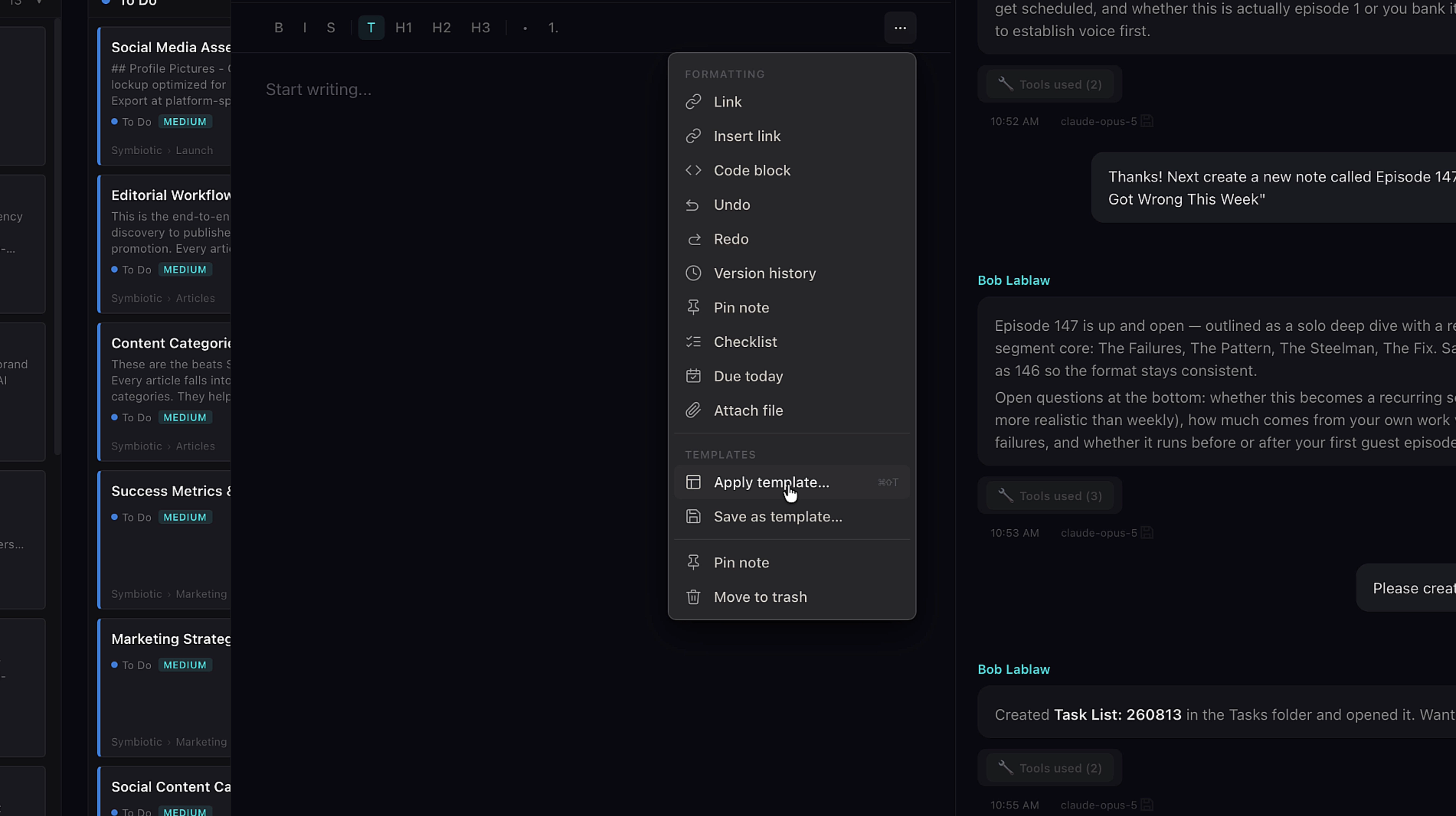
Tomorrow, create a new note and apply the template. Ten seconds and your day is laid out.
7. Due Today
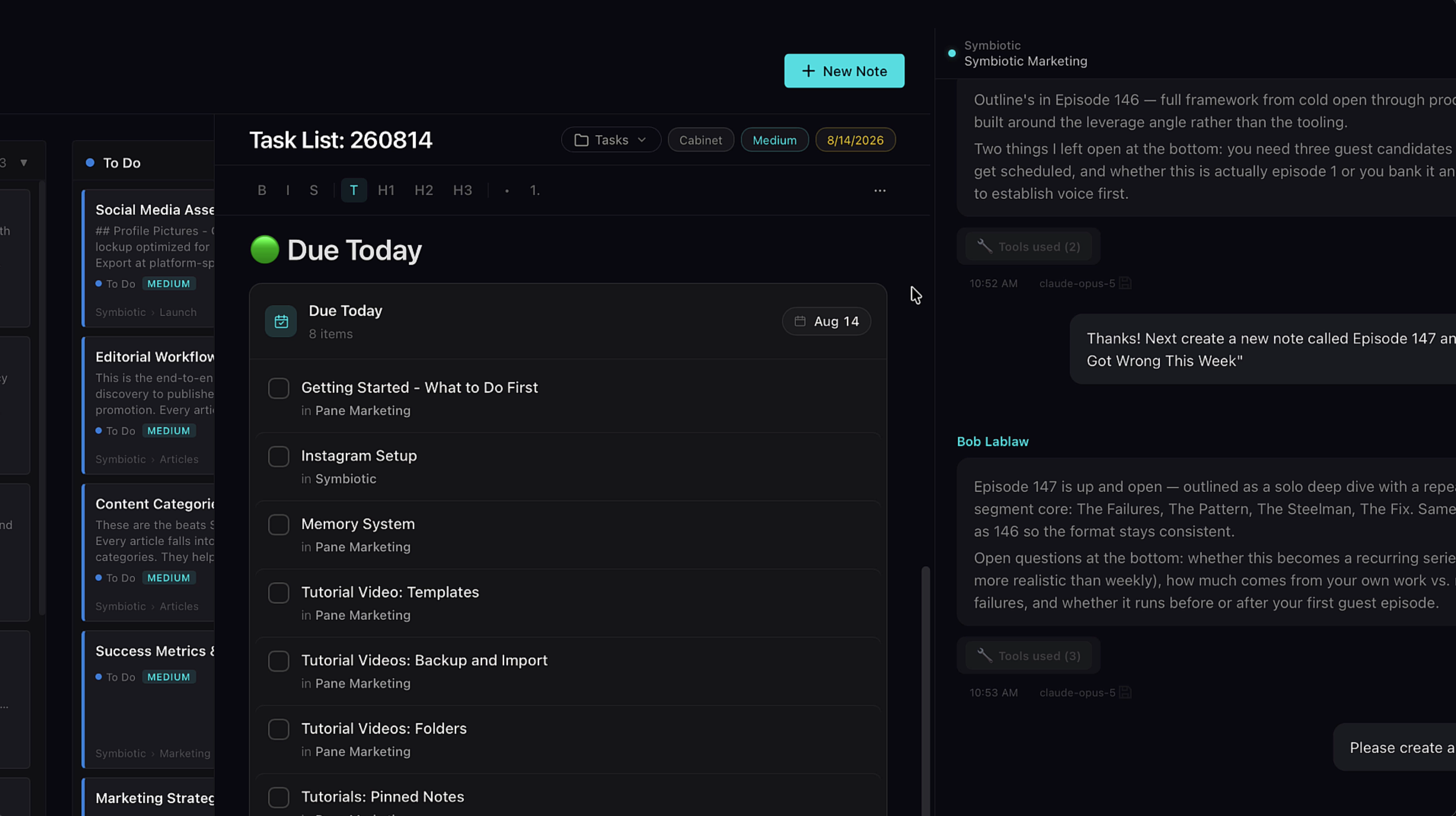
Two components make that daily note powerful. The first is Due Today. Insert it from the menu, and it pulls every item due today from every note across the entire app into one list. You set due dates with the pill at the top of any note. So no matter where work is scattered, your daily note shows you all of it. This is the heart of the daily template.
8. Checklists and subtasks
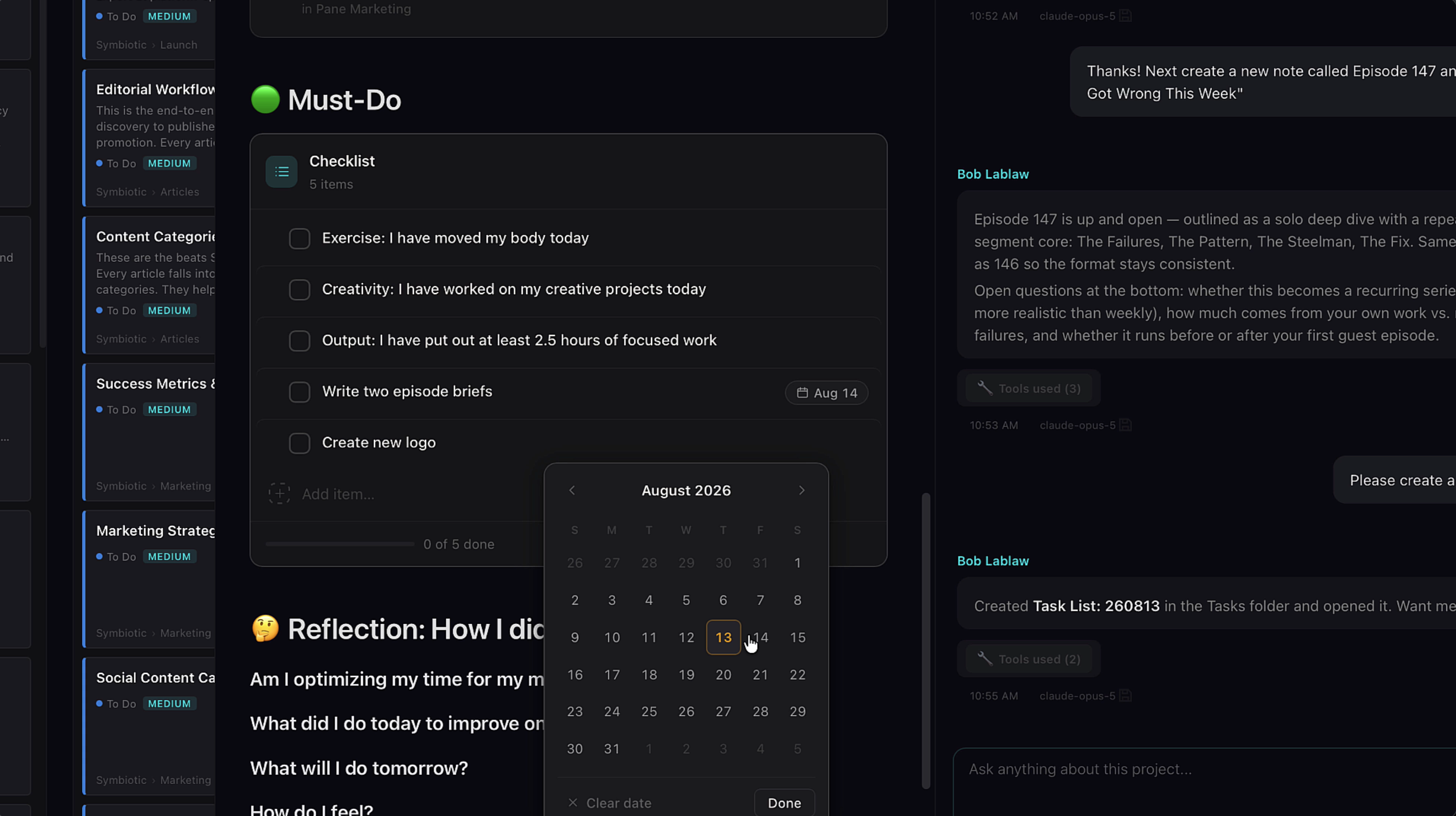
The second is the checklist, and it's more than it looks. Every checklist item can take its own due date, which turns your checklist into subtasks. Those subtasks show up in Due Today too. And when anything comes due, the notification bell lights up. Click it, select the item, and Pane routes you straight to it. Nothing slips.
9. Attachments
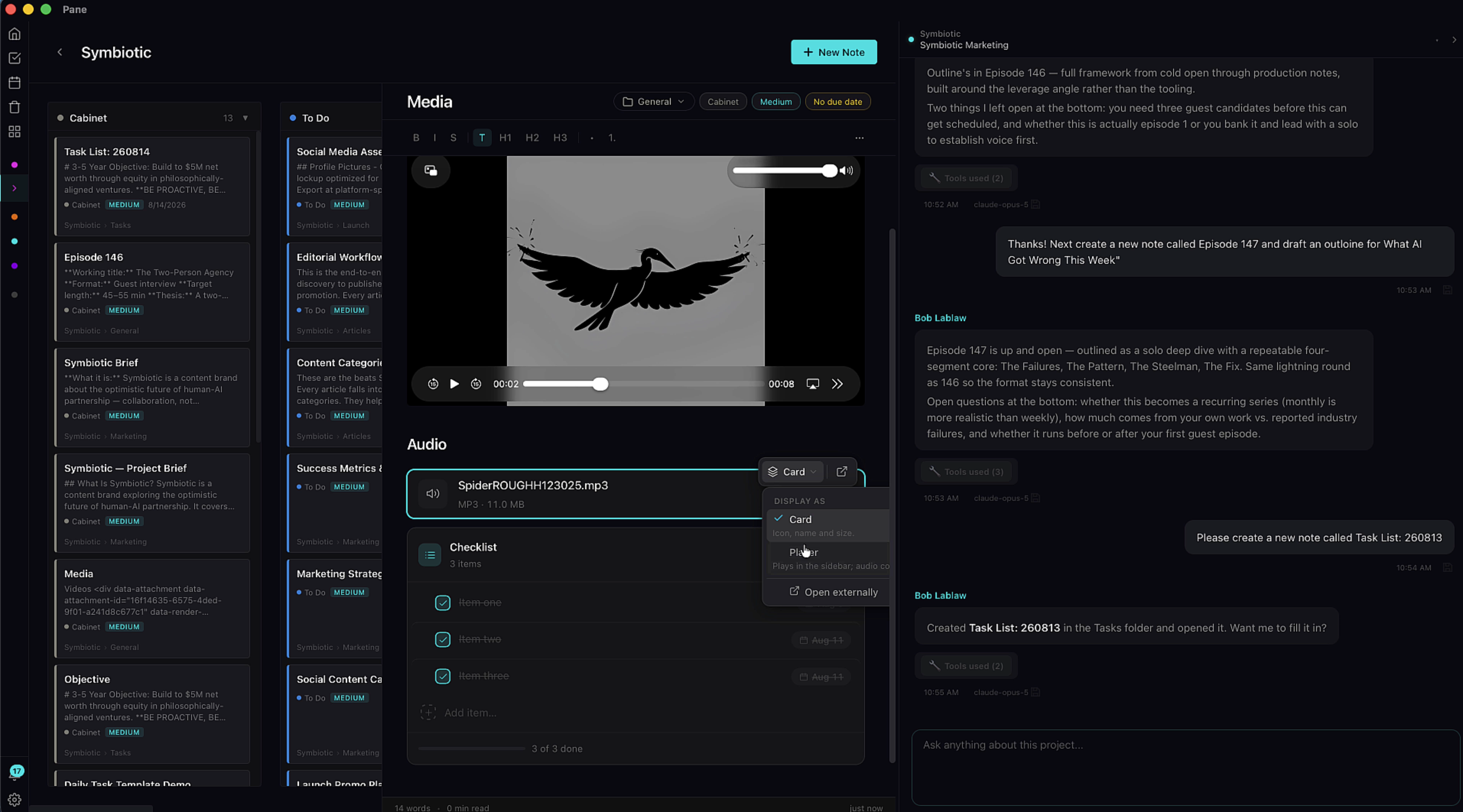
Notes also hold your files. Attach text files and PDFs and read them right inside the note. Attach a video and watch it in the app's player. Audio gets its own slick player that keeps playing when you navigate away. You'll see it docked in the left menu. Your research, your source material, and your work all live in the same place your AI works.
10. Code blocks and version history
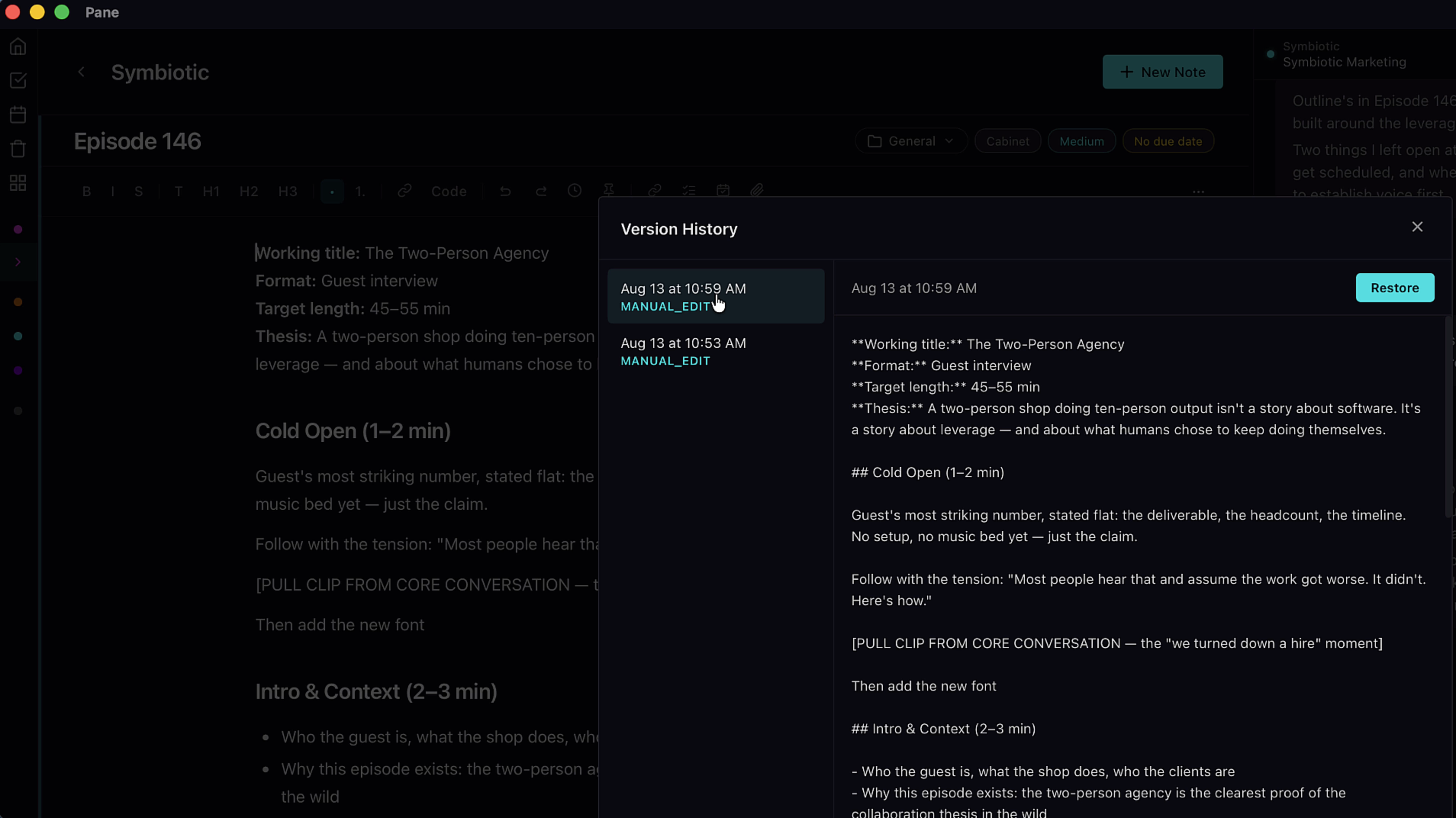
For anyone building software, notes take code blocks too. And every note has version history with restore, so when you and your AI are deep in revisions, you can always step back to an earlier version. Nothing you write is ever more than a click from recovery.
11. Pin to context
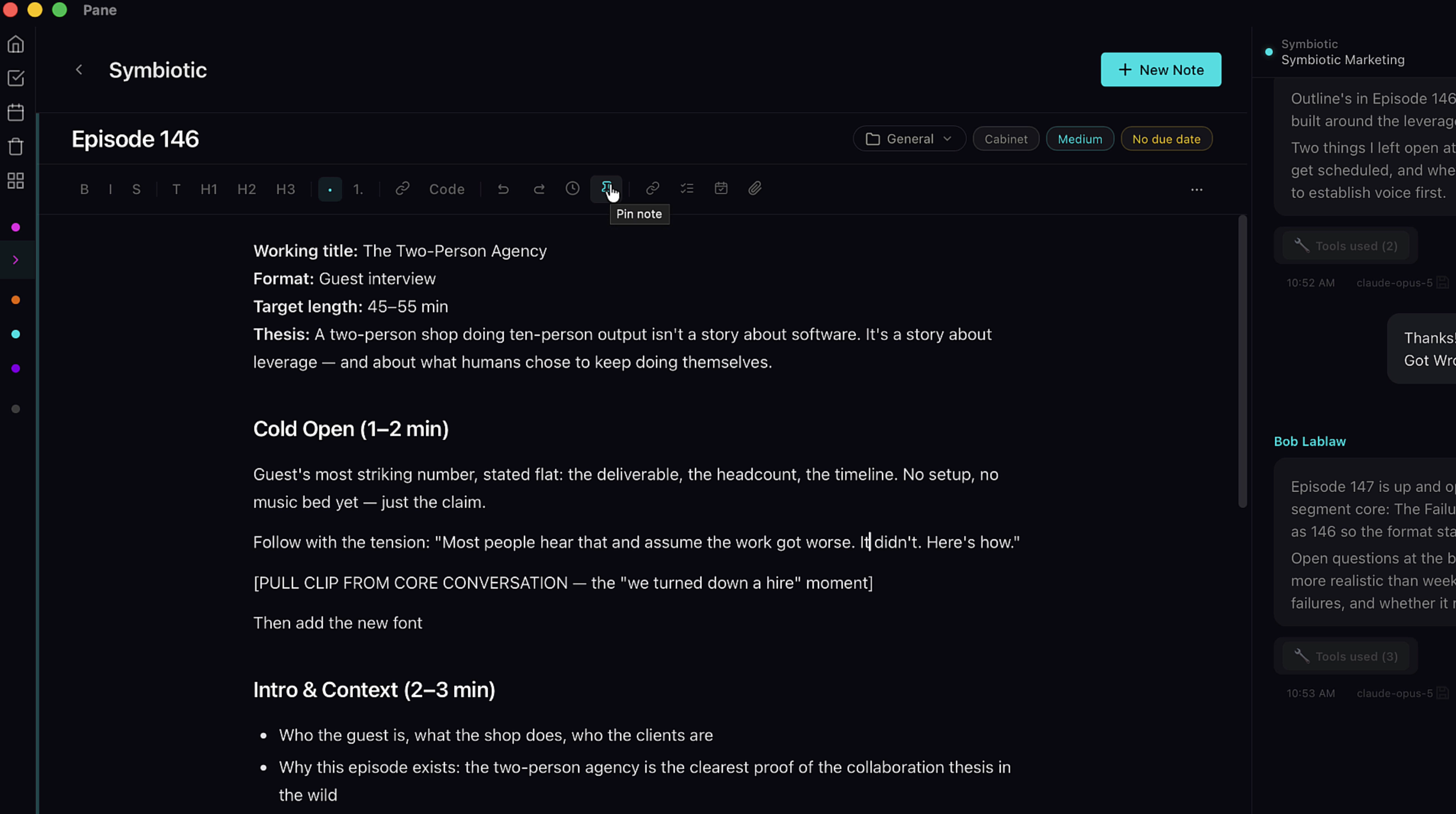
One last thing. Remember Pinned to Context from the projects tour? The pin button is right here in the note menu. Pin this note, and your AI sees it with every message in the project. Write the strategy once, pin it, and your AI never works without it.
So that's notes. One container for everything: your writing, your files, your tasks, your AI's context. The note you're drafting today becomes the task you're tracking tomorrow and the knowledge your AI relies on next month.