Onboard With OpenClaw
Pane is an AI-native workspace where your notes, tasks, and conversations live together — powered by an AI partner that actually knows you. It remembers your projects, learns your preferences, and gets better the more you use it. This guide covers connecting Pane to OpenClaw — your own AI gateway. Pane was designed with OpenClaw users in mind, so if you're already running OpenClaw, these two were built to work together.
Get involved: Subscribe · Discord · Twitter/X · Matt on X
1. Set up Tailscale
Before anything else, make sure Tailscale is installed and running on both your OpenClaw machine and the computer you'll use Pane on. Tailscale creates a private network between your machines so they can talk to each other securely — no port forwarding or firewall headaches.
Download it at tailscale.com/download, sign in on both machines, and confirm they're connected (you should see both devices in your Tailscale dashboard).
2. Install the Pane Skill on your OpenClaw machine
On your OpenClaw machine, install the Pane skill so your agent knows how to work with the Pane Gateway:
openclaw skill install https://clawhub.ai/threelanestudios/skills/pane
This gives your agent the ability to fetch pairing codes, manage gateway connections, and work with Pane natively.
3. Make sure the Pane Gateway is running
Before you open Pane, make sure the Pane Gateway is running on your OpenClaw machine. You can download the DMG from paneapp.ai. If you need help with that setup, watch the Gateway tutorial.
4. Sign in
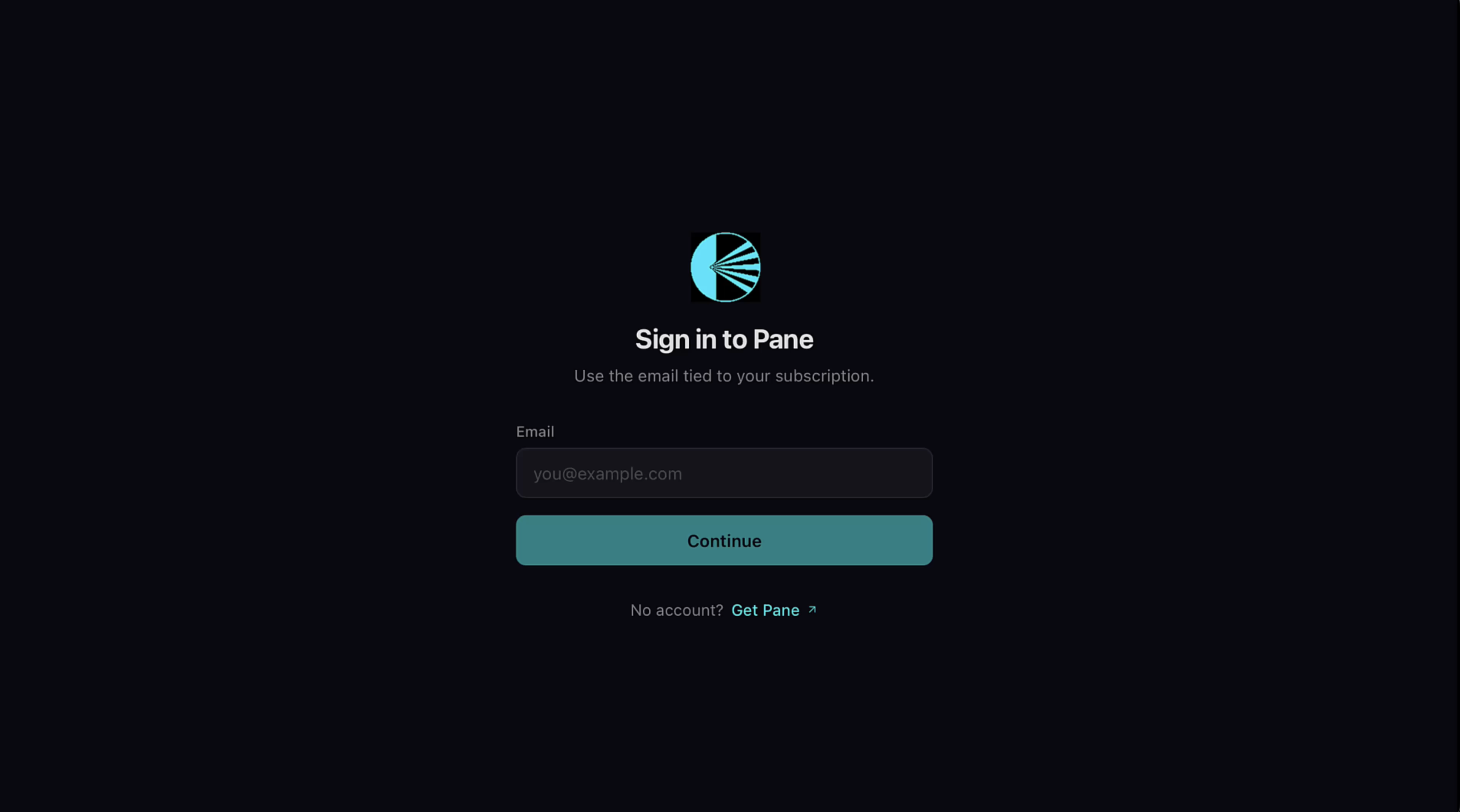
Open Pane and enter the email tied to your subscription.
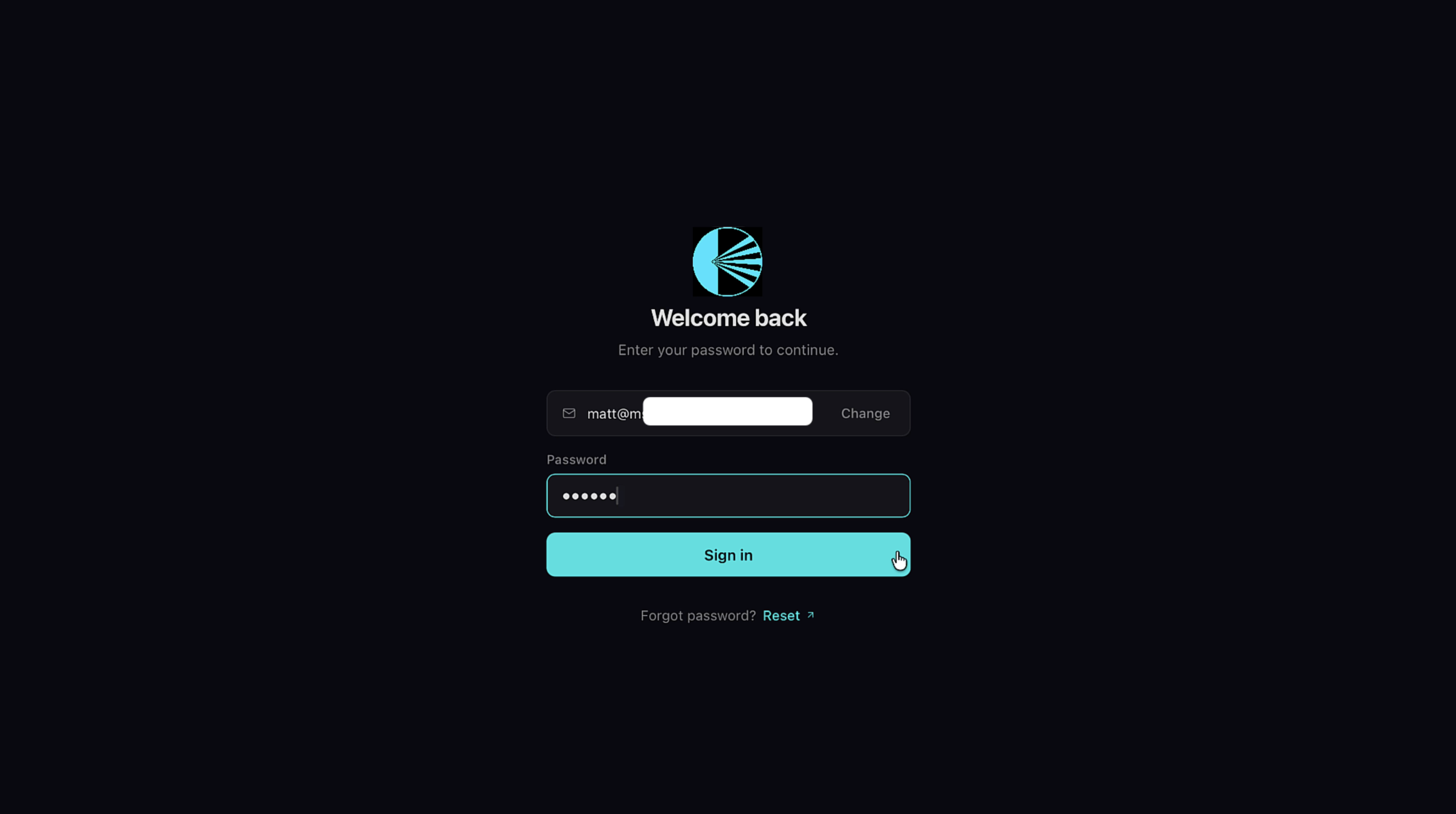
Enter the password you set up when you subscribed on paneapp.ai and hit Sign in.
5. Enter your Gateway URL
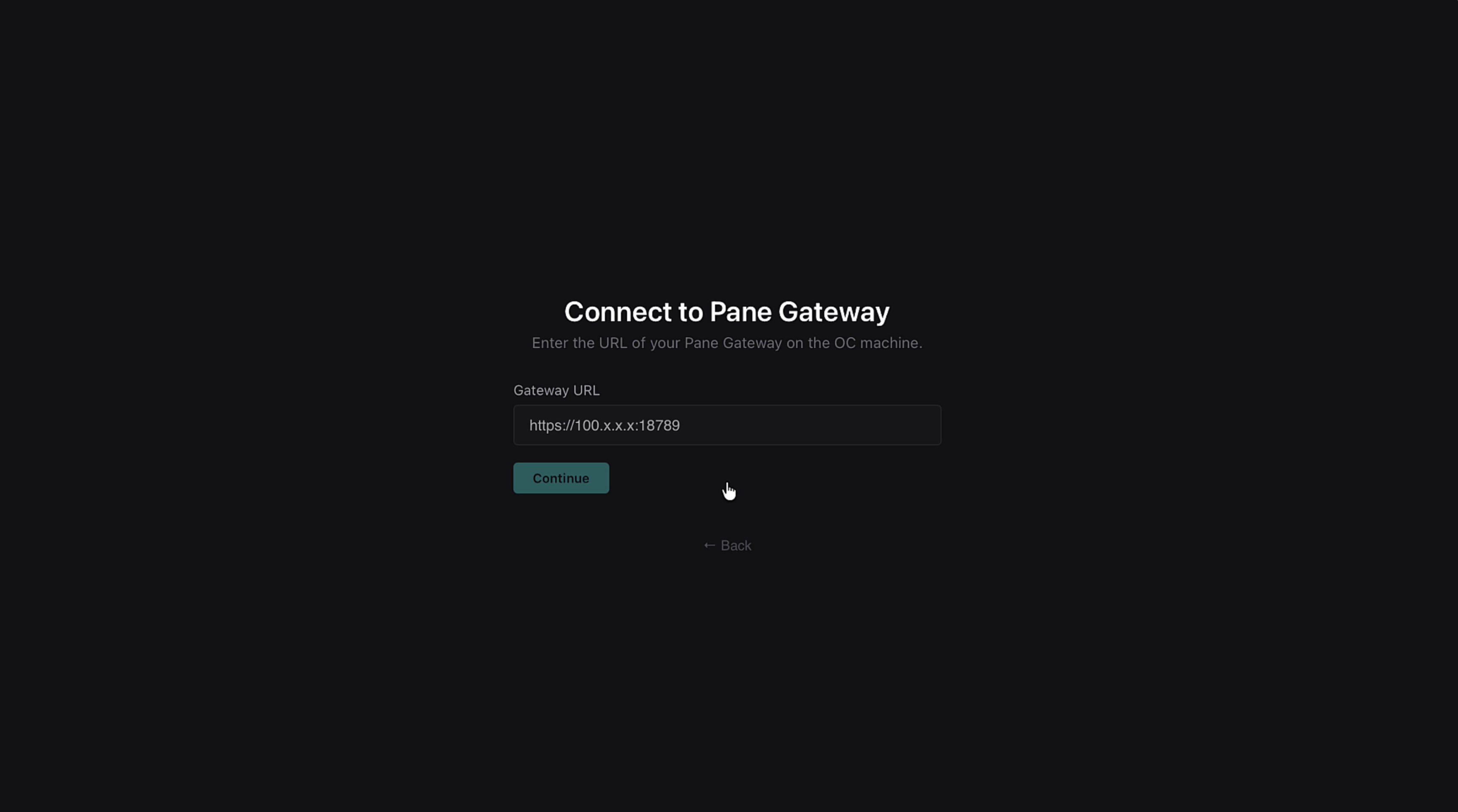
Enter your Gateway URL — this is the address of the Pane Gateway running on your OpenClaw machine. Your OpenClaw agent can find this for you if you're not sure. Hit Continue.
6. Verify and enter your pairing code
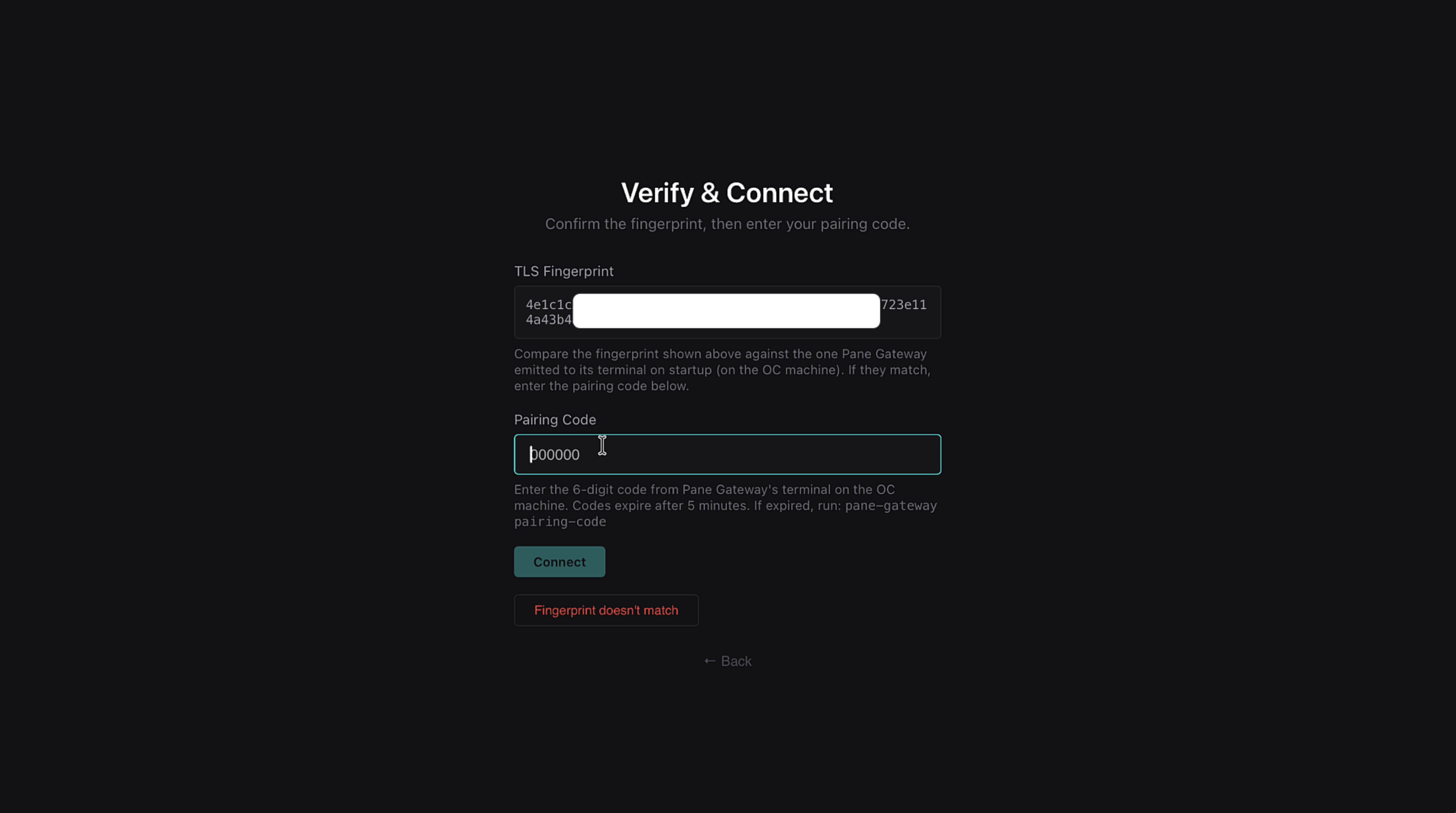
Now ask your OpenClaw agent for a pairing code. If they don't know how to fetch it, the command is:
pane-gateway pairing-code
Verify that the TLS Fingerprint shown in Pane matches the one your Pane Gateway printed to the terminal when it started. If they match, enter the 6-digit pairing code and hit Connect.
Your agent's system files are now being pulled onto your computer over the Pane Gateway. Your agents still live on your OpenClaw machine, but their system files — Memory, Soul, and everything else — live on yours. The Gateway facilitates that process and keeps data synced between the machines.
7. You're in
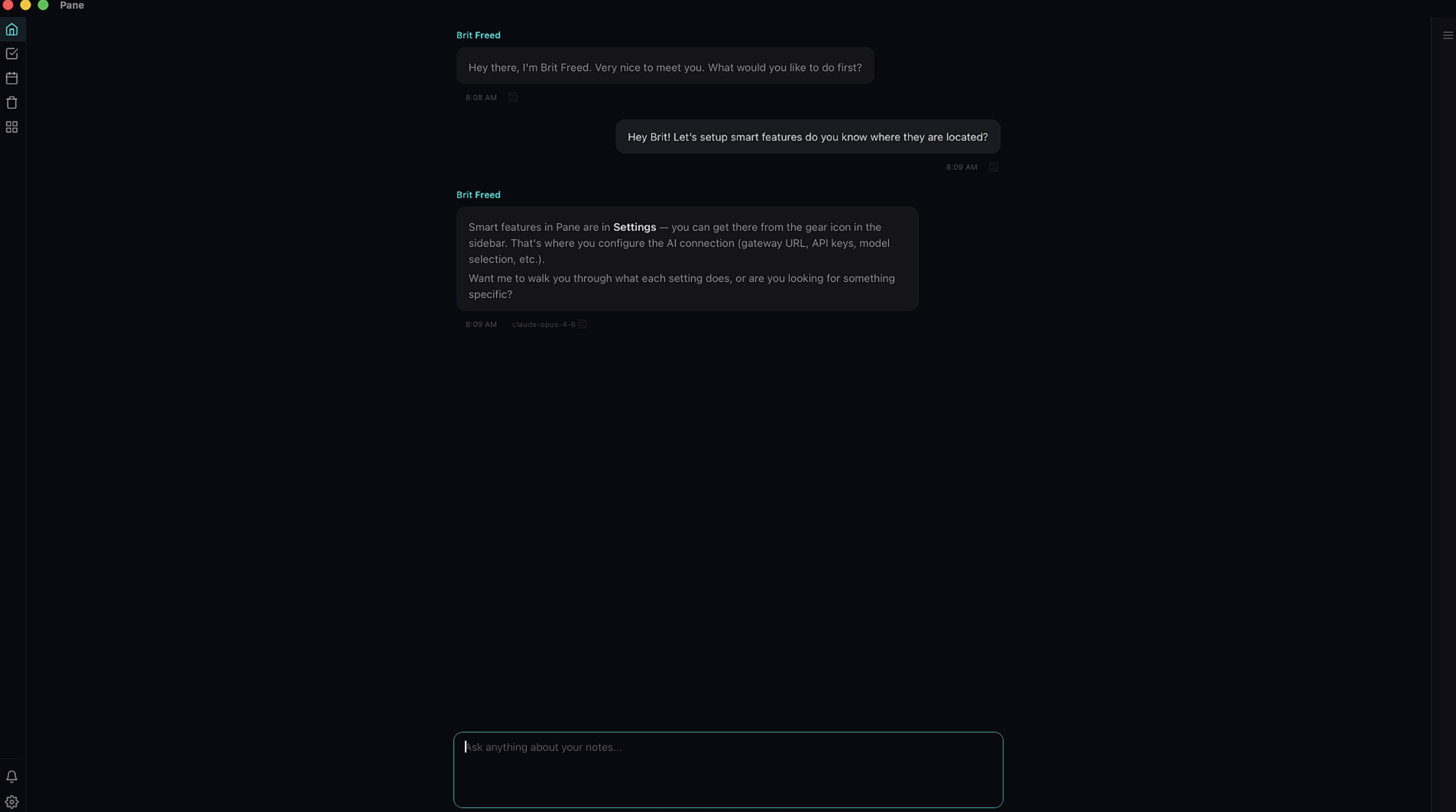
That's it. You're ready to work with your agents in Pane, where they can do pretty much anything you can do — chat, create projects, write notes, and more.
8. Turn on Smart Features (recommended)
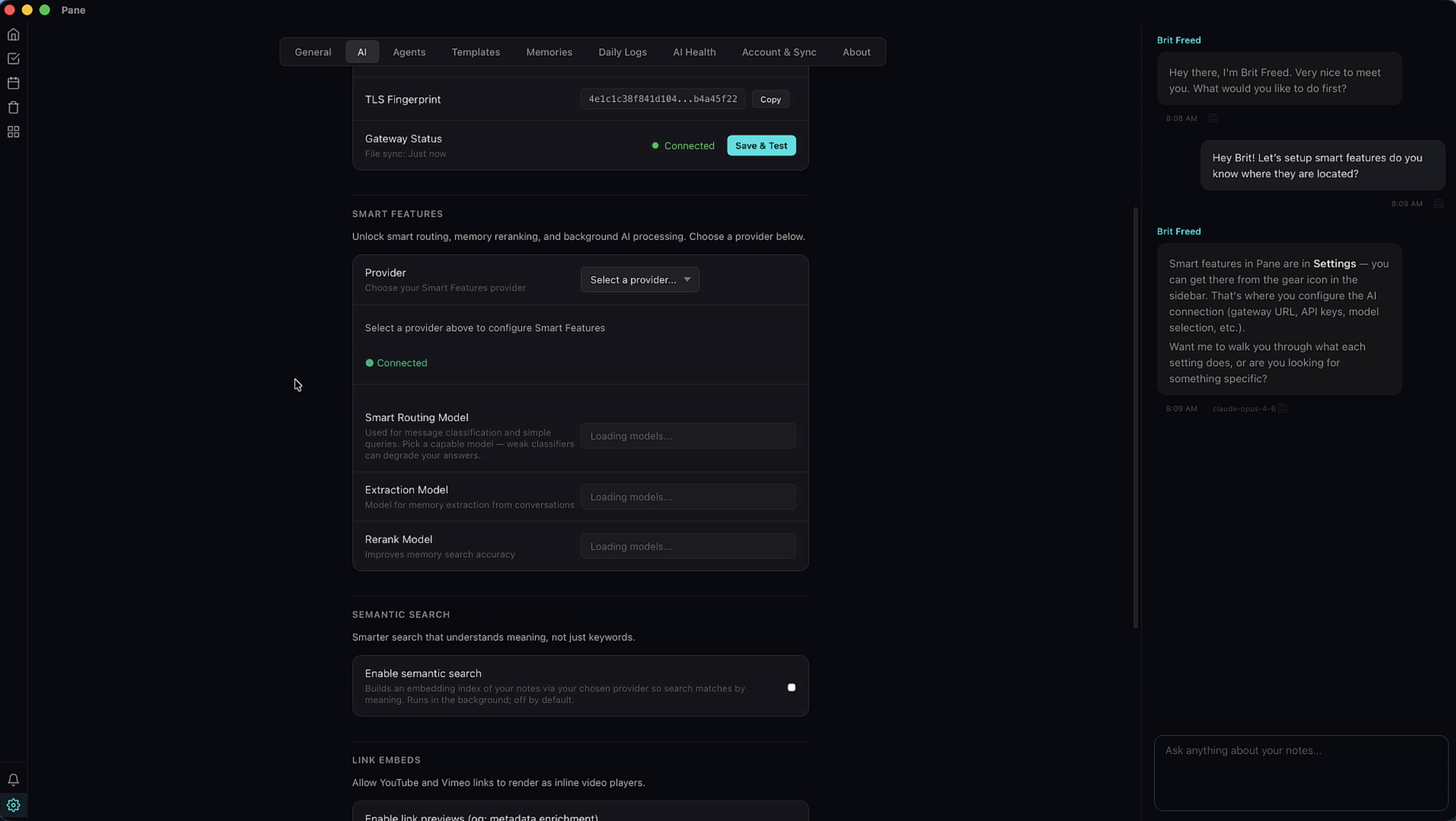
One last thing — we highly recommend turning on Smart Features. They help your AI perform at a higher level with better memory extraction, more efficient token use, and improved search results.
Head to Settings (gear icon in the sidebar), scroll to Smart Features, choose a provider, and pick models for Smart Routing, Extraction, and Reranking. For more details, watch the Smart Features tutorial.