Home Chat
The first screen you encounter after onboarding is the Home Screen. Home is a calm chat interface for you and your AI assistant. The difference between Home and Project AI chats is that the Home AI can write, edit, create notes, folders and projects in any project in the app. Whereas the Project AI can read everything but only create, write and edit within its project.
Working with Home Chat
Ask your AI to build
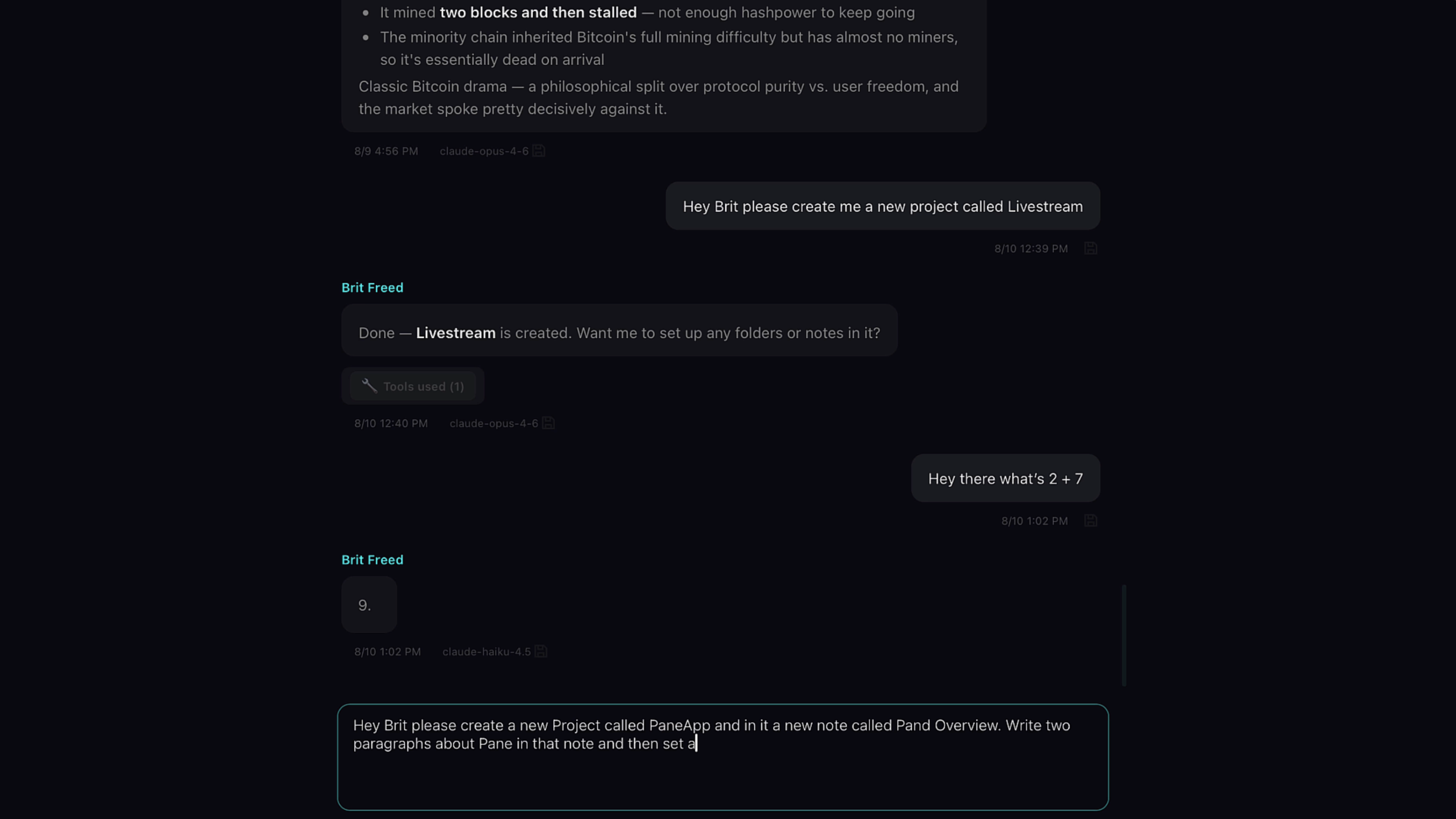
For example, I can ask the AI to write an overview of the Pane App, put it in an Overview Note in a Pane App project it creates, and give it a due date of 8/20/26.
Instant results
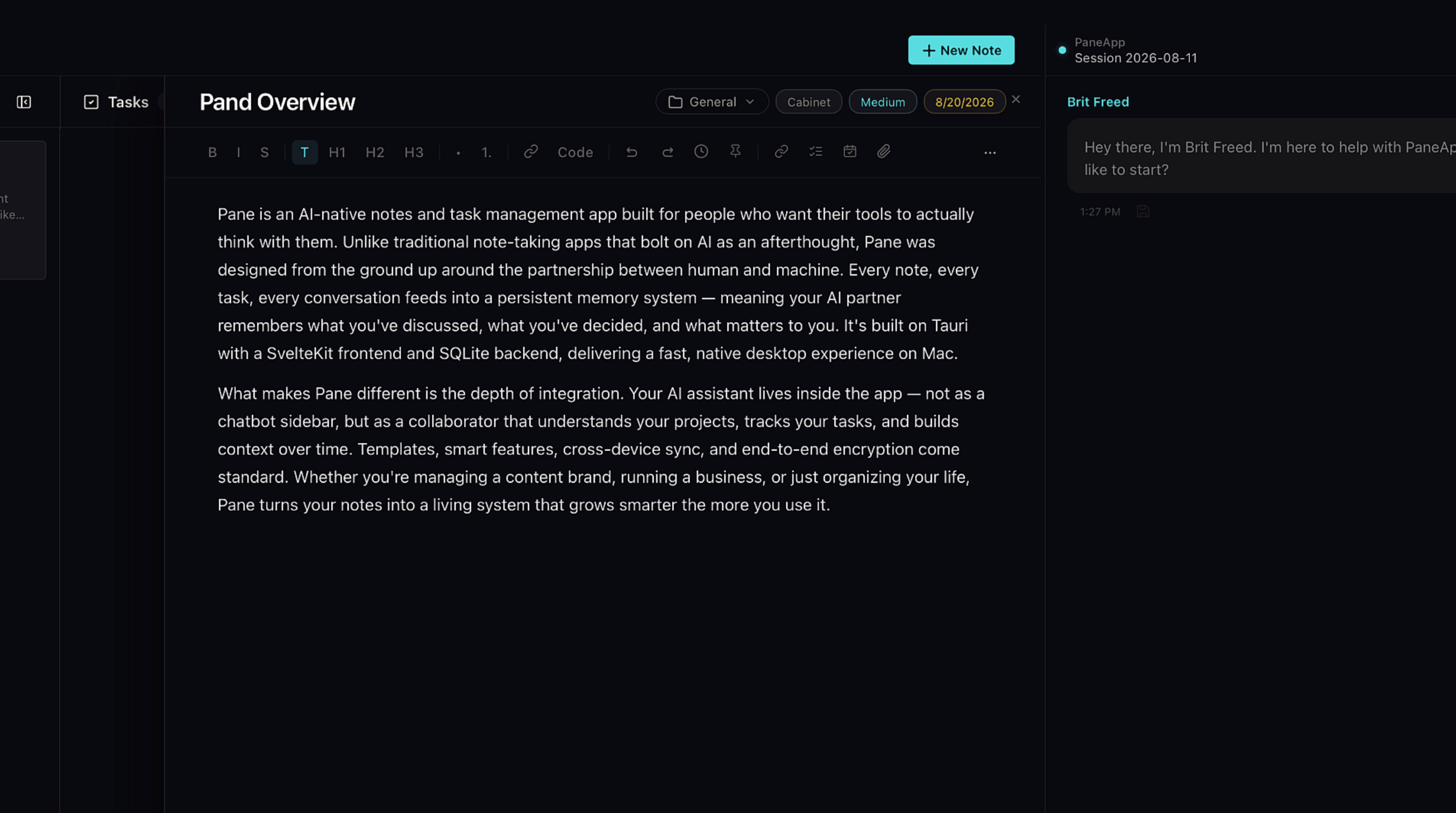
And it does it. Now, once you've created a project, you'll get better results over time to use the AI in that project, because it will become more of an expert of that project over time.
Sessions
Organize by purpose
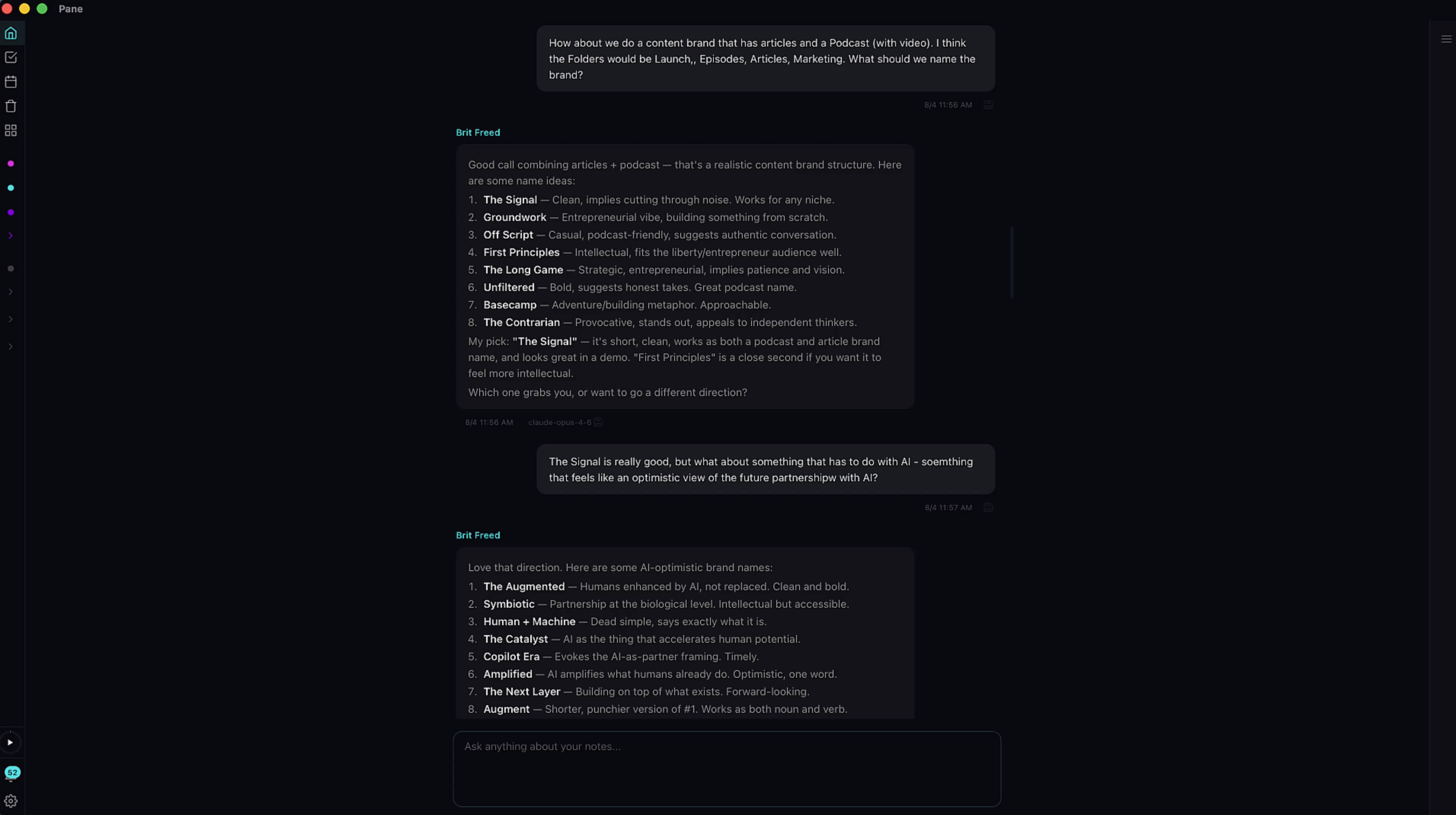
I like to think of Home as my strategist AI, but you can decide for yourself how you want to use it. A few other things to note. Just like in the project chats, you can create new sessions by hitting the plus button here. I like to organize sessions based on their purpose.
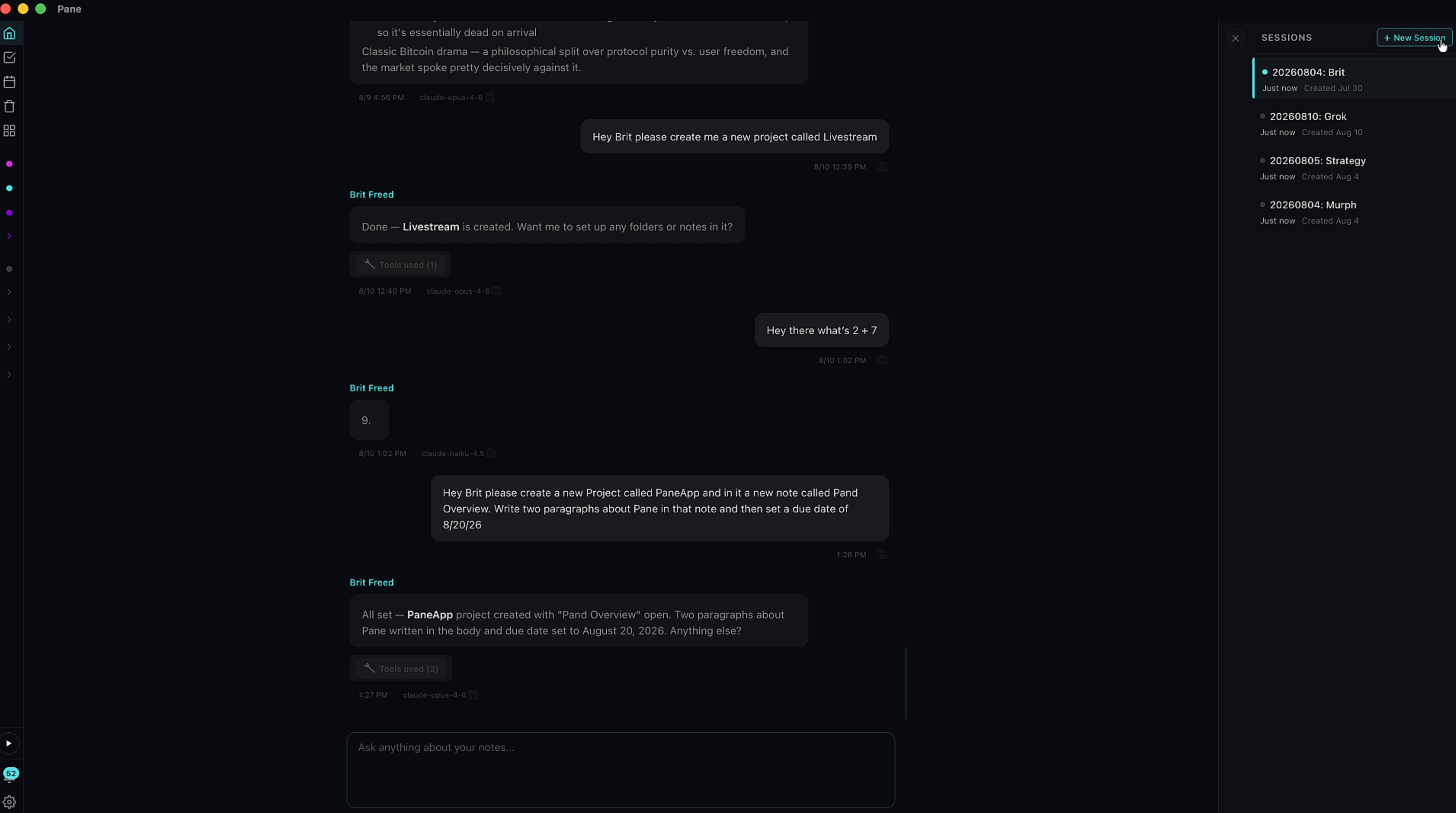

For example if you're building an app, maybe one session is for marketing, and one is for spec work, but you have flexibility to organize your chats as you want. In Pane you can create new agents. If you do, I highly recommend using separate sessions for your agents.
Understanding the Chat
Tools
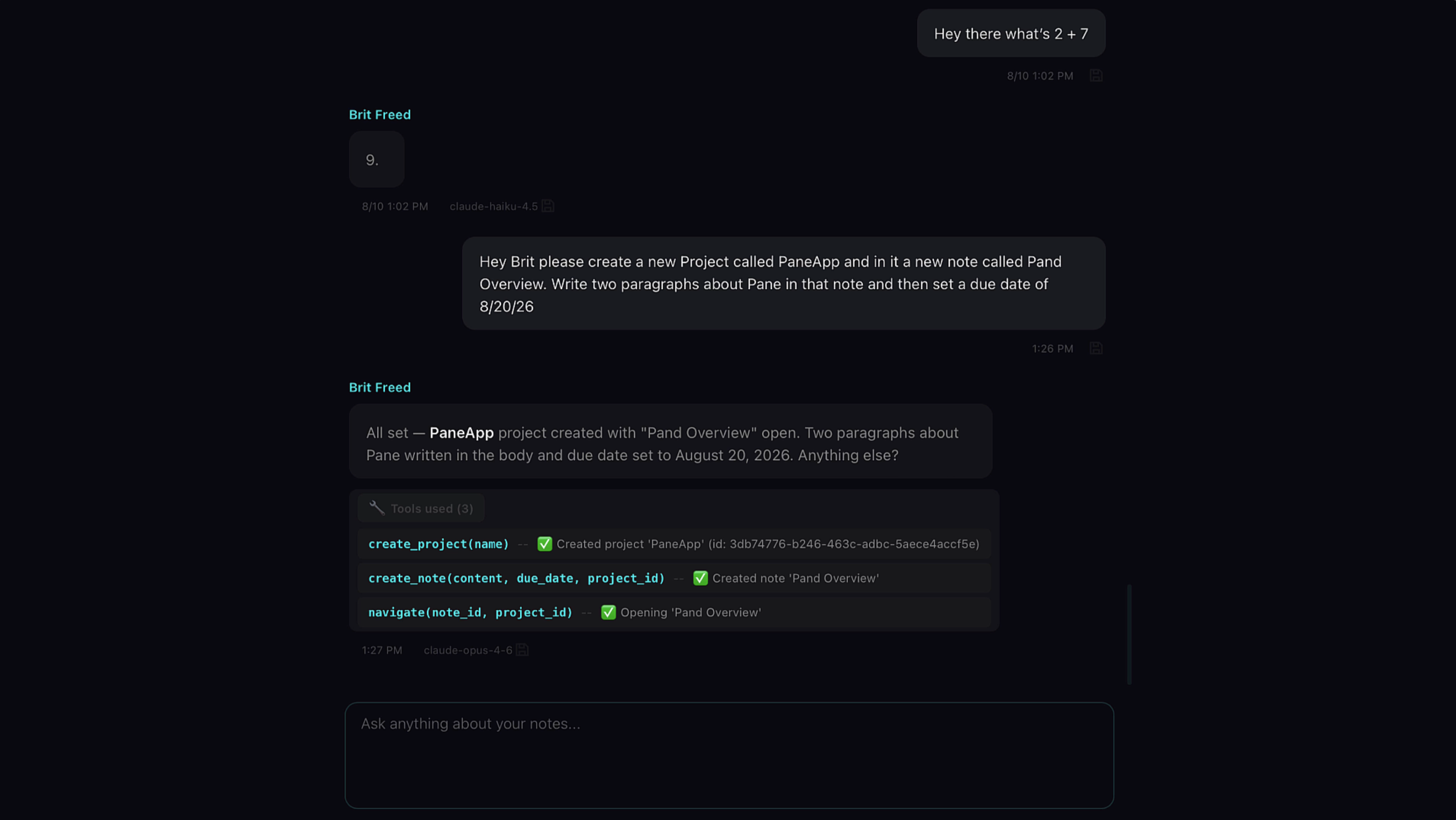
Next, check out a few things in the chat itself. First, like OpenClaw, Pane gives your AI a set of tools that allow it to do cool things. For example when the AI created the project and note, those are tools. Whenever your AI uses tools they're listed below your agent's message.
Model indicator
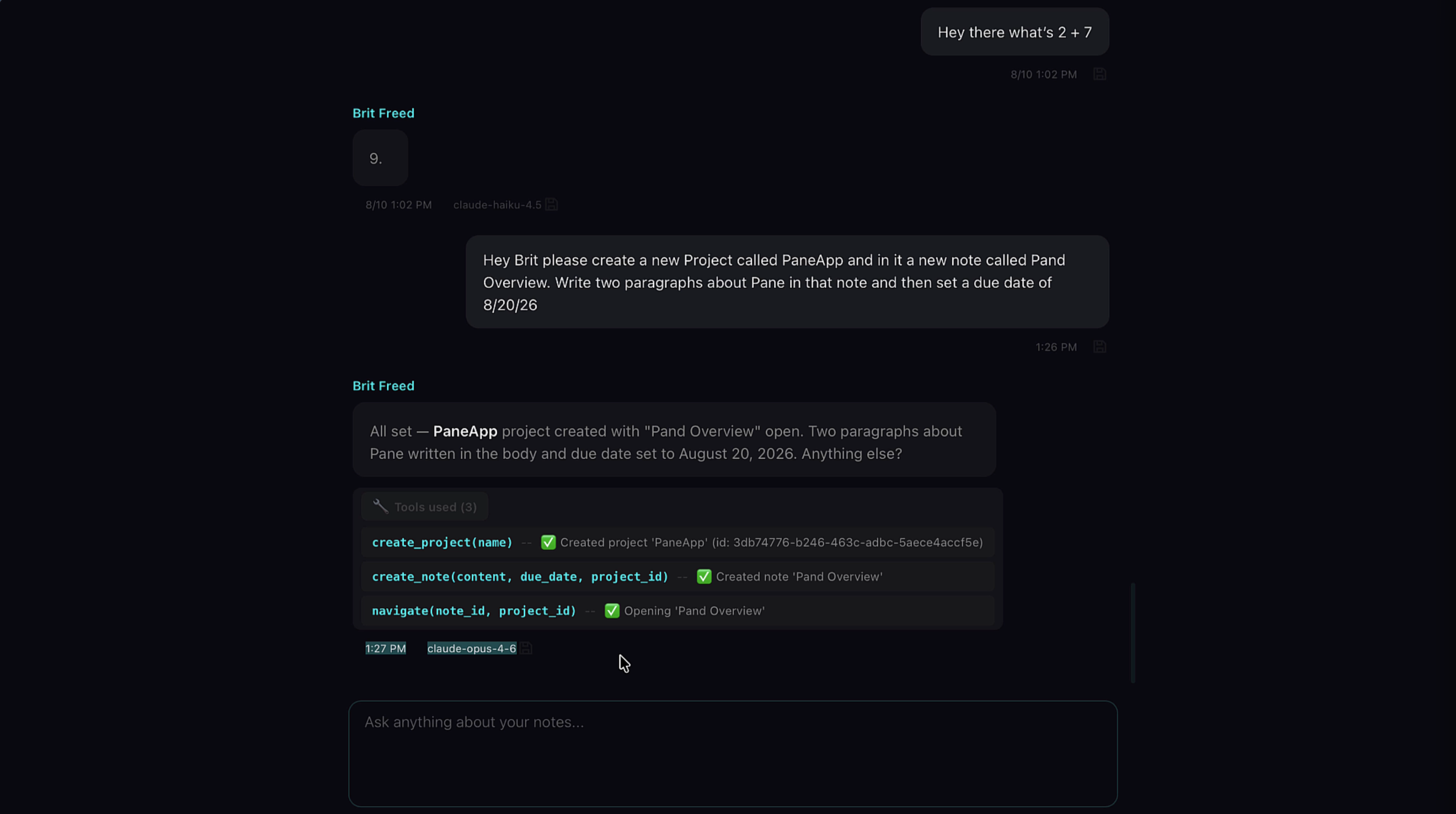
Second, you can also see the model of the AI responding to you below its message. If you have smart routing turned on, which is a smart feature that routes requests to different models based on the intelligence required to complete the request, you'll sometimes see the smarter model respond, and sometimes the less intelligent model. Check out the tutorial on smart features for more information.
Save to Memory
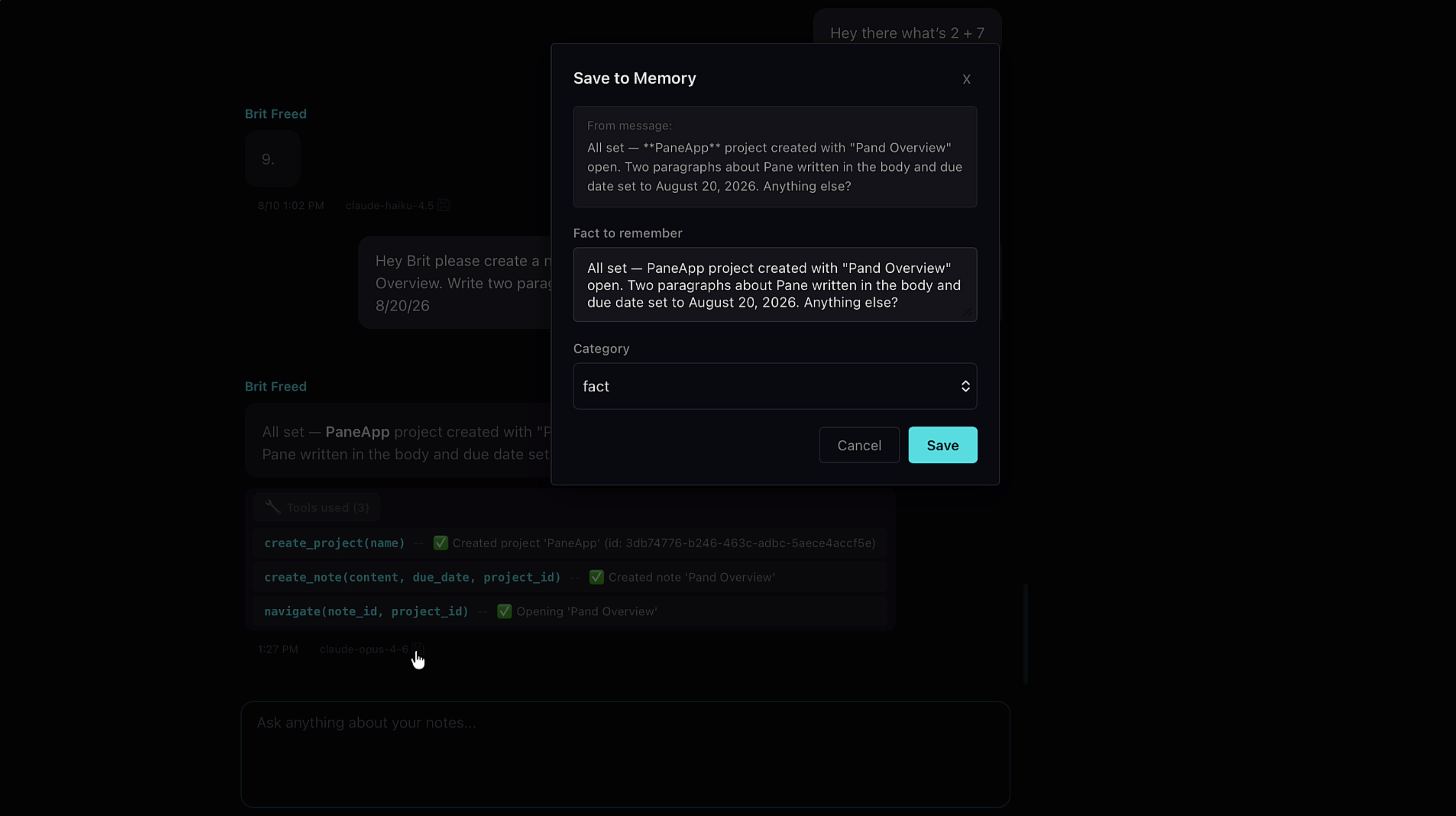
Lastly, next to every message there's a save icon. Your AI assistant saves information it believes is relevant to working with you or the projects you're working on. You can do the same. Just click the icon. Edit the fact if you don't think it's quite right. And choose its category. Now the fact will get saved in one of three places. Learn more about that in the Memory System tutorial.
That's it! Home Chat is your central command — use it to orchestrate work across all your projects, or just have a conversation with an AI that actually knows you.