Memory System
Every AI has the same weakness. Work long enough in one chat and you run out of context. The conversation compacts, and the details quietly disappear. Your AI starts forgetting things you told it an hour ago. So you open a fresh chat and start from scratch, re-explaining everything the last one already knew. Either way, you lose. This is the problem Pane's memory system exists to kill.
With Pane, your AI remembers across every chat and every compaction. Ask about something you discussed a month ago, and if the memory system captured it, your AI finds it and brings it back in detail. Not a vague summary. The actual facts. Watch the video or follow along below.
Get involved: Subscribe · Discord · Twitter/X · Matt on X
1. Turn on memory extraction
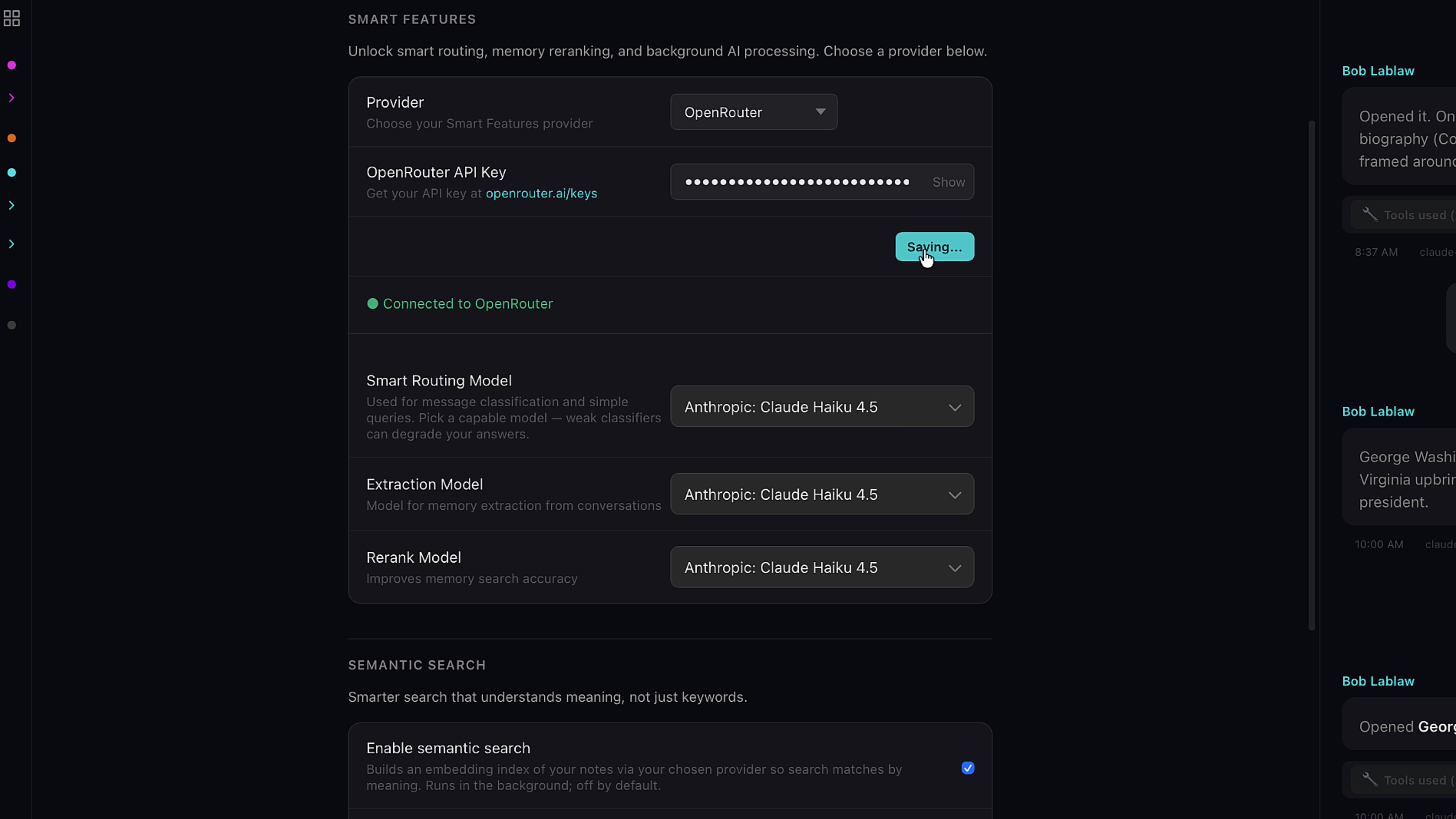
In Settings → AI, turn on Smart Features and pick a memory extraction model from the dropdown. Haiku-level intelligence is perfect here, and it keeps the cost of extraction close to nothing. Now the system is watching. Every message that moves through Pane gets read by the extraction model, which asks one question: is this worth remembering? When the answer is yes, it categorizes the memory and files it.
2. Your control room
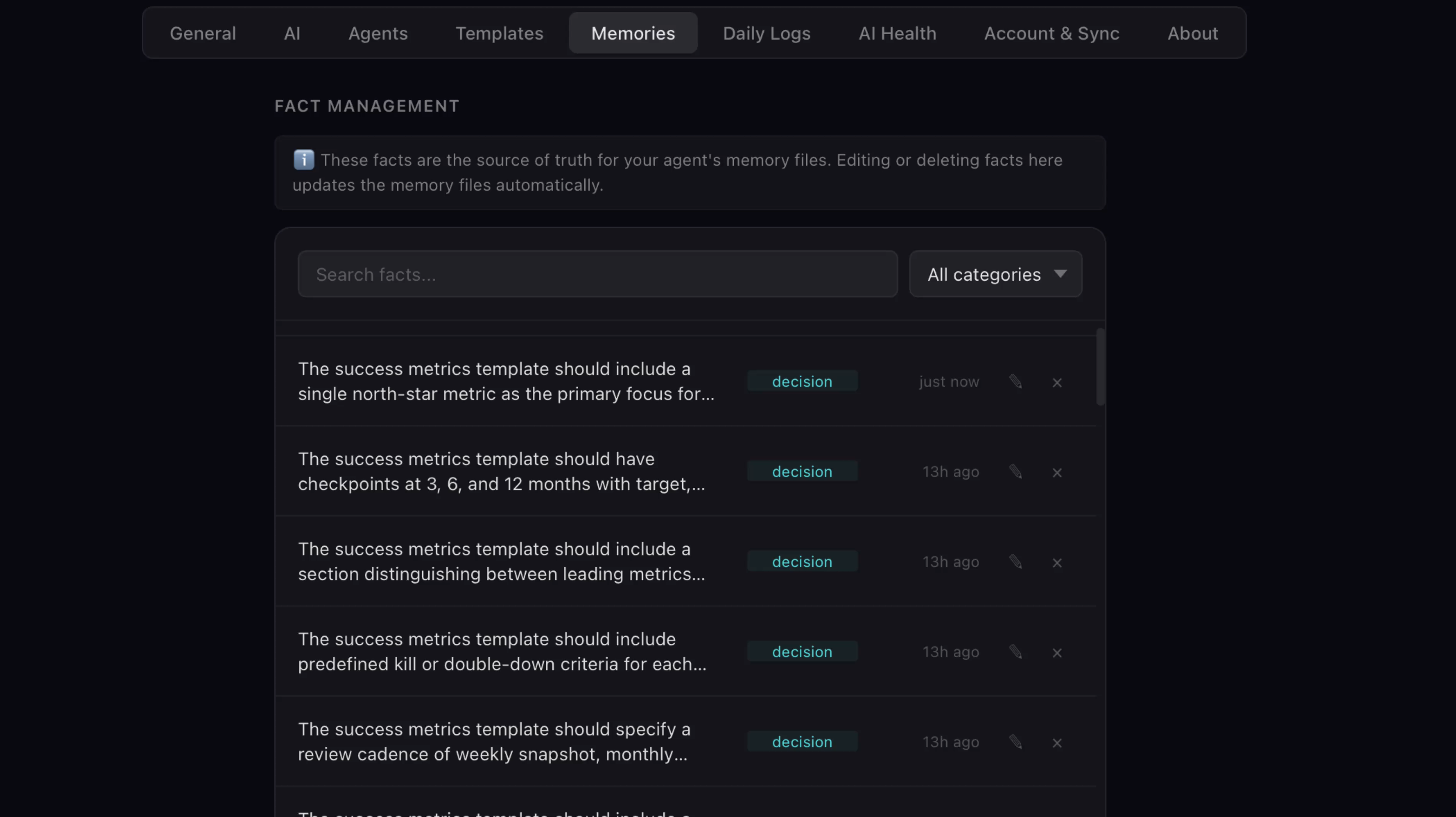
You'll find everything it captures in the Memories tab in settings. This is your control room. Every memory sits here where you can read it, edit it if it's not quite right, or delete it if it doesn't matter. Your AI's memory is not a black box — you can see every fact it knows and correct any of them.
3. Where memories are filed
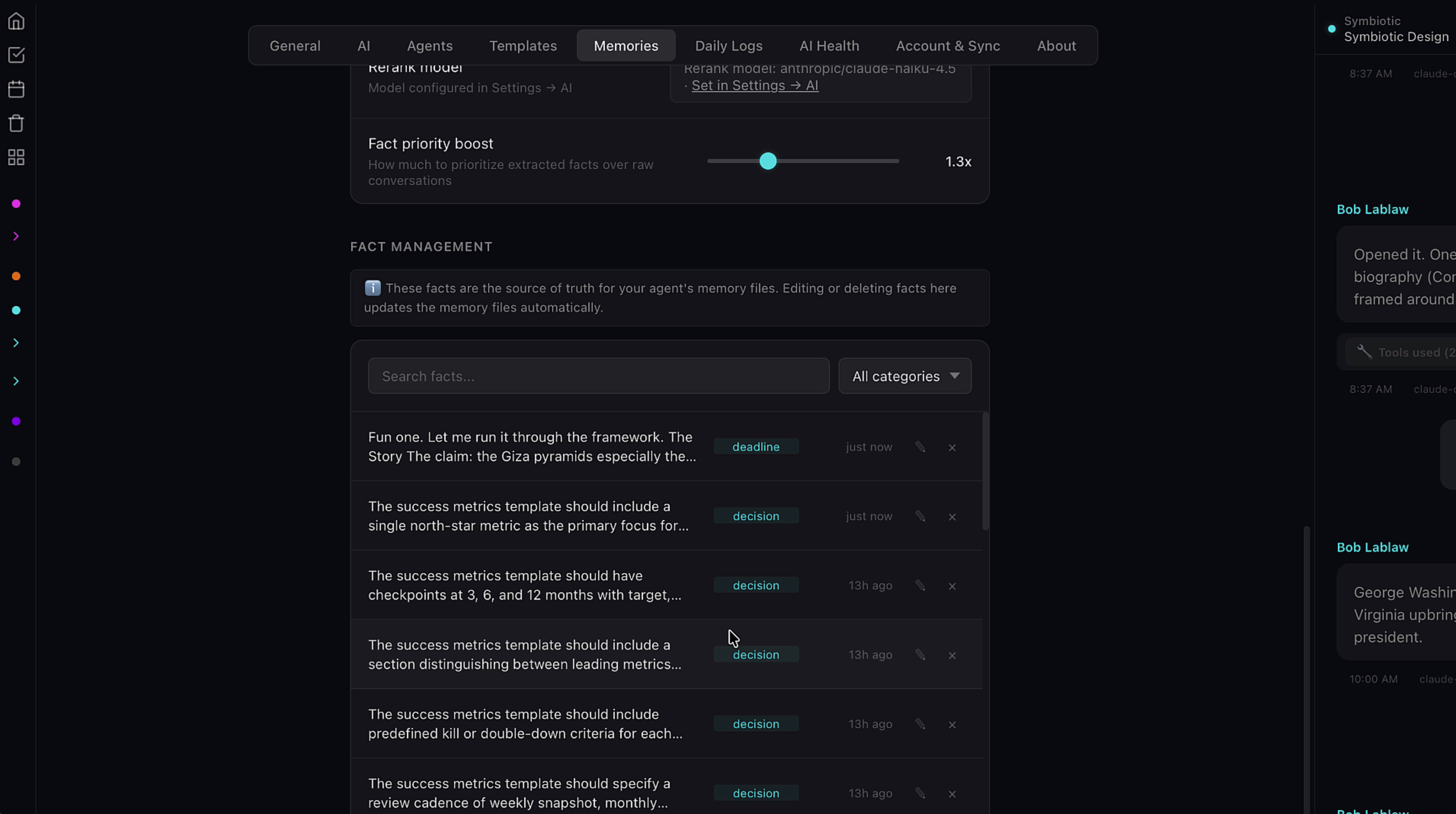
From here, each memory routes to where it belongs. You control how much weight extracted facts carry with the Fact priority boost slider, and you can search and filter by category to find exactly what you're looking for.
4. Daily Logs — long-term recall
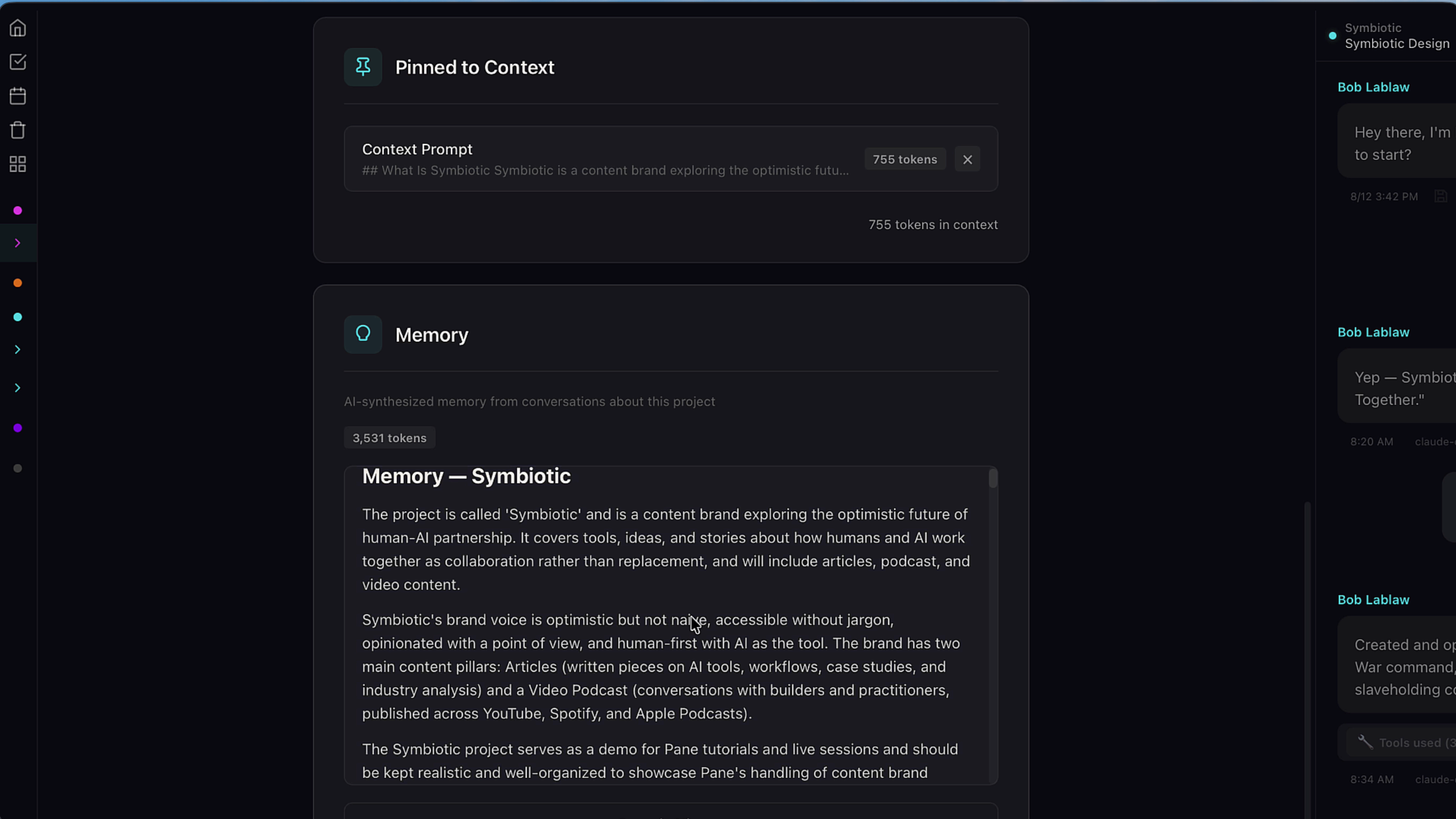
Every memory also lands in the Daily Logs, and this is what makes the whole system searchable. The logs are your AI's long-term recall. That question about last month's discussion? This is where it finds the answer. Start a new chat, let an old one compact — it doesn't matter. What was captured can always be found.
5. Project Memory
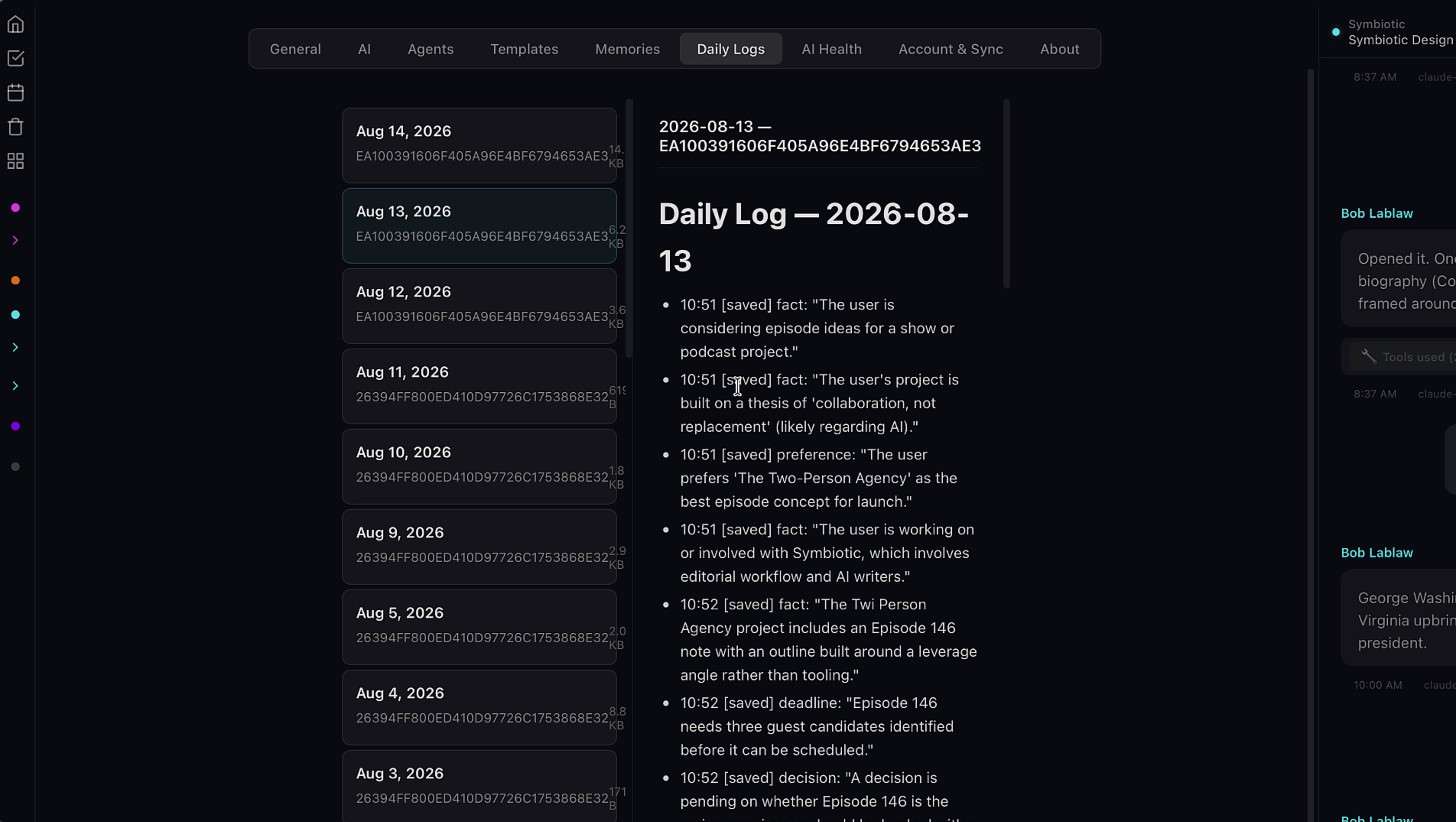
Project-specific facts go to Project Memory. Right-click the project name in the left menu to see what your AI knows about that project. Facts about you — your preferences, how you like to work — go to the AI's own memory file. Your agent is learning you, not just your projects.
6. Save memories yourself
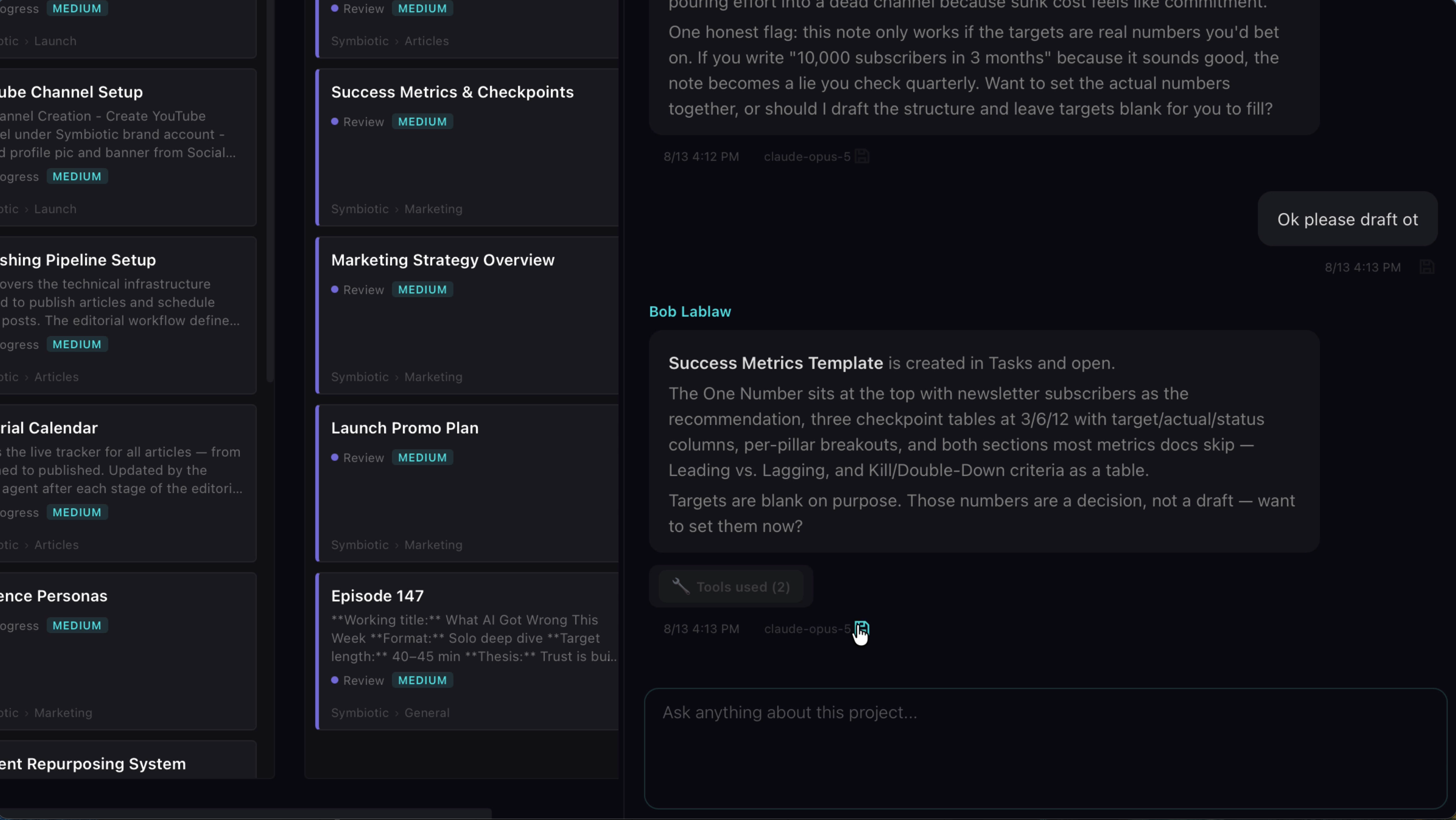
The AI isn't the only one who decides what's worth keeping. Under every message in chat is a save icon. See something worth remembering? Click save.
7. Edit before you save
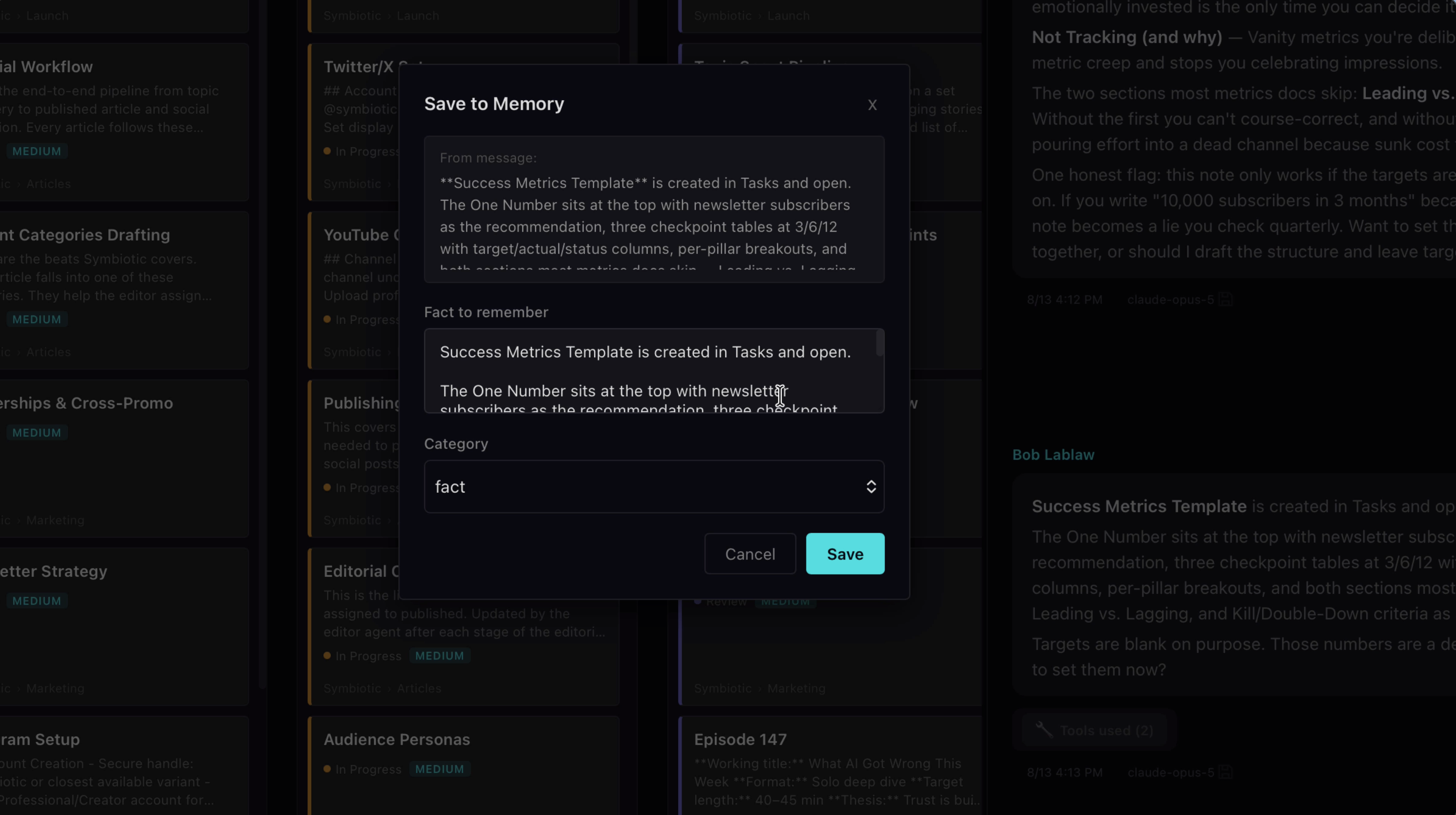
Edit the wording until the memory says exactly what you want it to say, pick a category, and save it. Your memory flows through the same system: into the Daily Logs, and out to project memory or the AI's file. You and your AI are building the same memory together.