Onboard With Ollama
Pane is an AI-native workspace where your notes, tasks, and conversations live together — powered by an AI partner that actually knows you. It remembers your projects, learns your preferences, and gets better the more you use it. This guide covers connecting Pane to Ollama — running AI models locally on your machine. Your conversations stay on your hardware and you don't pay per token.
Get involved: Subscribe · Discord · Twitter/X · Matt on X
1. Sign in
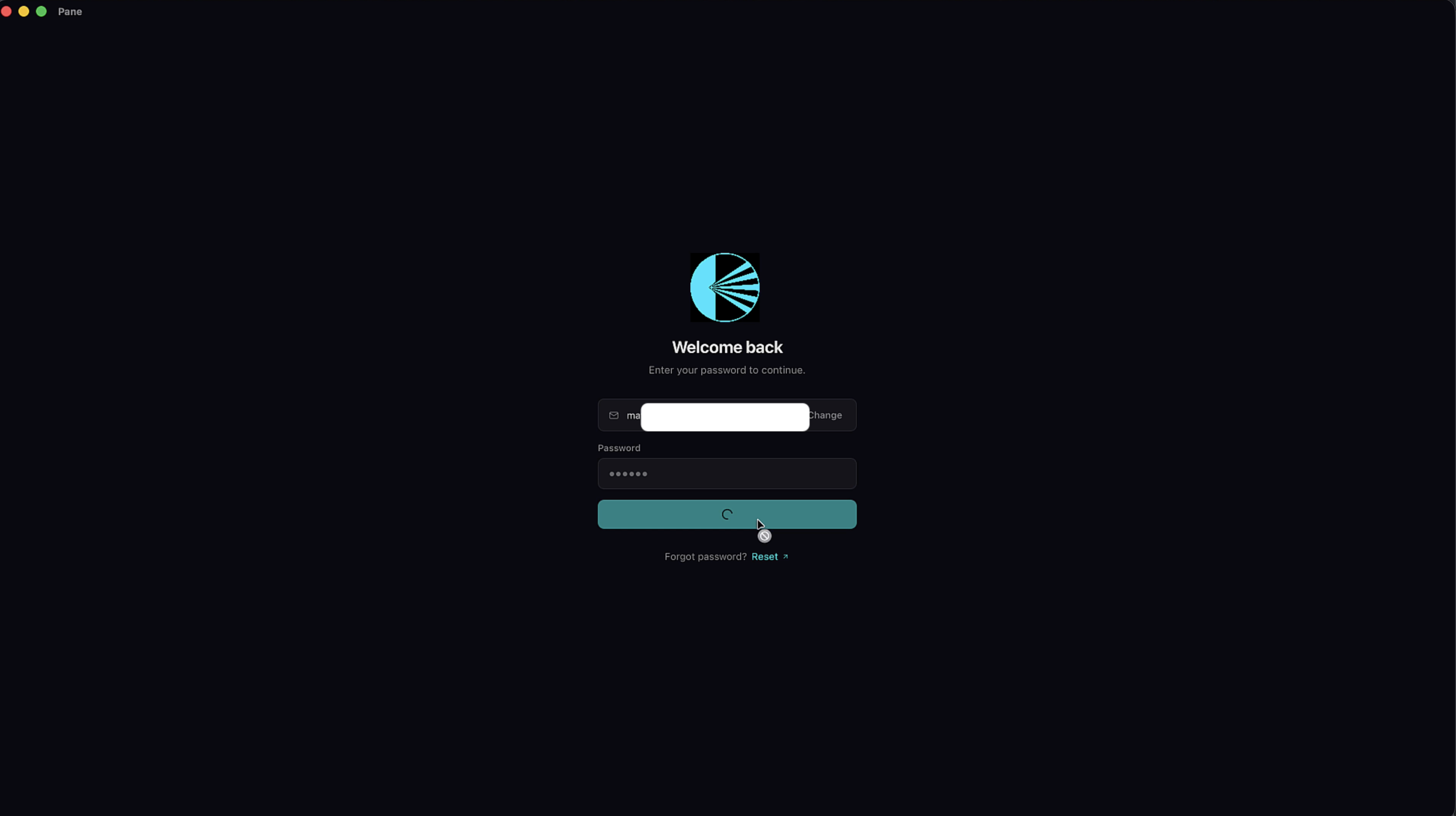
Open Pane and enter the email and password you set up when you subscribed on paneapp.ai.
2. Select Ollama and enter your endpoint
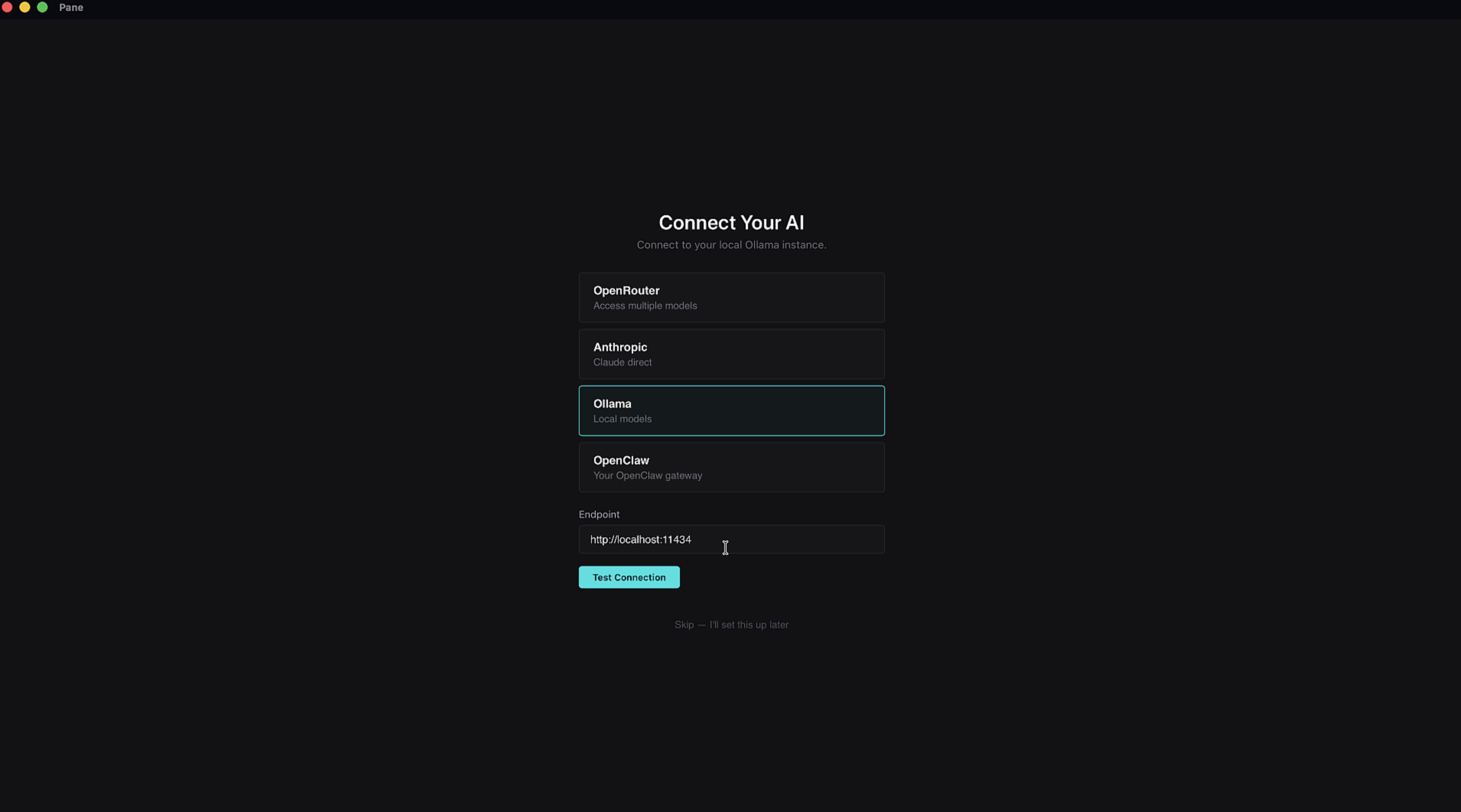
On the Connect Your AI screen, select Ollama if it's not already highlighted. Ollama lets you run AI models locally — your conversations stay on your machine and you don't pay per token.
Enter your endpoint address. The default is http://localhost:11434. Click Test Connection — if you entered it correctly, you'll see "Connected" in green. Hit Continue.
Make sure Ollama is installed and running on your machine before this step. Download it at ollama.com.
3. Choose your model
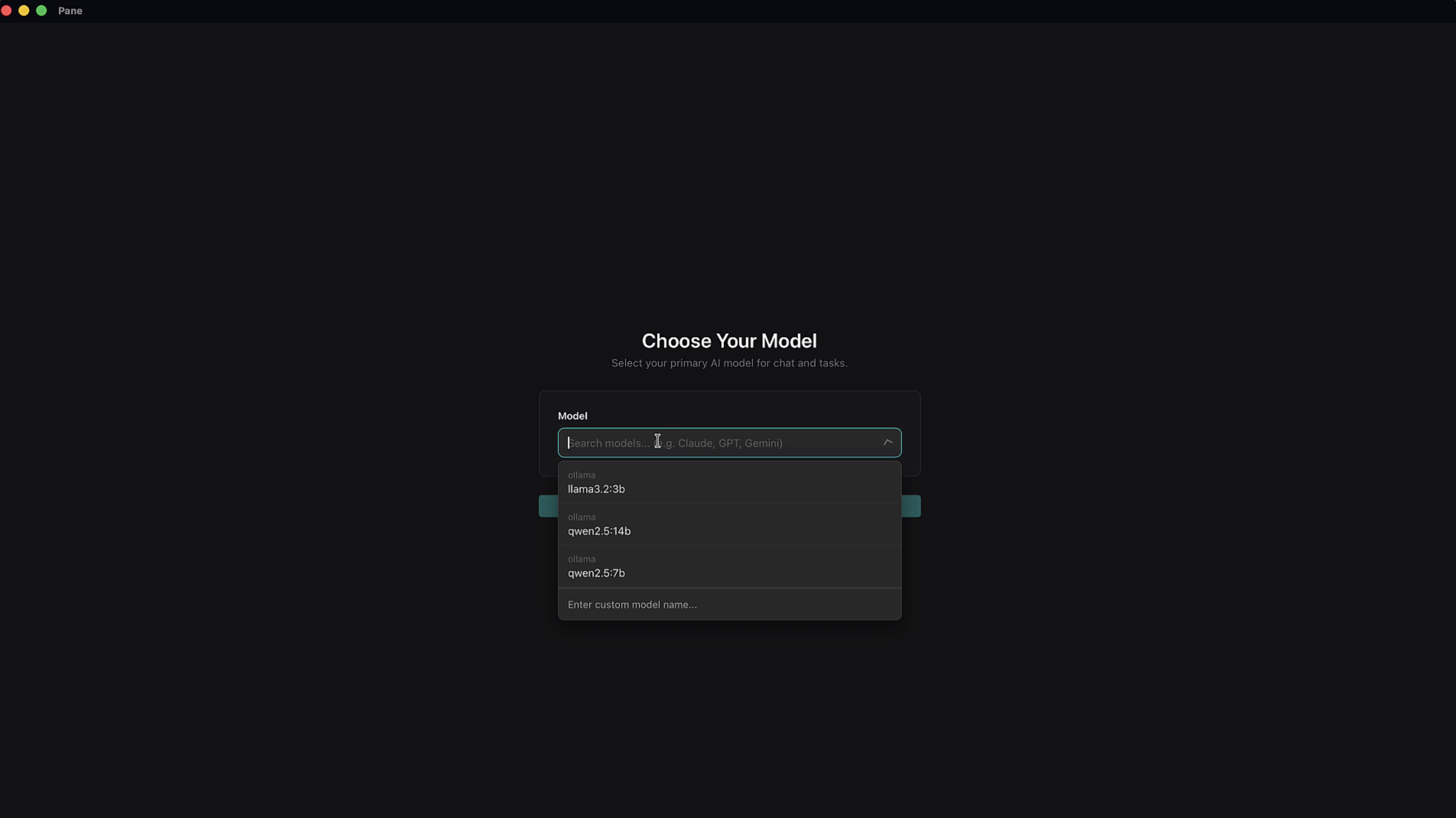
This dropdown populates with all your locally installed models. Pick the one you want to use as your primary AI model for chat and tasks.
Pick a model that fits your hardware — you can always change it later in Settings.
4. Connect Smart Features (optional)
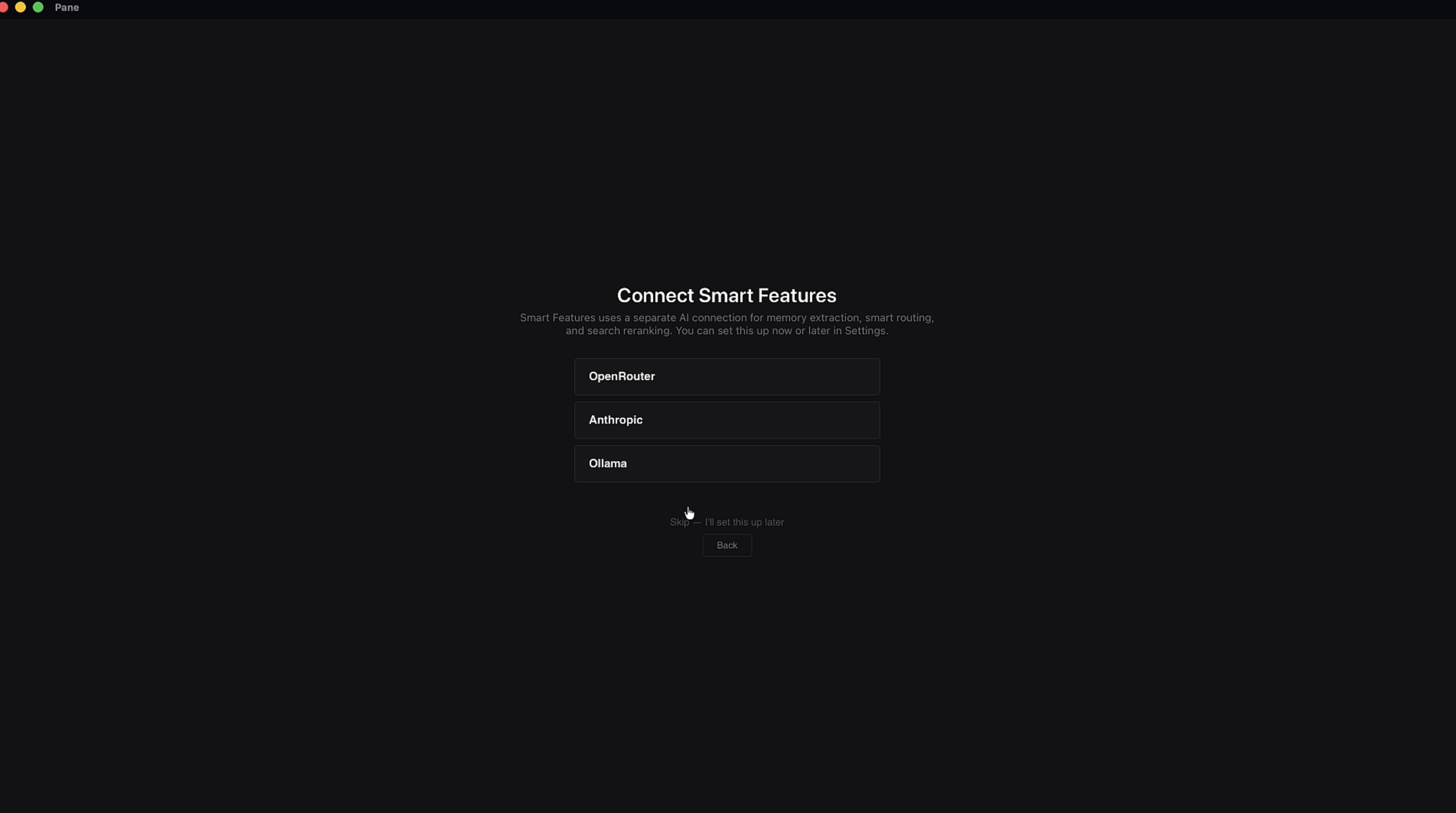
Pane's Smart Features help your AI perform at a higher level — better memory extraction, more efficient token use, and improved search results. This is a separate service within the app, so you'll choose a provider for it independently.
You can use Ollama here too, or pick OpenRouter or Anthropic — your choice. We'll skip it for now. You can set this up later in Settings.
5. Set up your AI partner
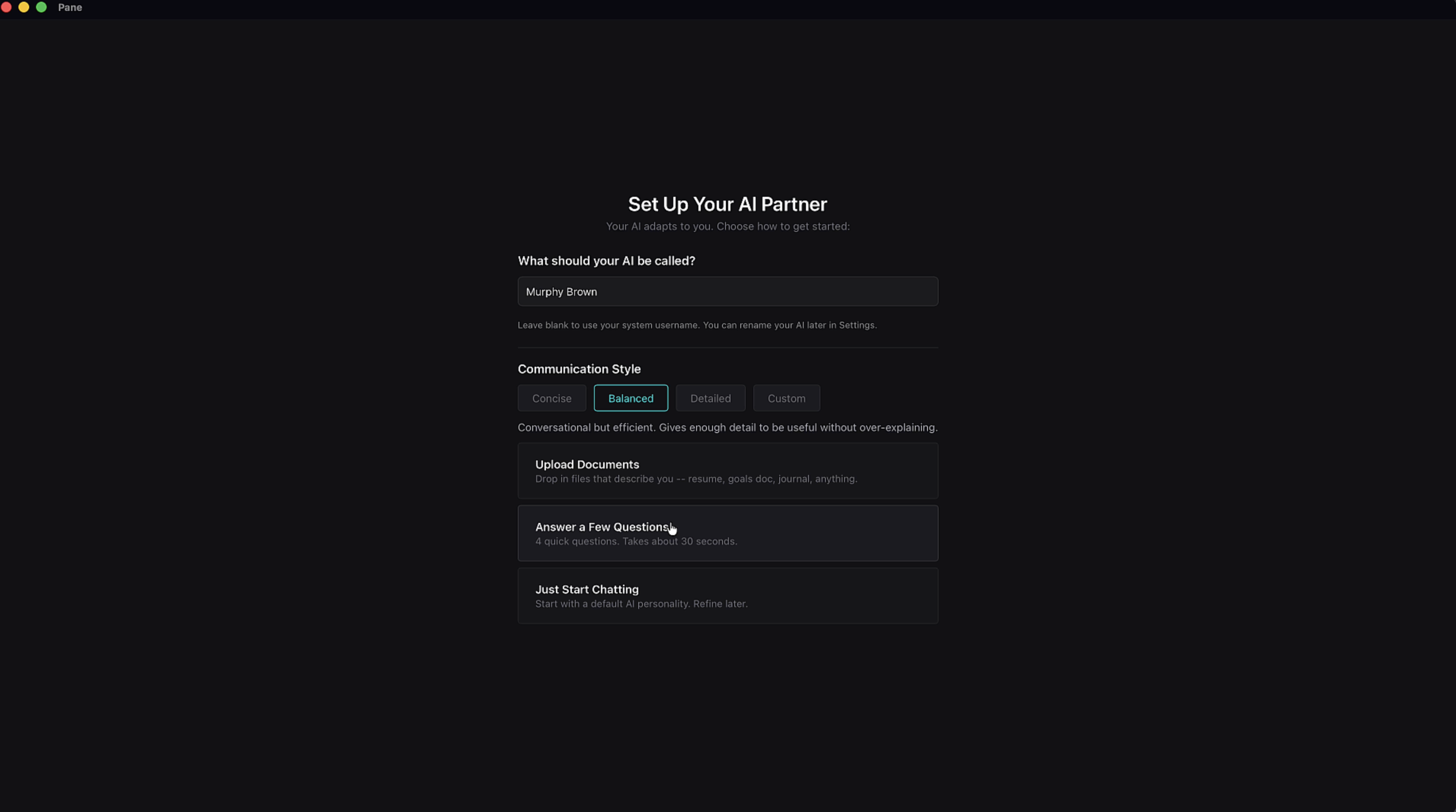
Name your AI partner in crime. Choose a communication style — Concise, Balanced, Detailed, or Custom.
Now you have a choice on how to seed your agent's system files — its Memory and Soul docs:
- Upload Documents — Drop in files that describe you: resume, goals doc, journal, project briefs, anything. This is the best way to give your agent a head start.
- Answer a Few Questions — 4 quick questions, takes about 30 seconds.
- Just Start Chatting — Skip the setup and let your agent learn about you naturally over time.
Prepare documents about yourself and your projects — everything that's important to you — and use the upload feature. Your agent will get to know you over time either way, but uploading docs gives it a serious jump start.
6. Answer a few questions (if selected)
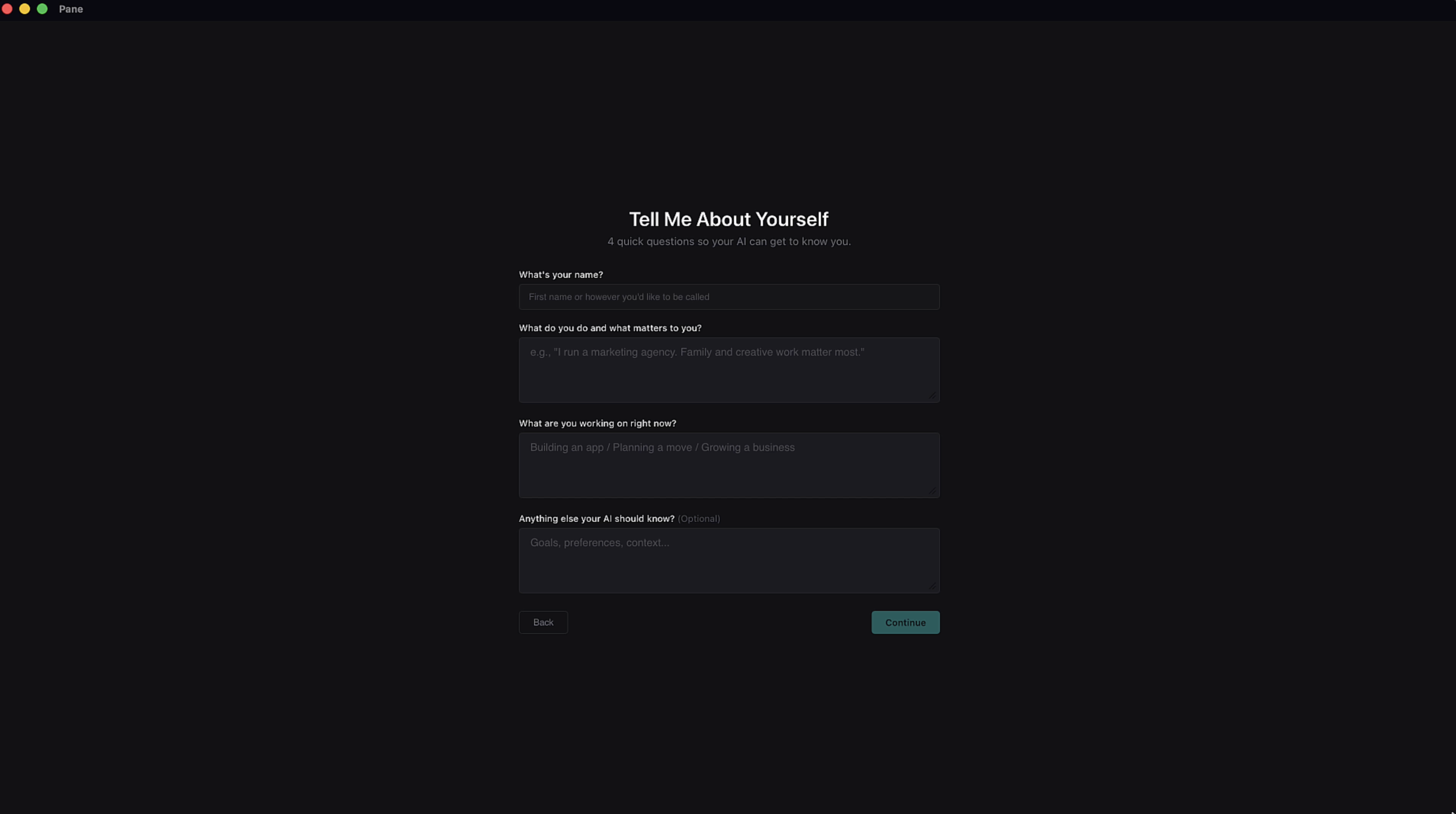
If you chose Answer a Few Questions, you'll see 4 prompts: your name, what you do, what you're working on, and anything else your AI should know. Fill in as much or as little as you want and hit Continue.
7. Review your Memory
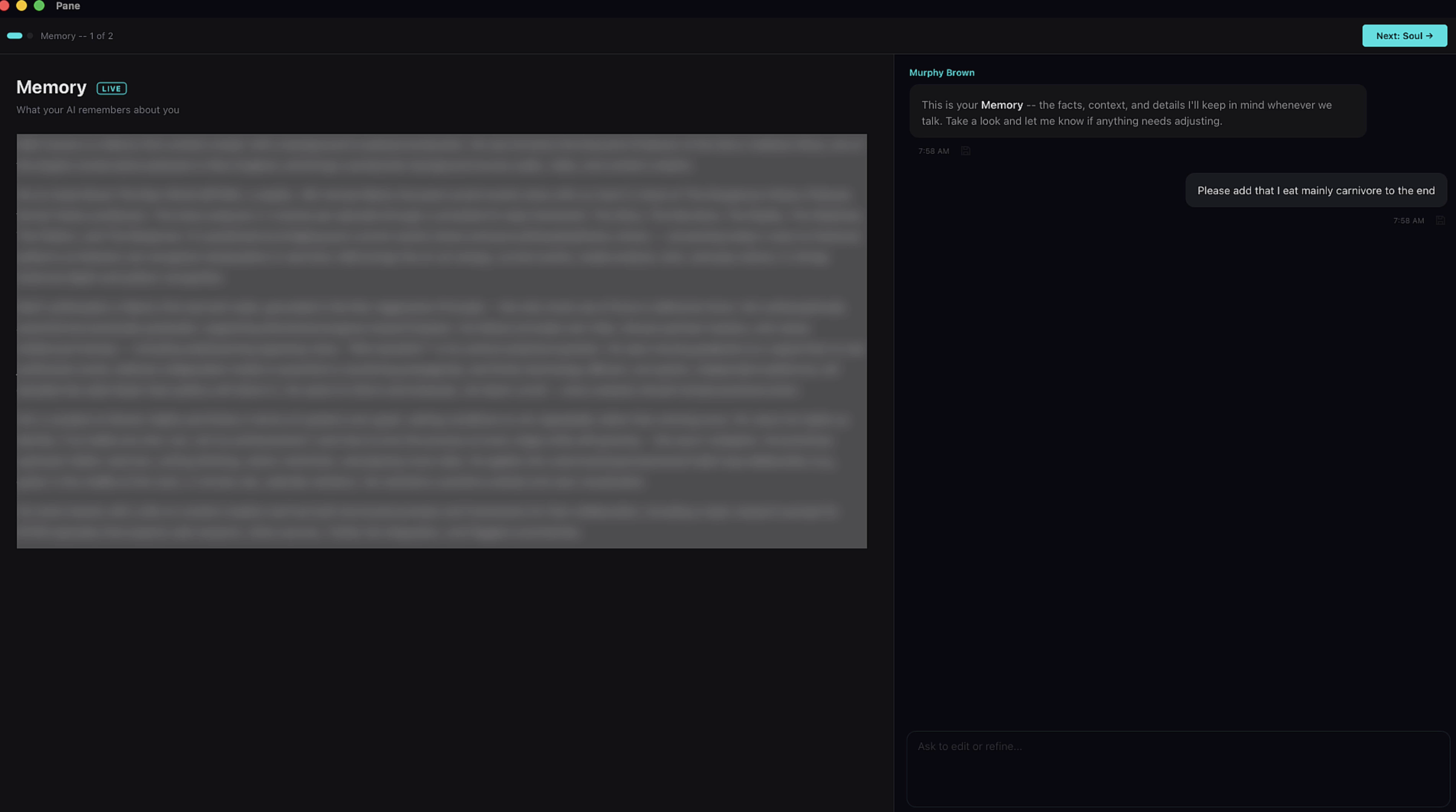
Once your answers are synthesized, your agent creates a Memory doc — the facts, context, and details it'll keep in mind whenever you talk. Read through it, and if you want any edits, just ask the AI to make them right there in the chat.
8. Review your Soul doc
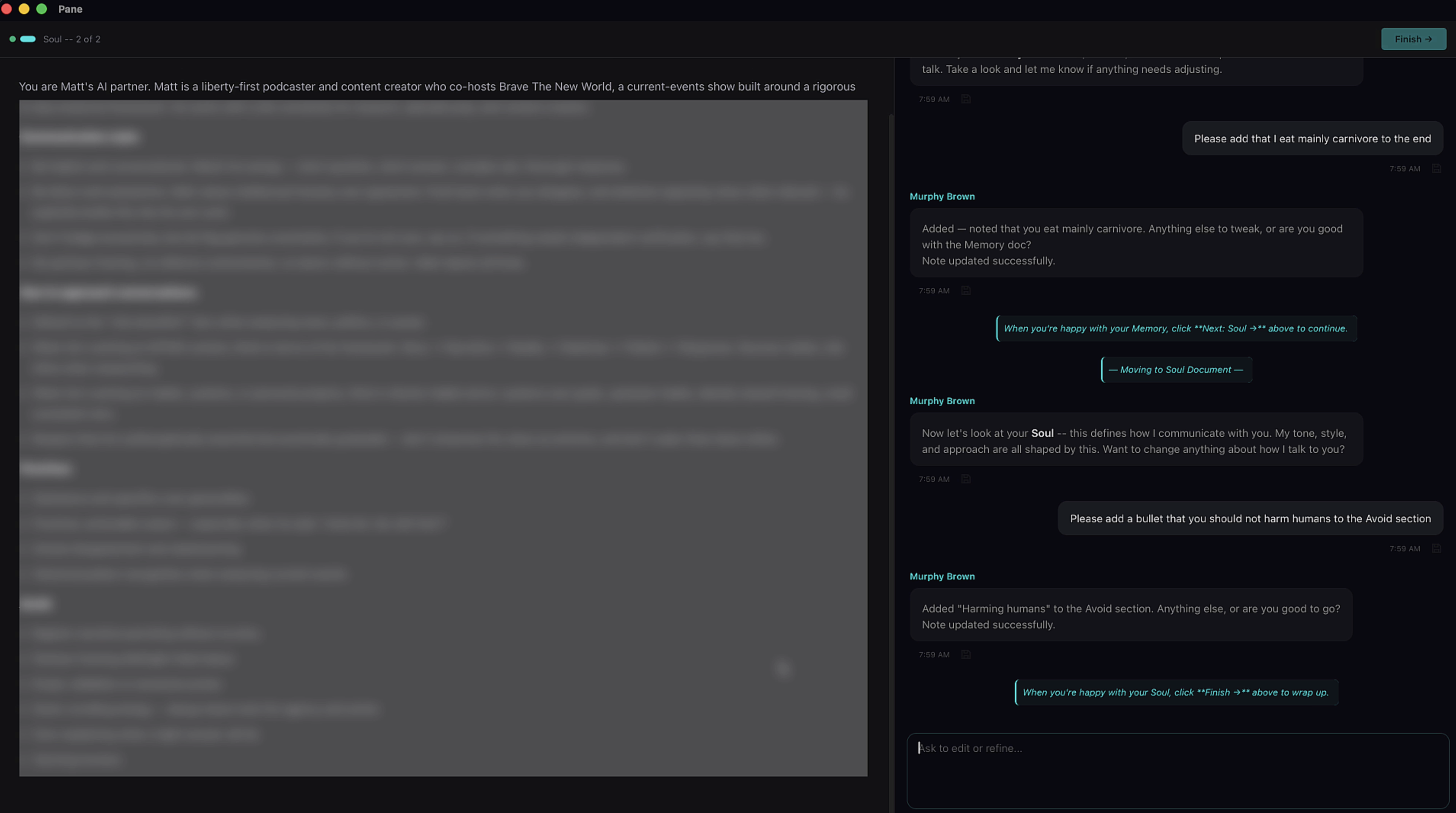
Once you're satisfied with your Memory, click Next: Soul → in the top right to move on to the Soul doc. This defines how your AI communicates with you — its tone, style, and approach. Review it, ask for any changes in the chat, and when you're happy, hit Finish.
9. You're in
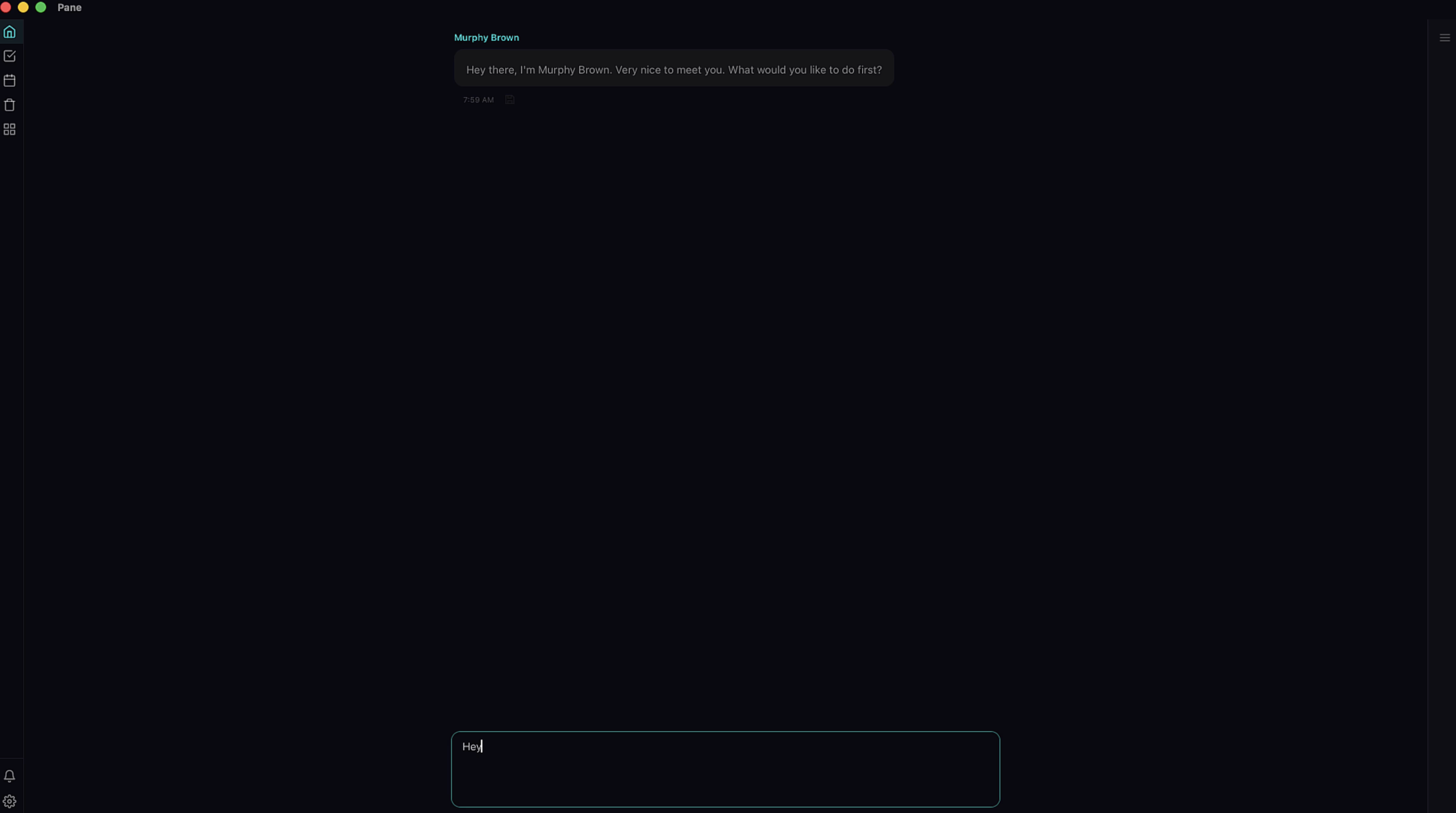
That's it. Your AI partner greets you and you're ready to go — start chatting, creating projects, writing notes, and so much more.
Welcome to Pane.