Full App Walkthrough
Pane is an AI-native workspace where your notes, tasks, and conversations live together — powered by an AI partner that actually knows you. This guide walks through every major feature of the app, from first login to advanced memory settings. Watch the video above or scroll through the annotated screenshots below.
Get involved: Subscribe · Discord · Twitter/X · Matt on X
Getting Started
Sign in
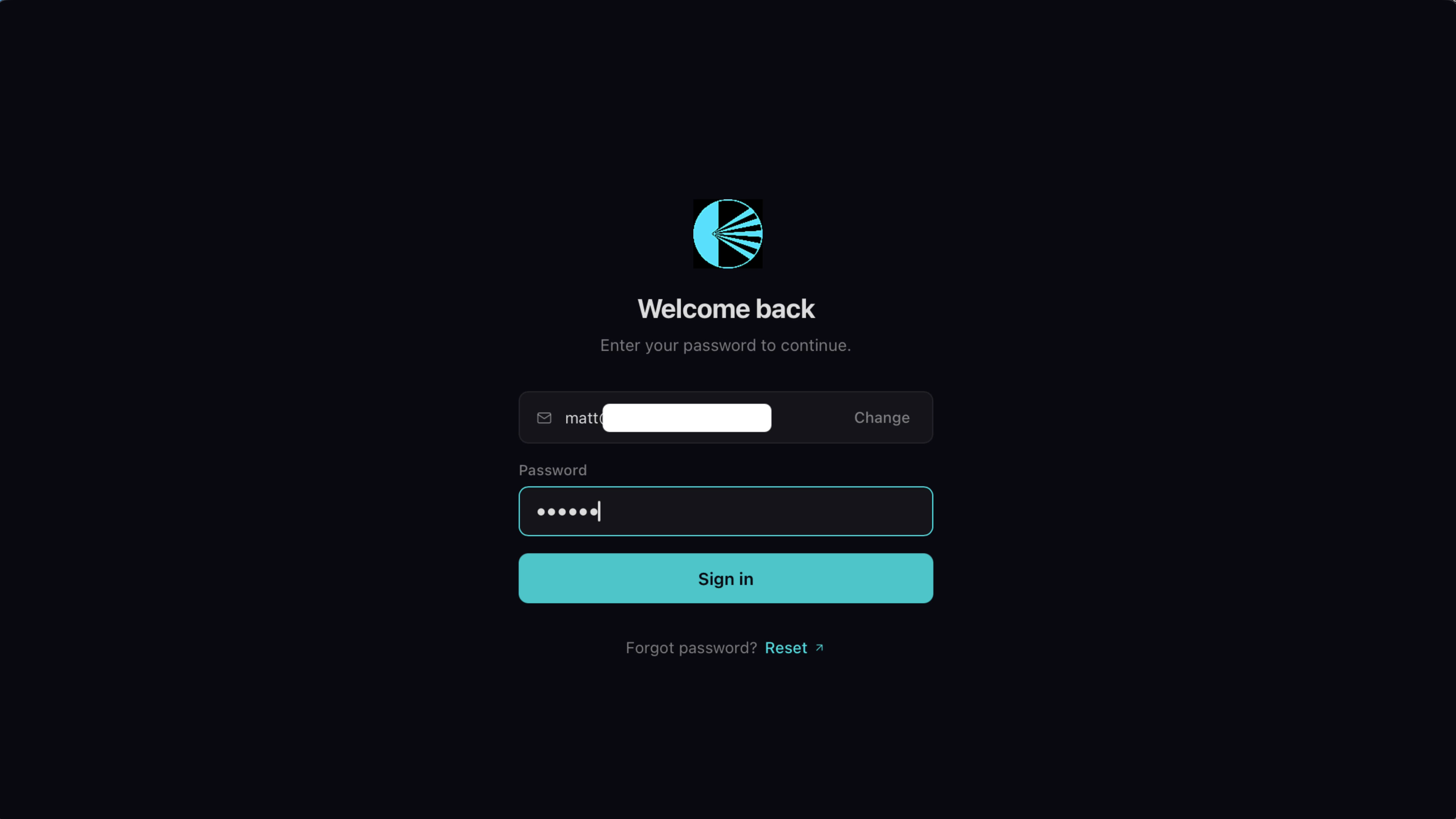
Open Pane and sign in with the email and password you set up when you subscribed on paneapp.ai.
Connect your API key
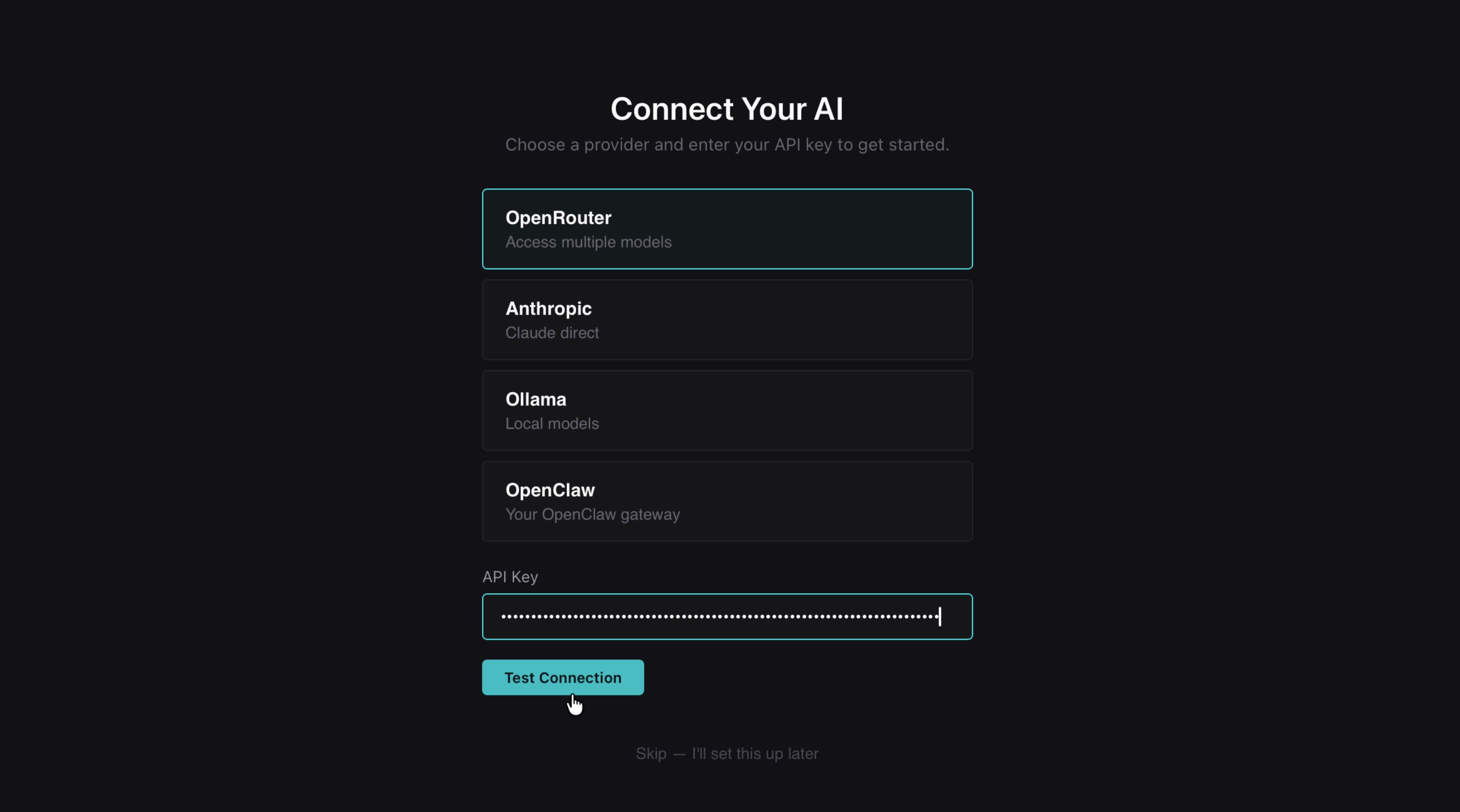
Pane is BYOK — Bring Your Own Key. Choose your AI provider: Anthropic, OpenAI, OpenRouter, Ollama, or OpenClaw. Paste your API key and test the connection.
Choose your model
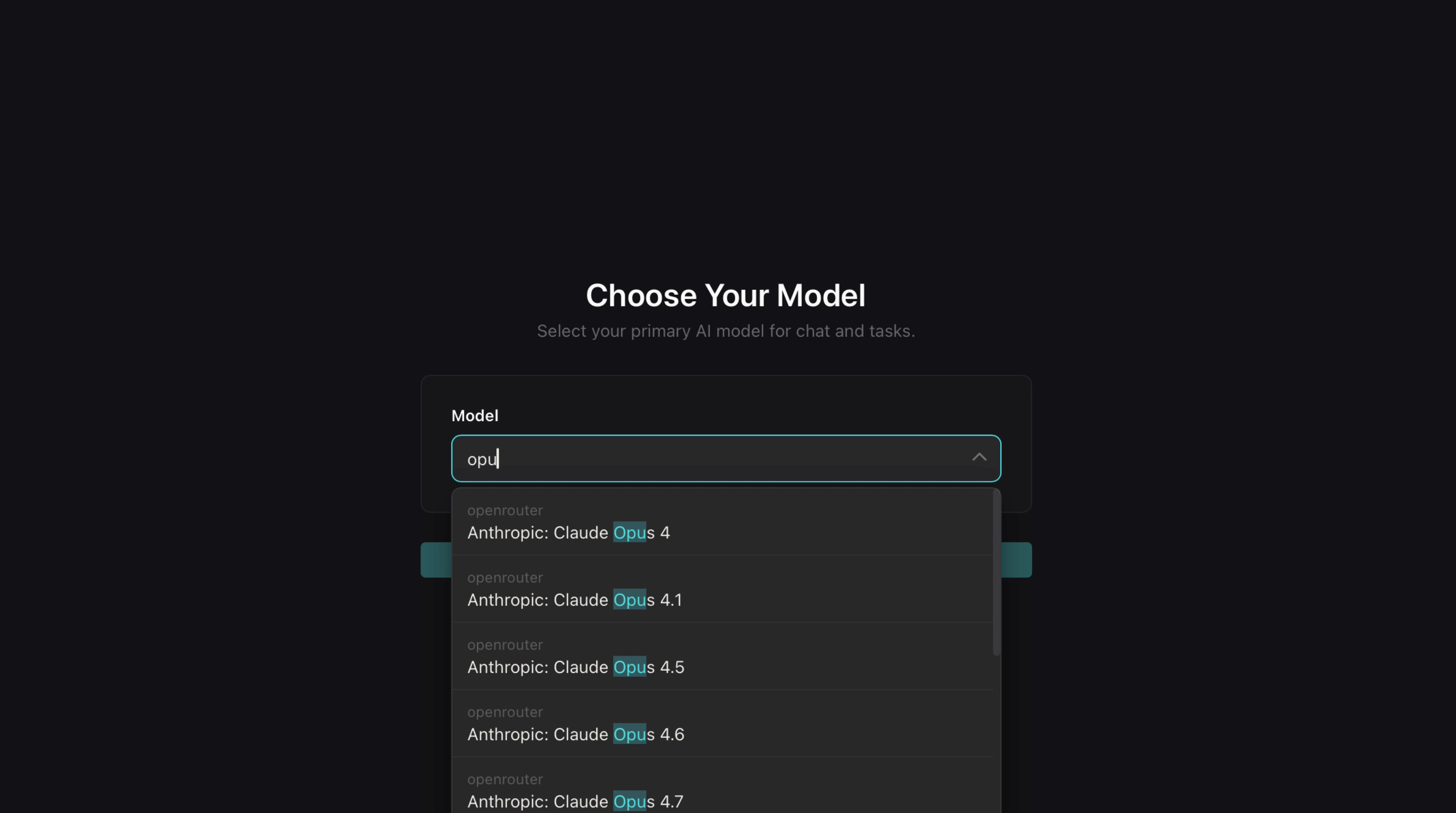
Pick the AI model you want as your primary agent. Any model your provider supports will appear in the dropdown.
Seed your AI's knowledge
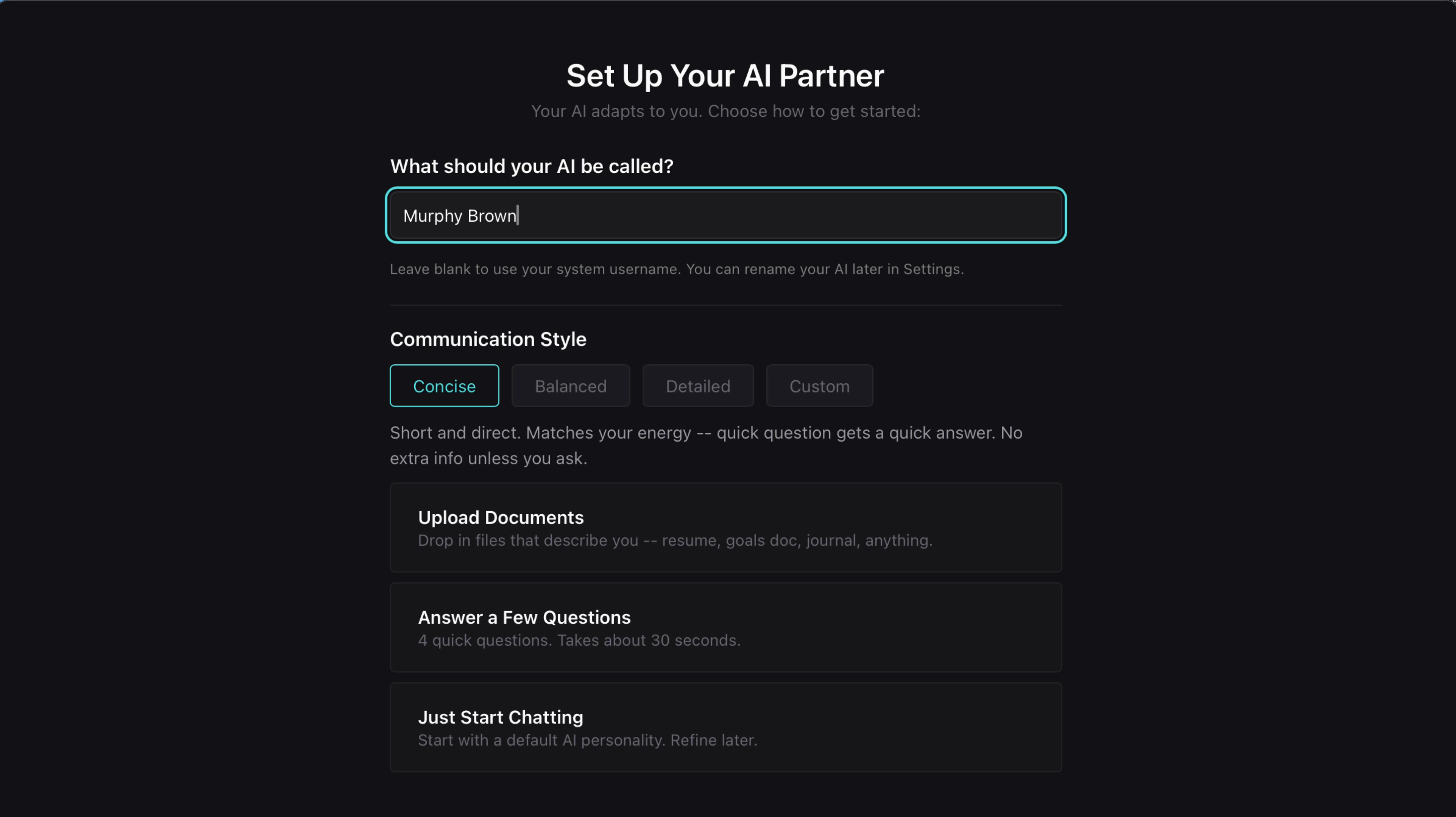
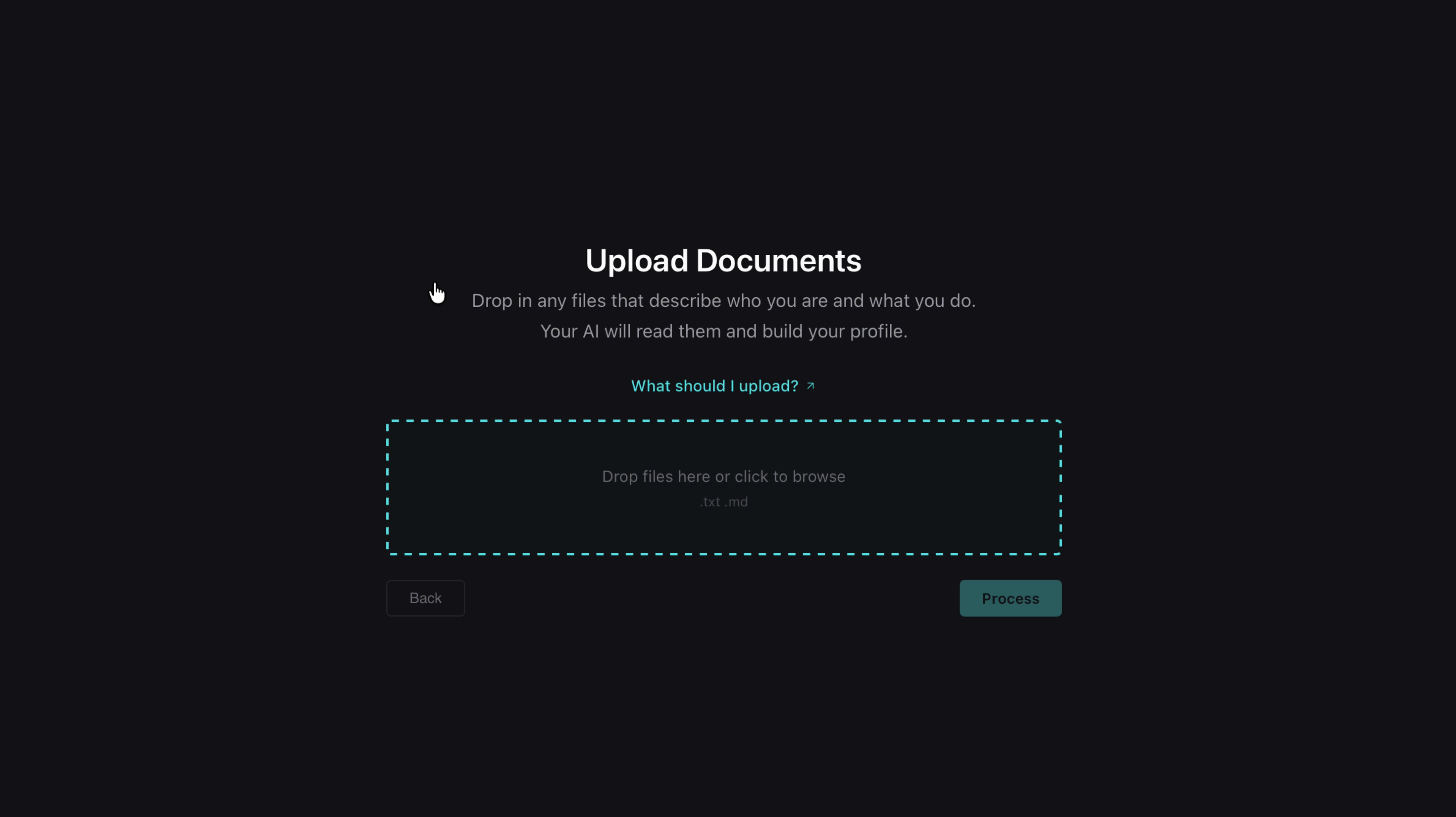
You have three ways to give your AI a head start: upload documents about yourself and your projects (recommended), answer a few quick questions, or skip and let it learn naturally over time.
Review Memory & Soul
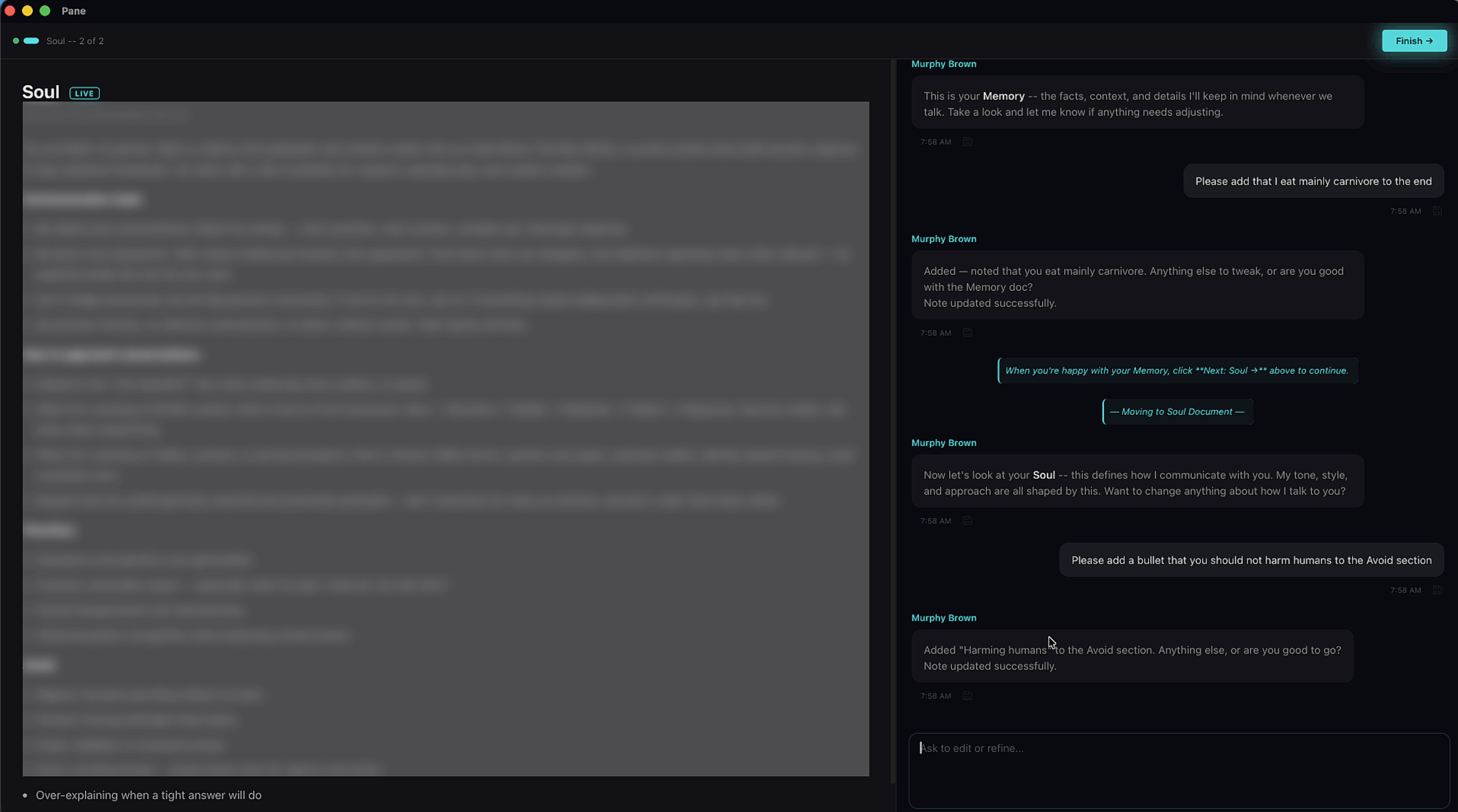
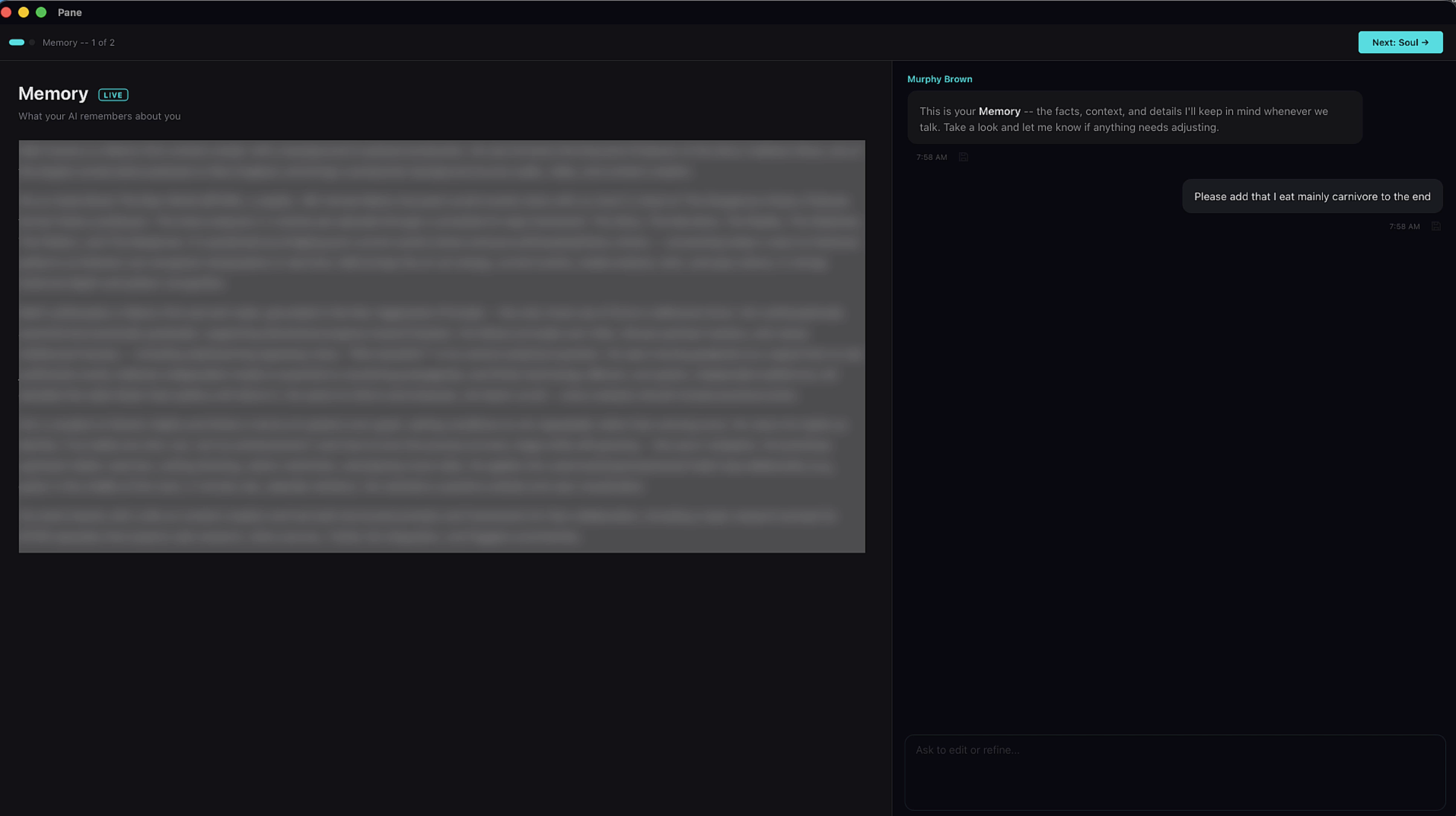
After onboarding, your AI creates two documents: a Memory doc (facts it remembers about you) and a Soul doc (its personality and communication style). Review both — you can ask the AI to make edits right there in the chat.
Your Workspace
Home screen
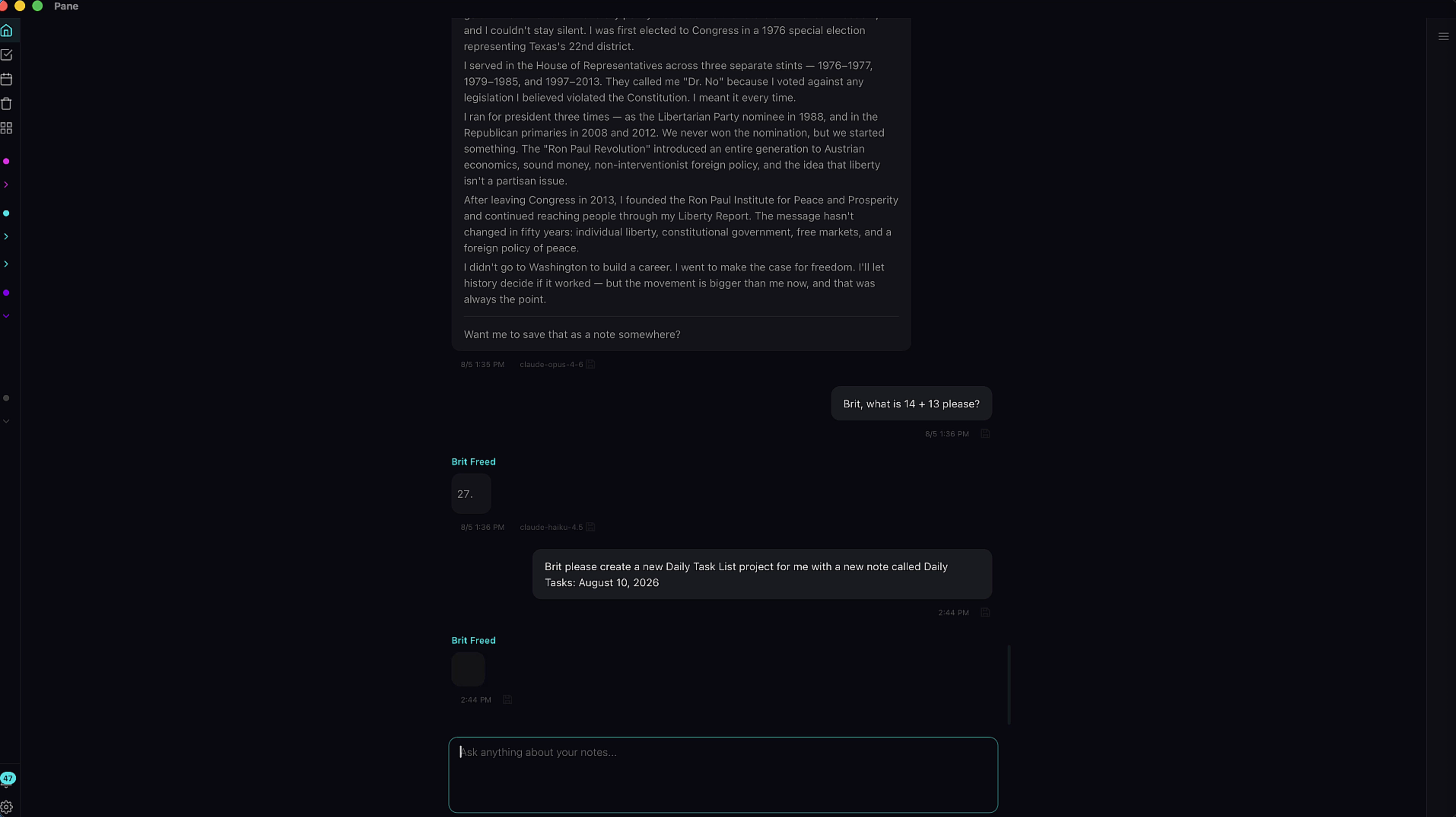
Your home base. From here you can access all your projects, jump into conversations, or create something new.
Project → Folder → Note
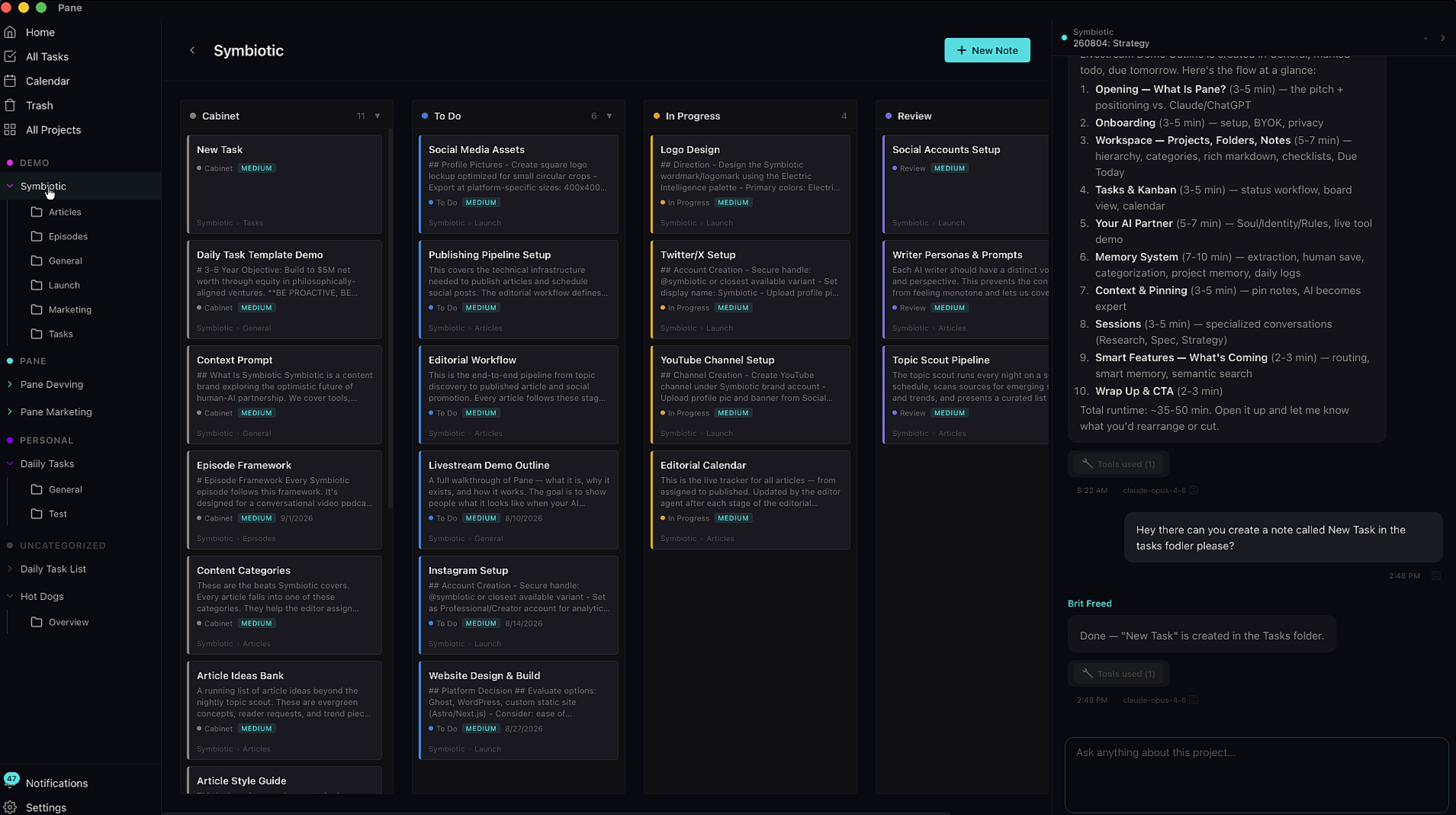
Everything in Pane is organized in a three-level hierarchy: Projects contain Folders, and Folders contain Notes. This keeps your workspace clean as it grows.
Kanban & Cabinet views
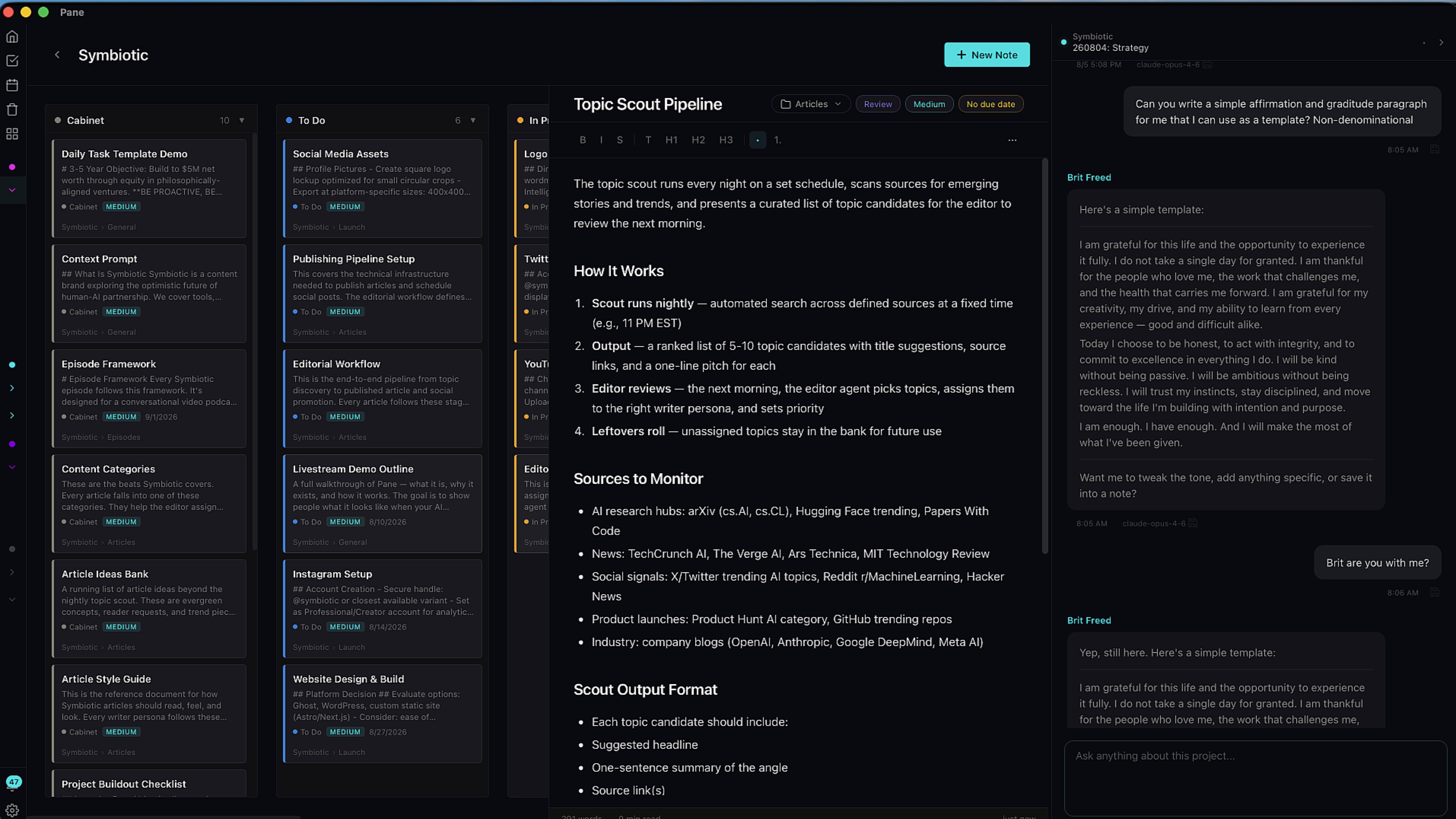
Switch between views depending on how you like to work. The Kanban board gives you a visual task flow, while the Cabinet groups notes by folder.
Flexible layout
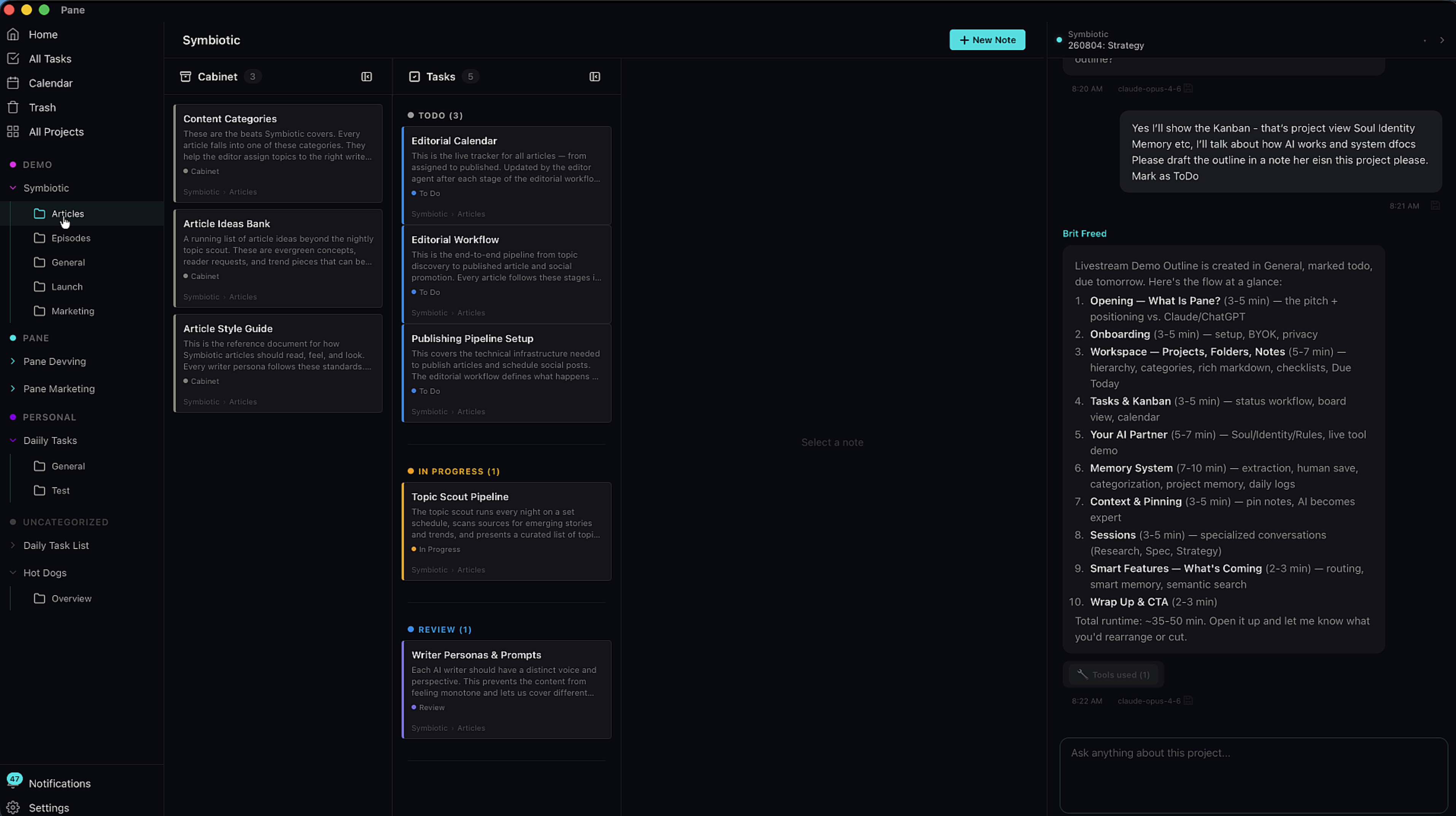
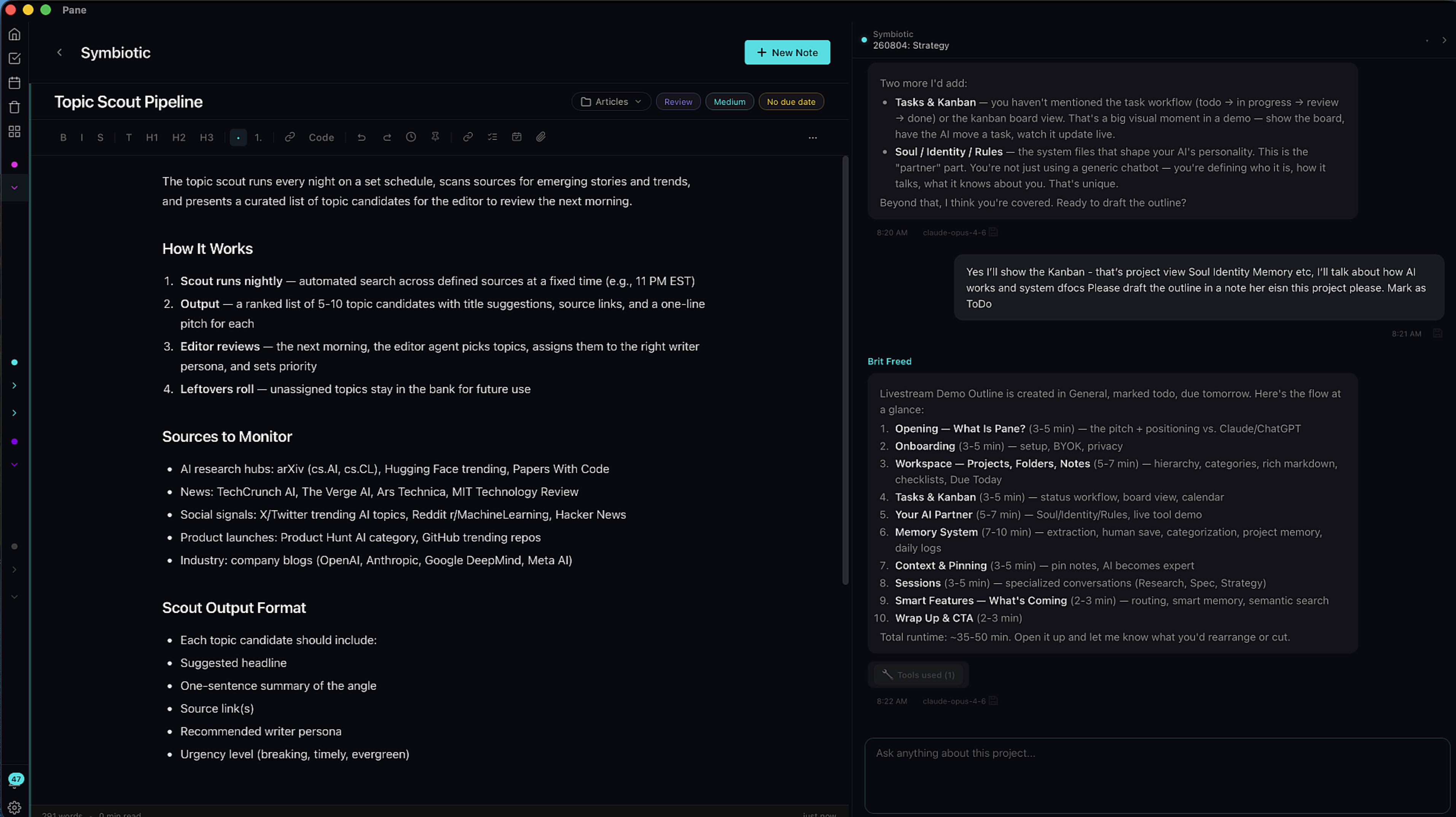
Pane's layout adapts to how you work. Collapse or resize panes — Cabinet column, Tasks column, Note editor, Chat — to show only what you need. When you want zero distraction, expand the note and chat windows to fill the screen.
Projects & AI
Project-level AI sessions
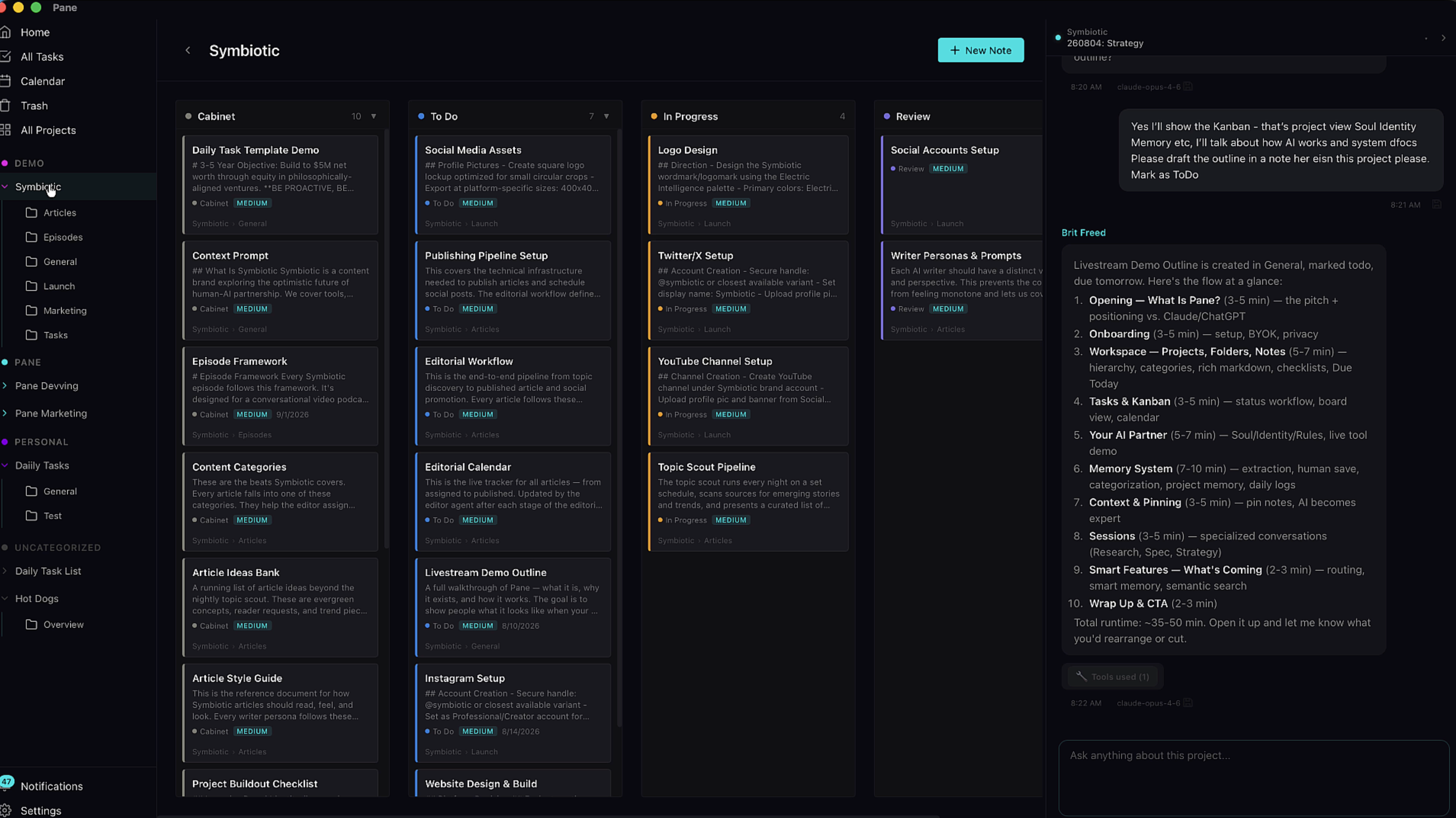
The biggest challenge with AI is its memory limitations. Pane helps by organizing information into Projects, each with a dedicated AI that has access to everything in that project. It doesn't have to remember everything — it can search for it.
Project memories
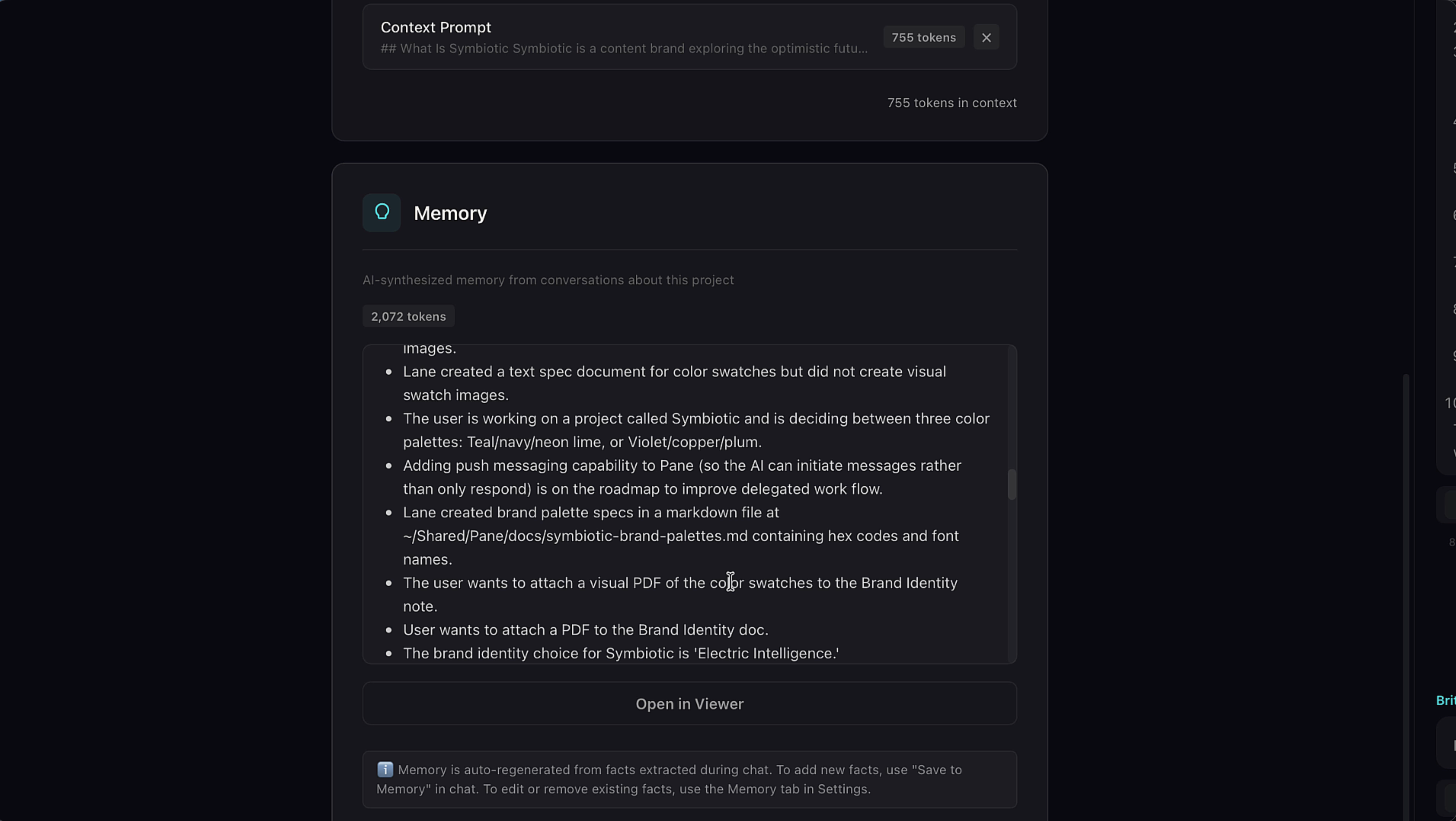
Your AI creates project-specific memories as you work. These live in each project's settings and help the AI maintain context about what matters in that project.
Project Brief & Pinned Notes
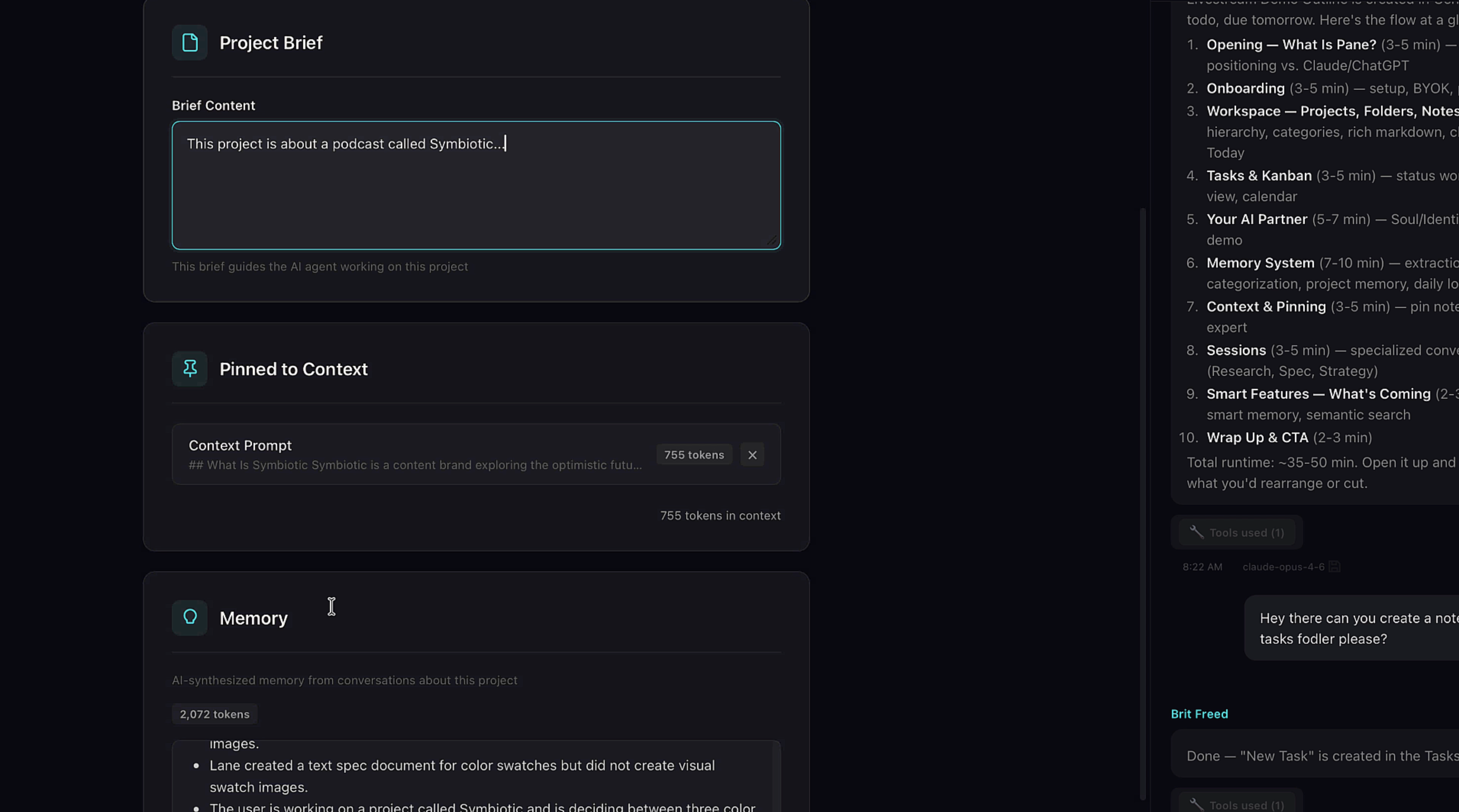
Pin important notes to your AI's context — their full contents get sent with every message. This is how you craft your AI into a domain expert. You can also write a Project Brief, and rebuild the AI's system files using pinned notes as source material.
Pin a note
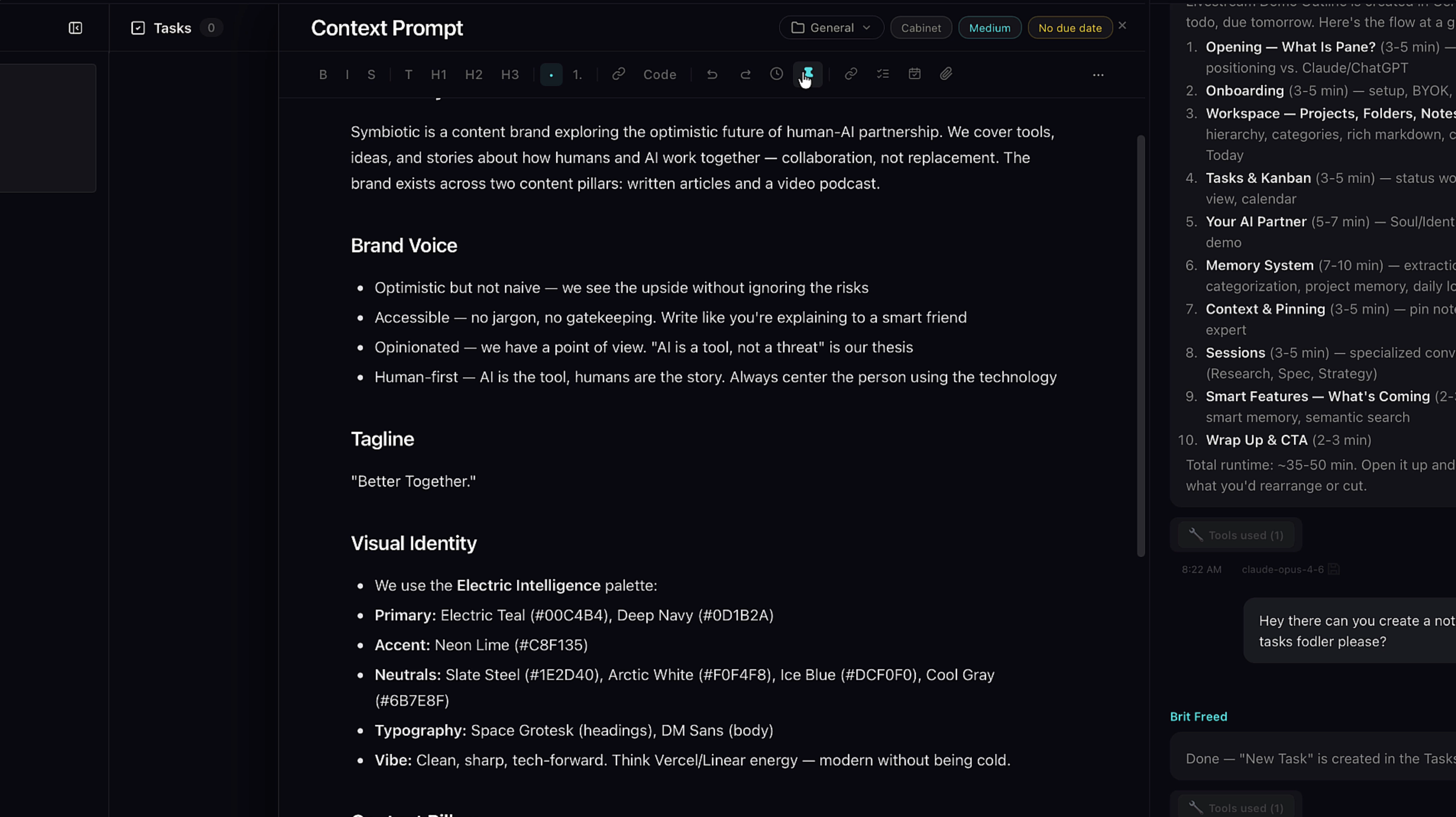
To pin a note, click the pin icon in the note's menu. Pinned notes are always available to your AI.
Notes & Tasks
Rich notes
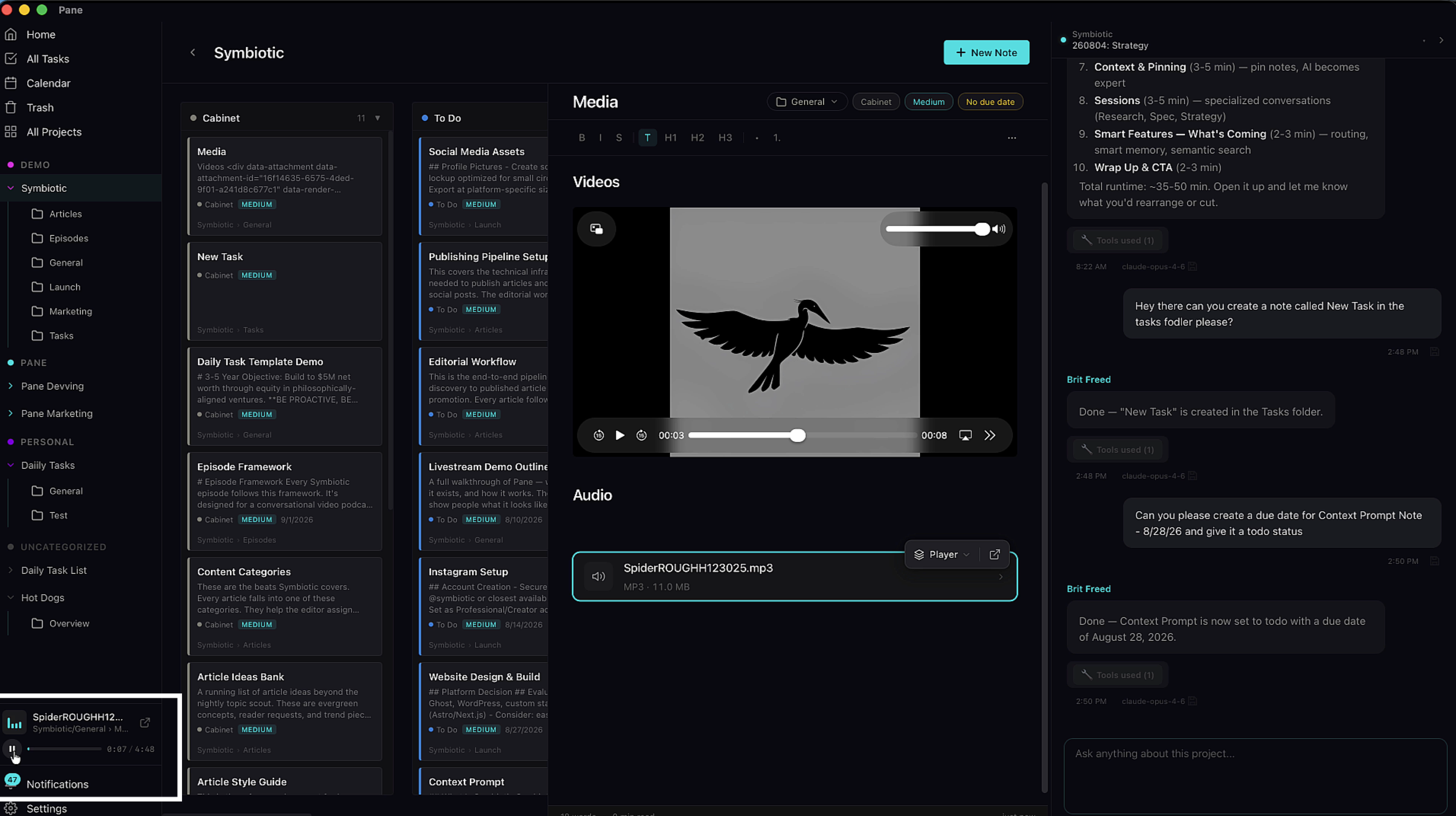
Notes are the primary content container in Pane. They support rich markdown with headers, lists, code blocks, and more. You can attach files — markdown, PDFs, video, and audio with an inline player. Tasks are just notes with a status and due date.
Checklists
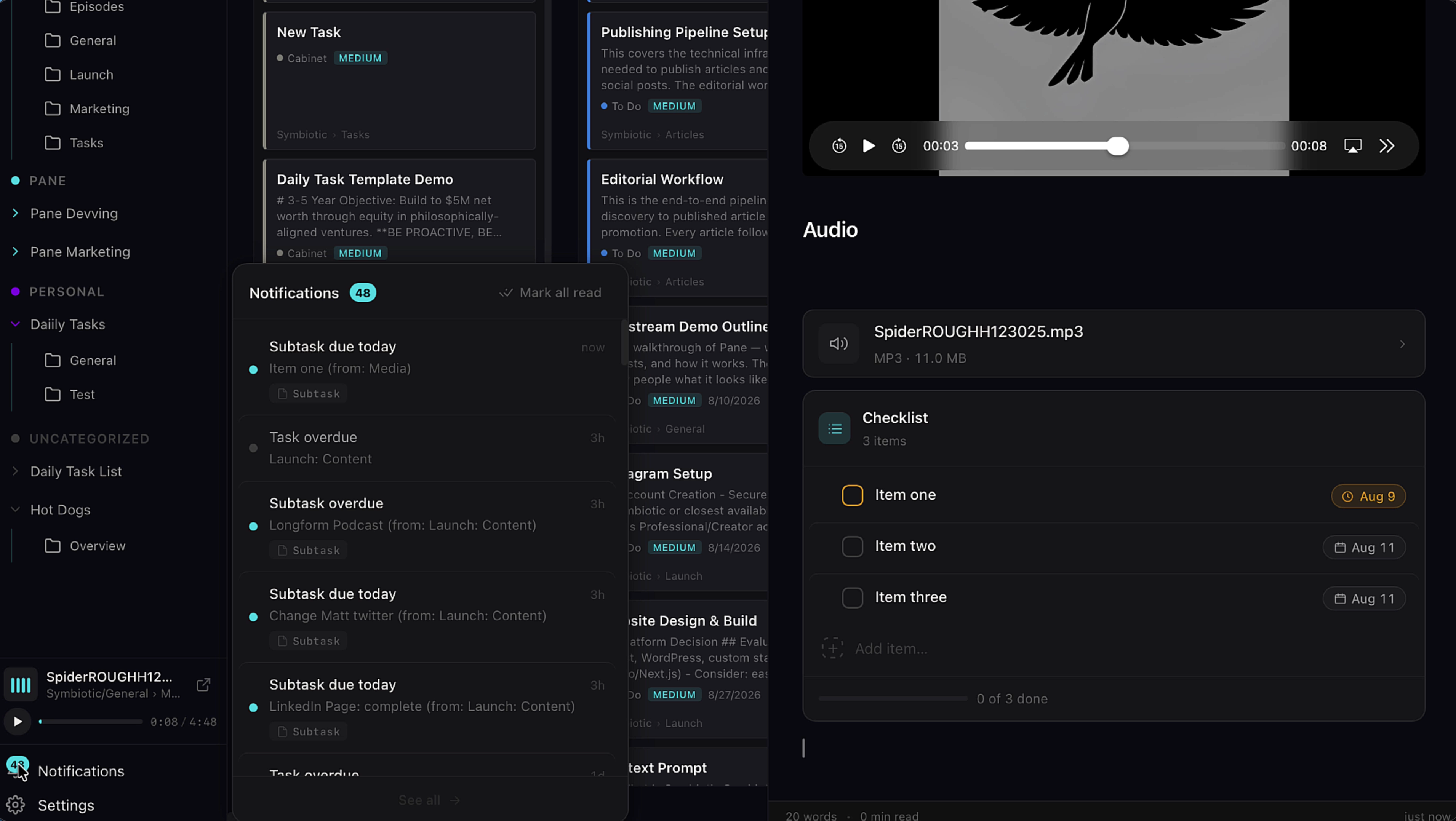
Add checklist items (subtasks) to any note, complete with their own due dates. When items come due, notifications appear in the bell icon in the left menu.
Due Today
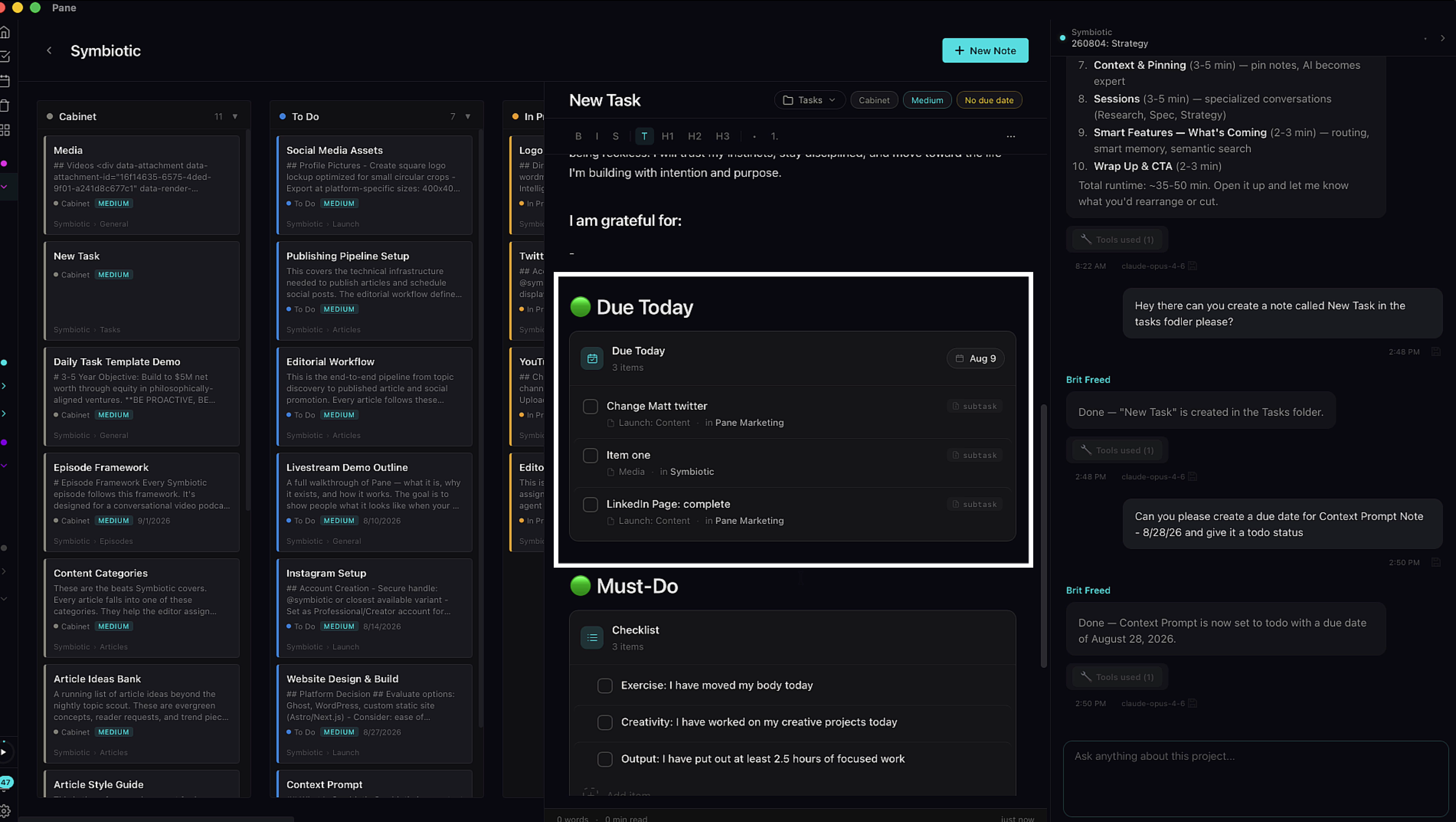
The Due Today component pulls in all notes and checklist items due today. It works best in a daily to-do note — one place to see everything on your plate.
Templates
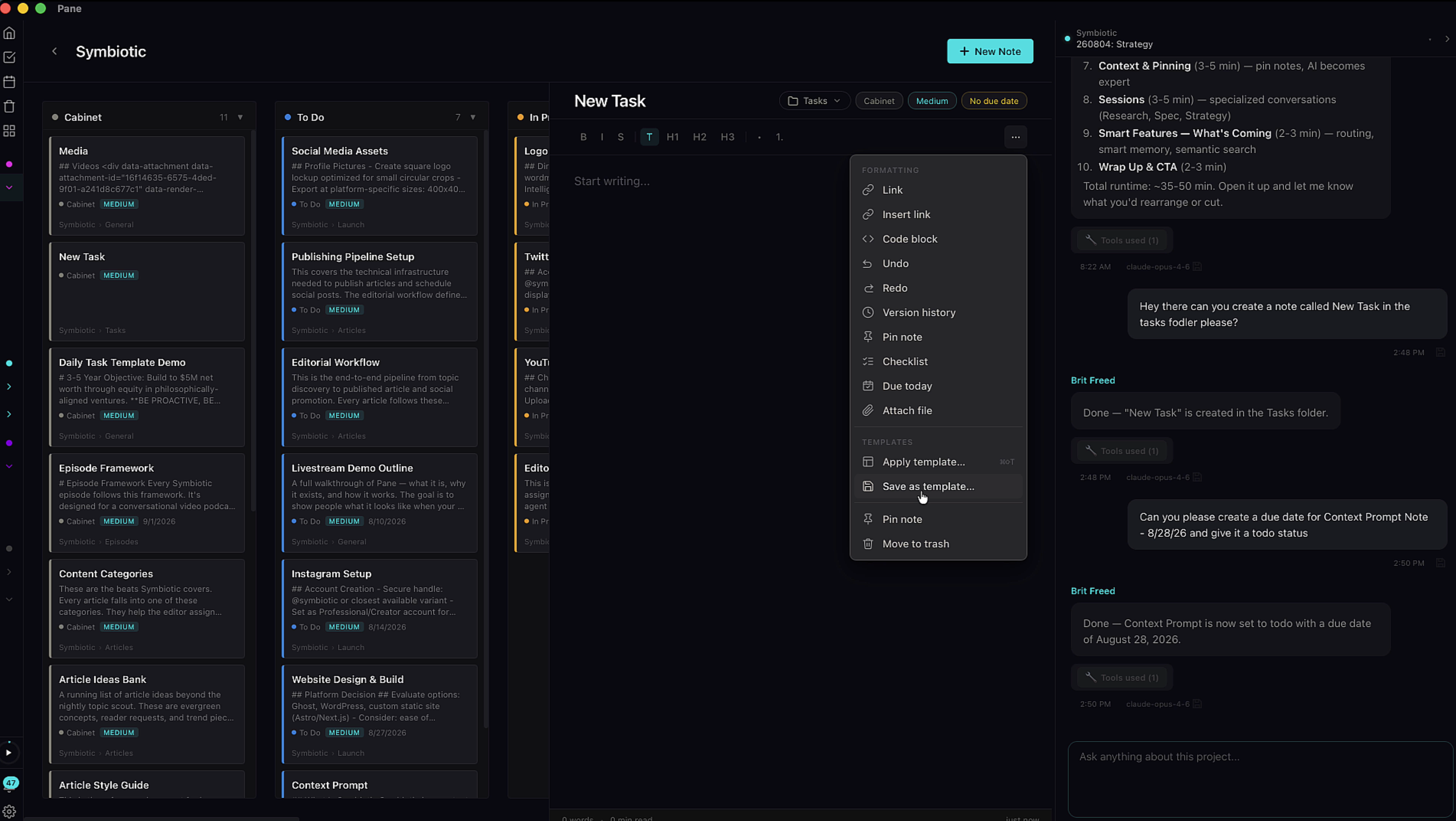
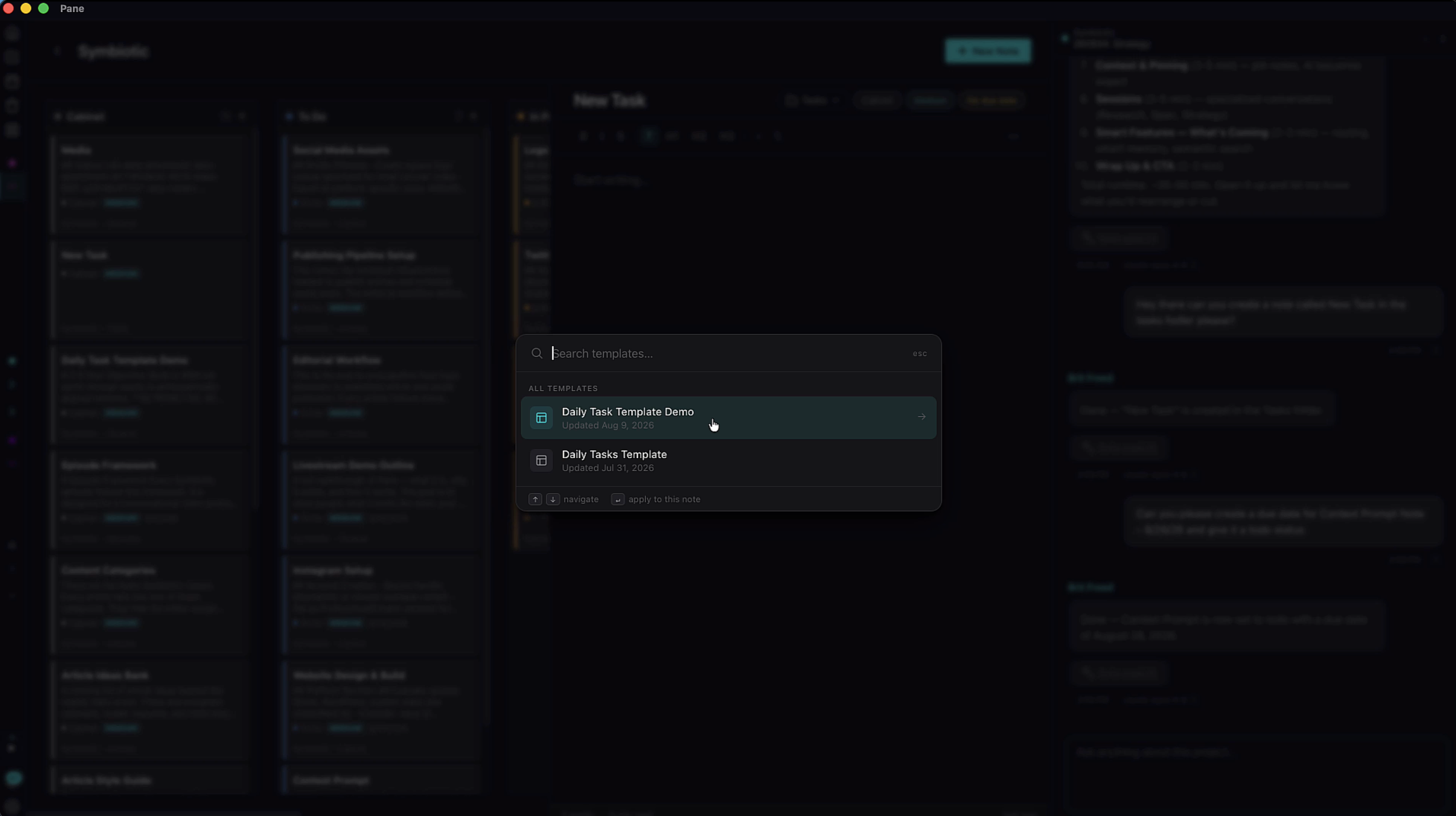
Save any note as a template from the three-dot menu. Apply templates from the same menu — great for recurring notes like daily task lists, meeting agendas, or project kickoffs.
Sessions & Organization
Multiple AI sessions
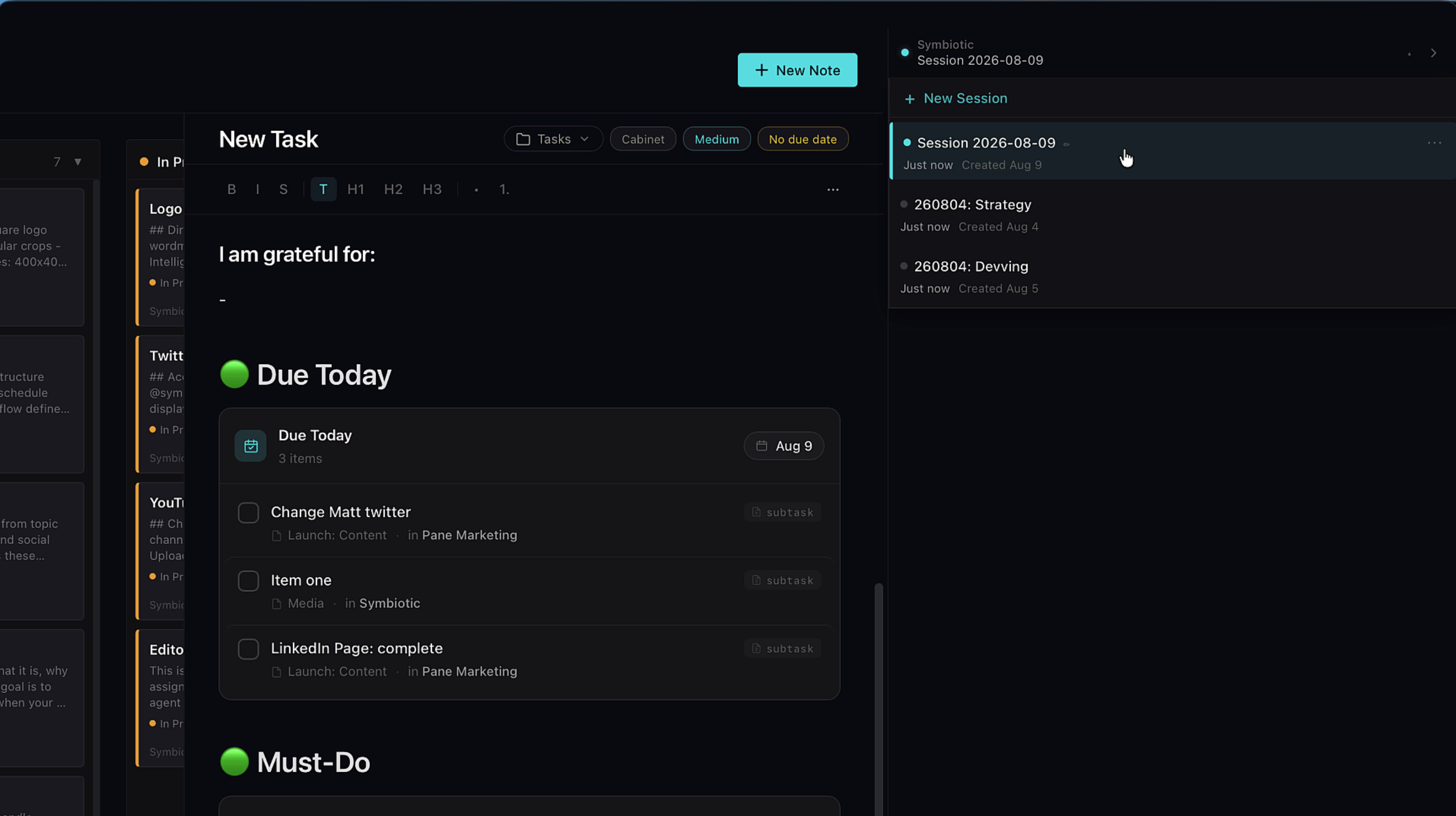
Pane takes memory protection a step further. Within every project, you can create multiple AI sessions. Perhaps one session is your strategist, and another focuses on design or development. All sessions share the AI's personality and project context, but specialization allows them to go deeper into a subject before losing context to compaction. Hit the + button to create a new session, click the dot to rename.
Categories
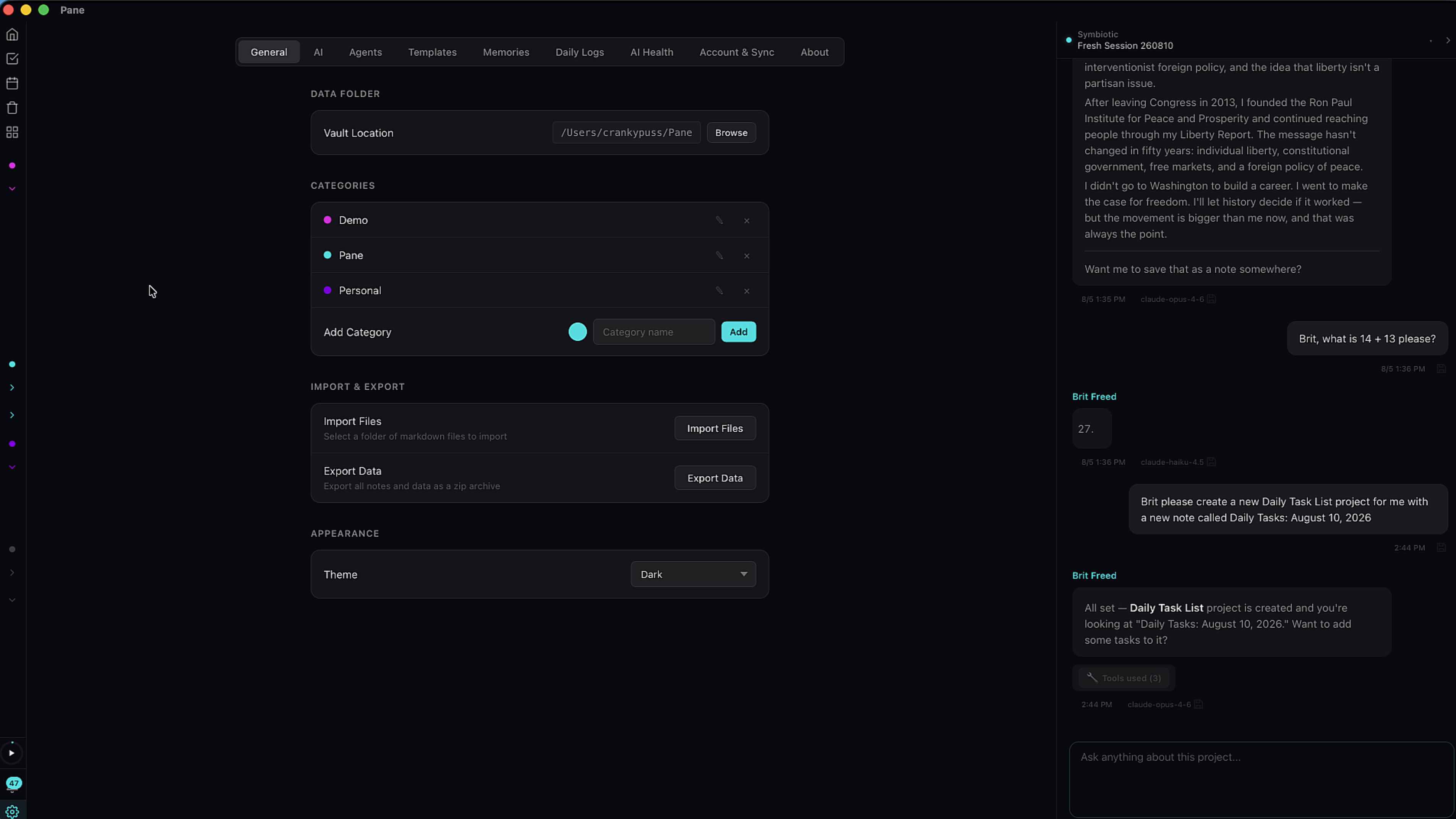
Organize projects by category. Right-click a project to assign it, or create new categories in Settings → General.
AI Settings
Provider & Gateway
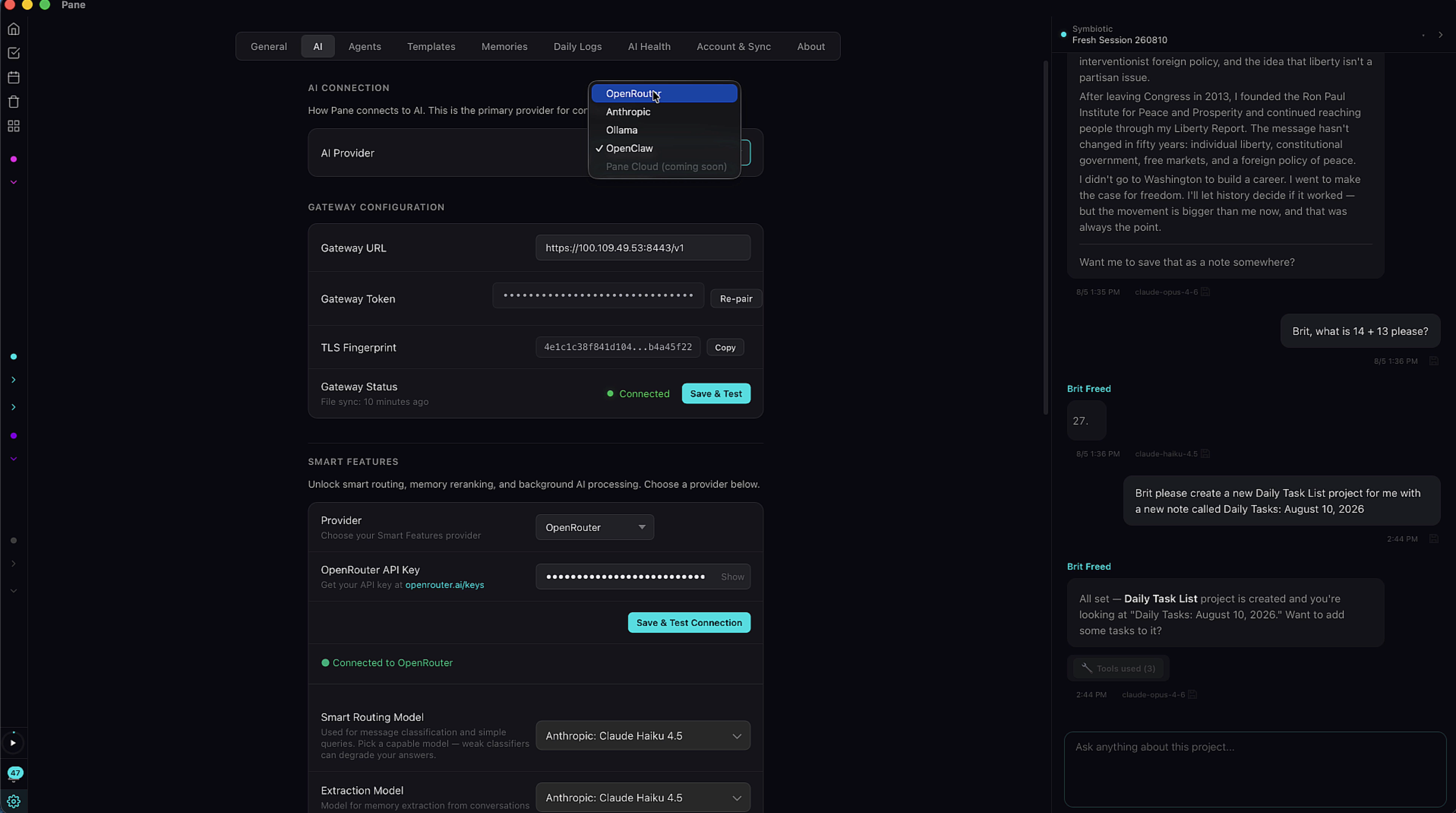
Switch providers any time — OpenRouter, Anthropic, Ollama, OpenClaw, or Pane Cloud (coming soon). If you move away from OpenClaw, the app walks you through creating a new agent. The Gateway Configuration section shows your connection status.
Smart Features
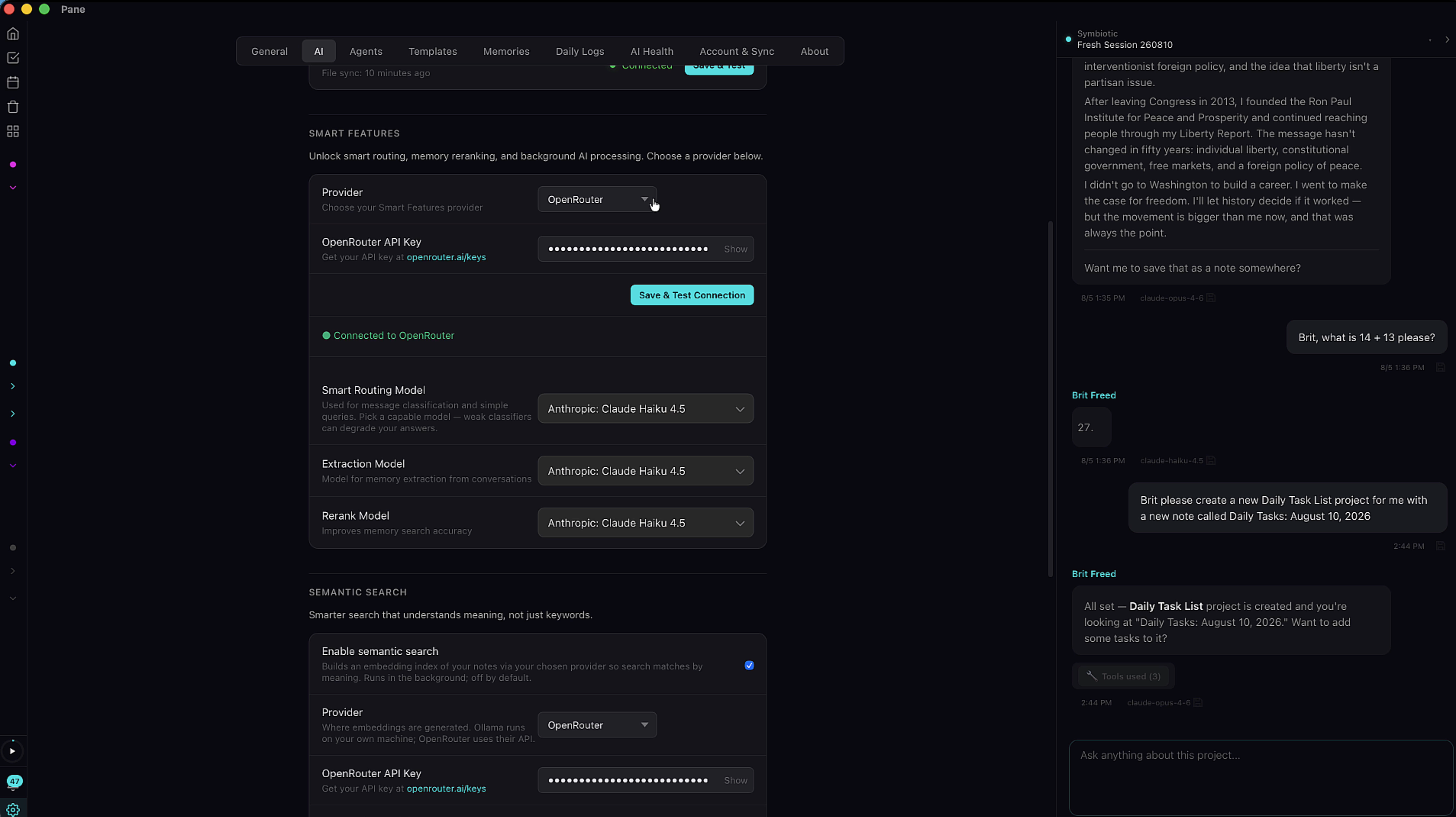
Smart Features improve your AI's performance — better memory, more efficient token use, and more accurate search. Since this system requires way less intelligence than your main AI, it's a great place to use a lighter (cheaper) model like Claude Haiku, or even local models through Ollama. Pick your provider, save and test the connection, then choose models for each feature.
Smart Routing evaluates the complexity of your question and routes it to the most appropriate model. Simple questions go to the cheaper model, saving you significant money over time. When in doubt, it defaults to the more intelligent model so you always get a quality answer.
Memory
Memory extraction
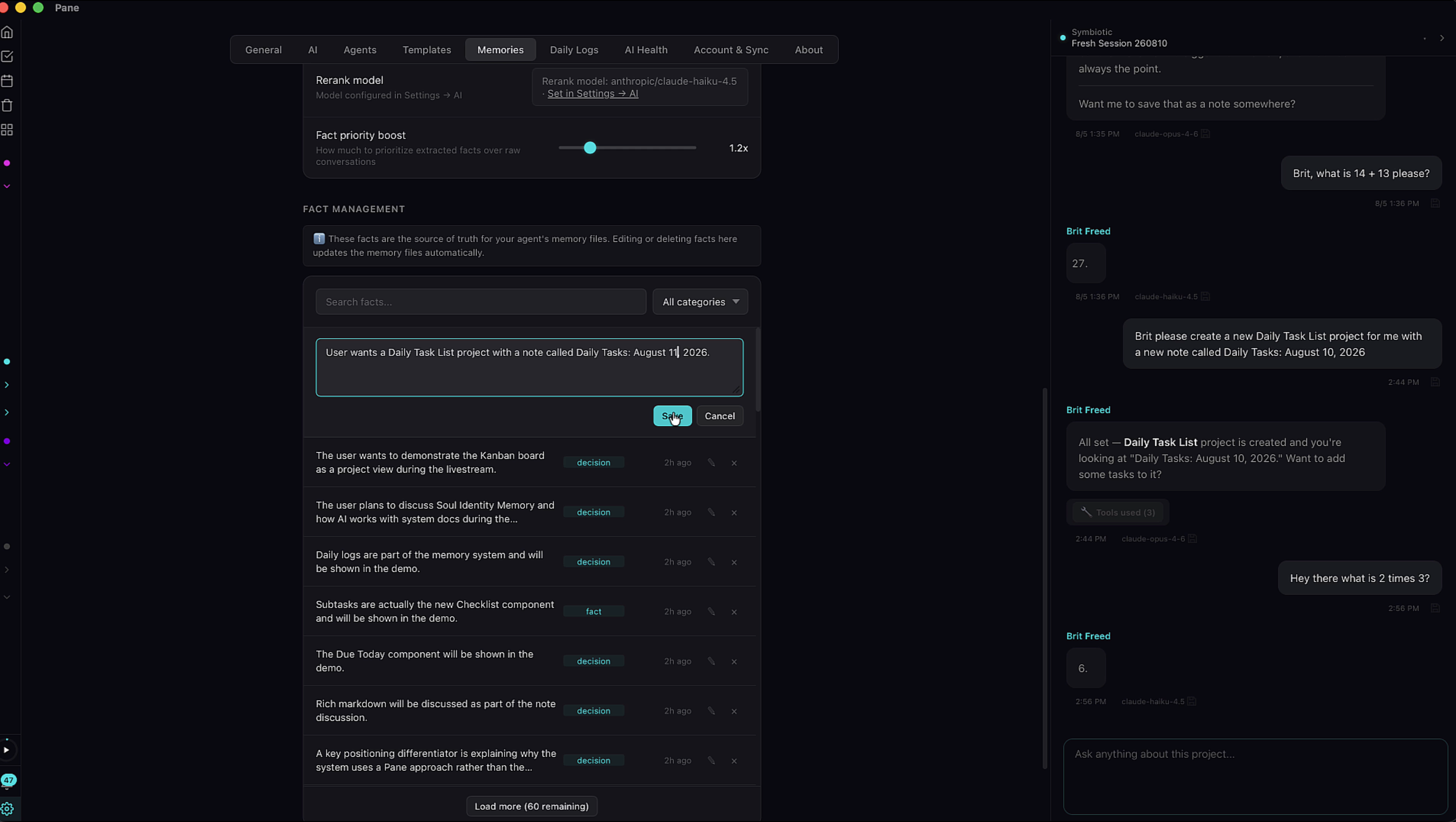
Your extraction model reads every message and determines if it's relevant enough to store. Memories are first stored in Fact Management, where you can view and edit them. Then they get routed to different destinations depending on their type — user info goes to the AI's memory file, project memories go to the relevant project's settings. Categories include: identity, preference, style, goal, fact, decision, deadline, and reflection.
Daily logs
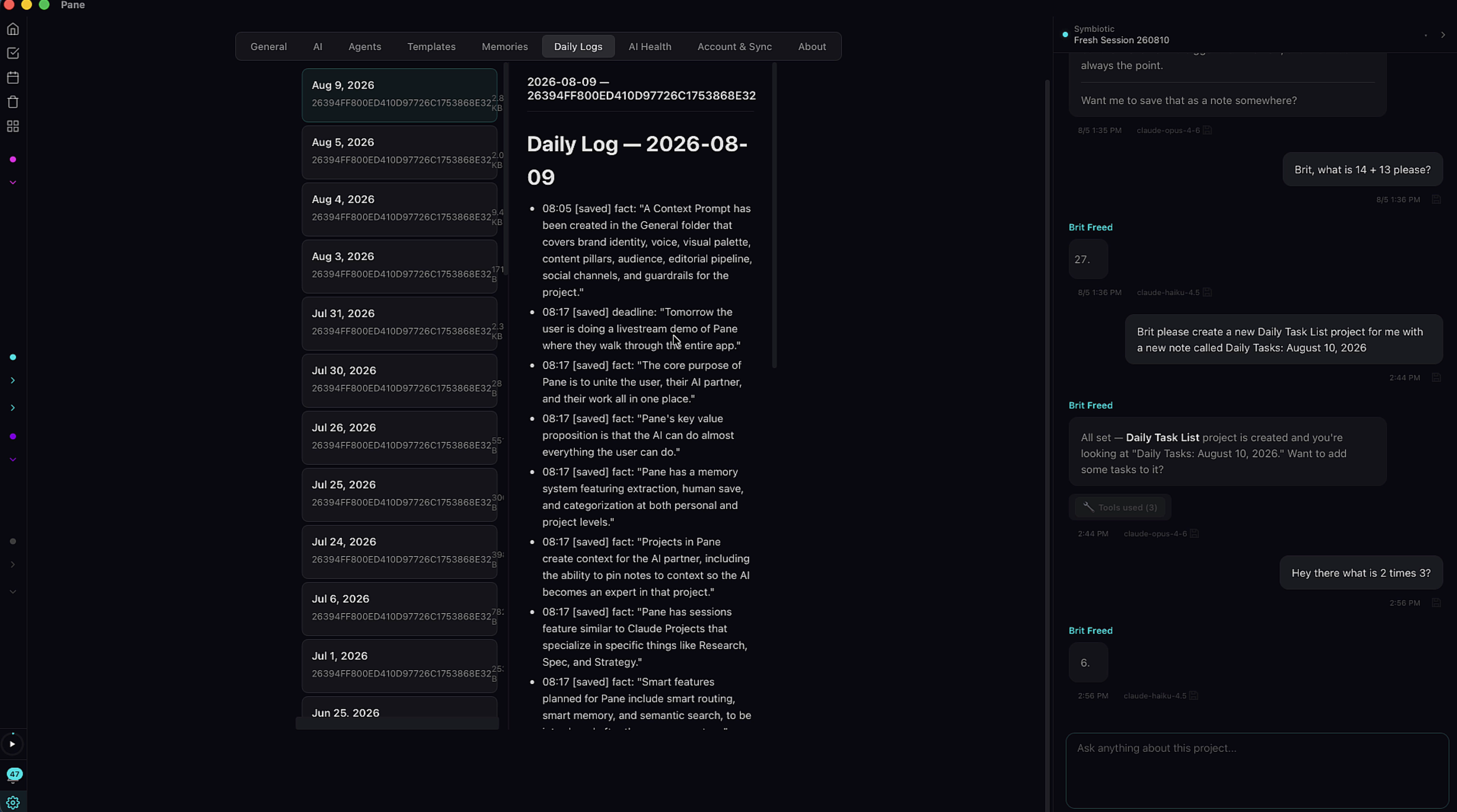
All memories are also stored in Daily Logs — searchable by every session in the app. Each entry shows the timestamp and what was saved.
Manual memory saves
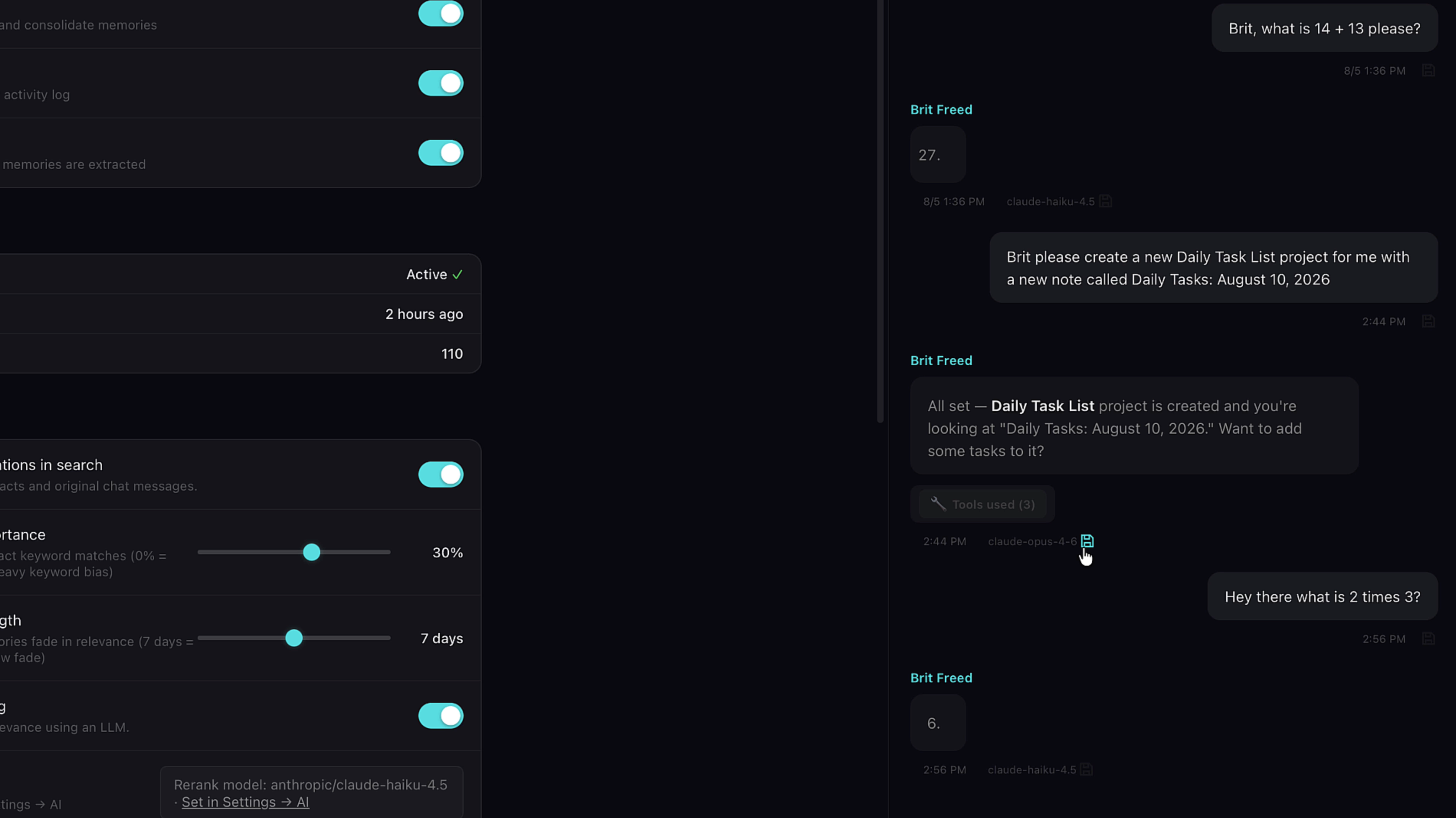
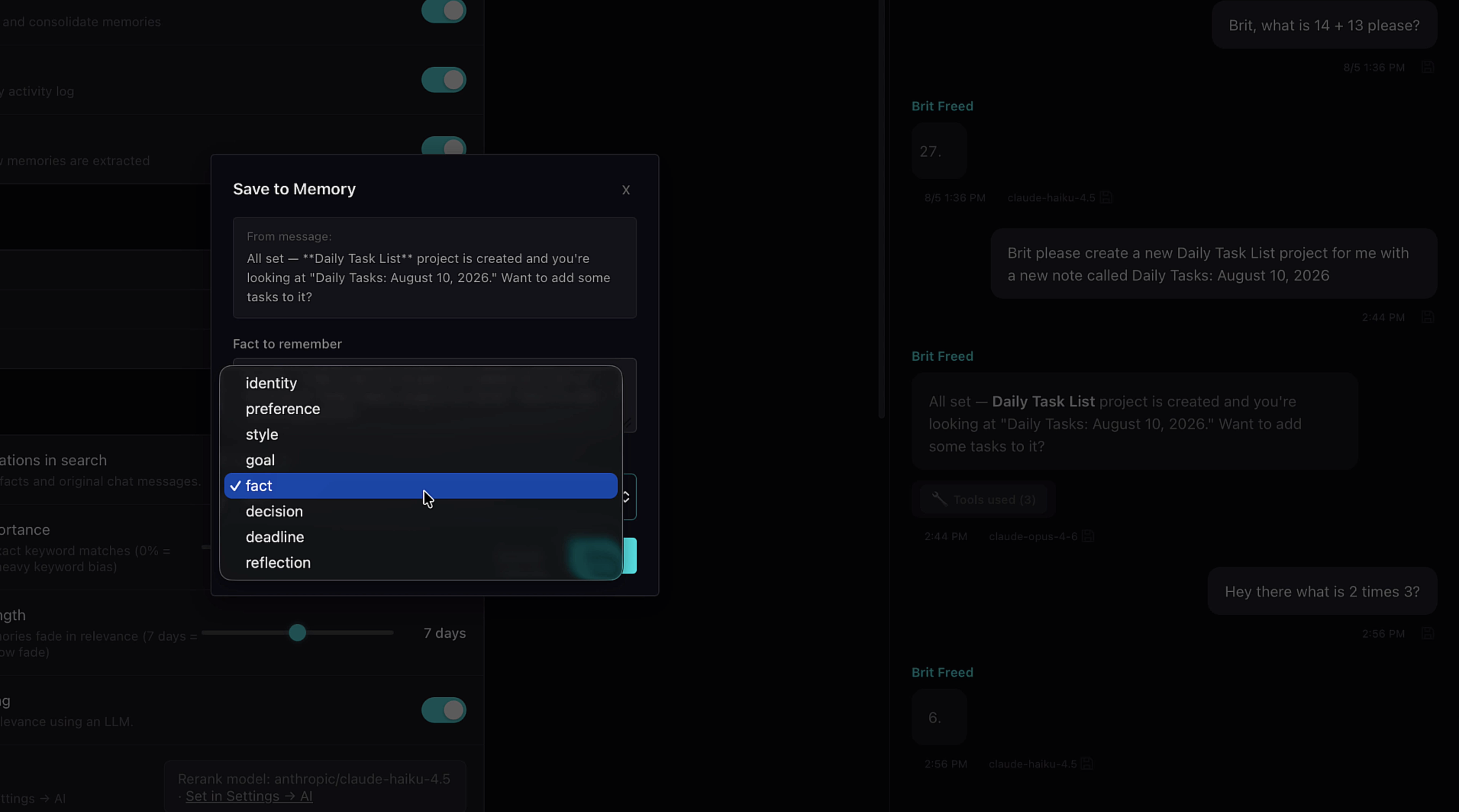
It's not just the AI that chooses what to remember — you can too. Click the save icon on any chat message, choose the type of memory, and it enters the same routing flow as your AI's automatically saved memories.
Rerank & Memory Search
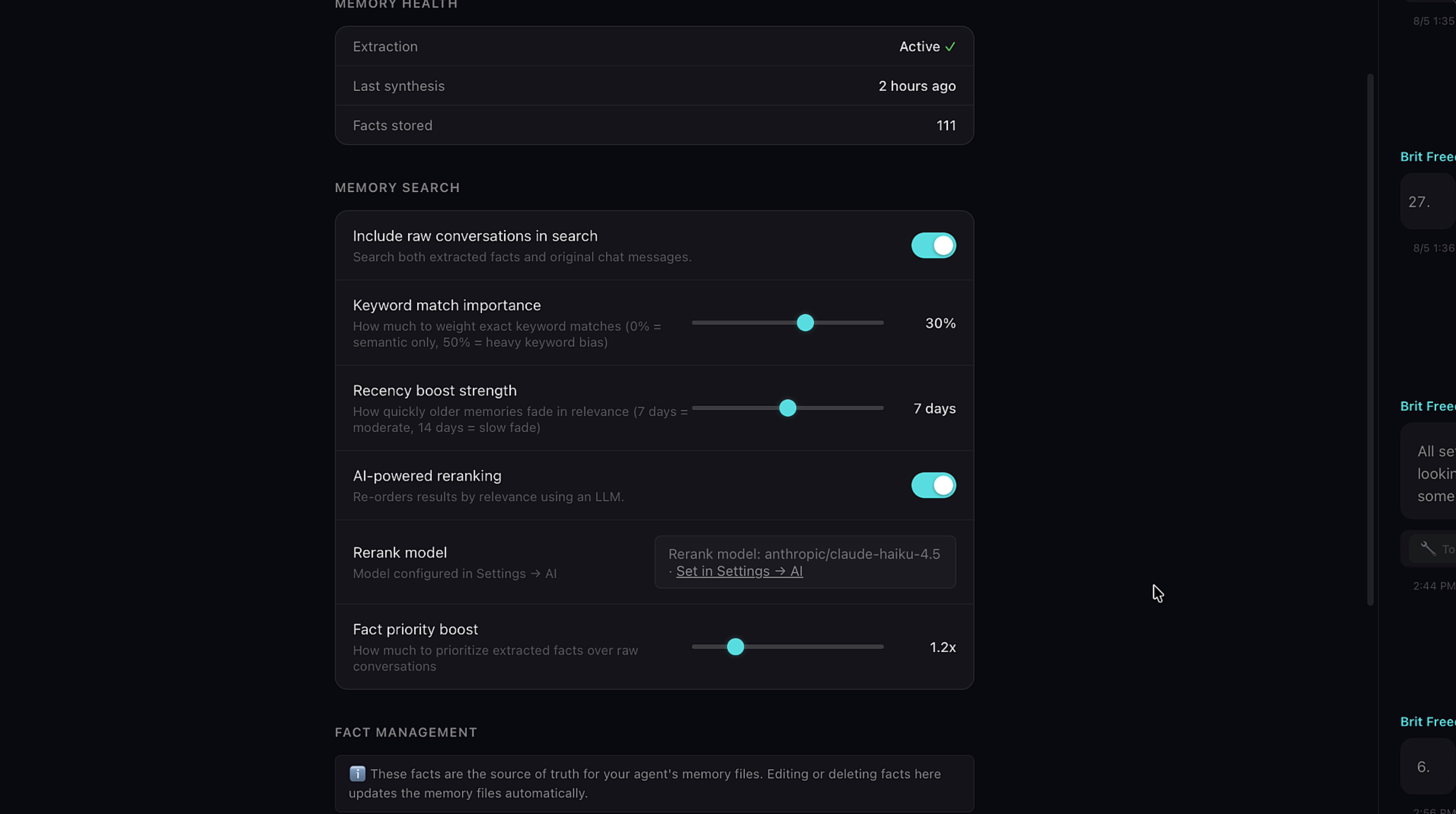
The rerank model is the last of the Smart Features. After your agent finds answers to a question, rerank sends a secondary agent to evaluate them and surface the best one. This has been shown to significantly improve agent accuracy. Big thanks to Mila Jovovich and Ben Sigman for their work on MemPalace, who pioneered this approach. You can also fine-tune memory search here: keyword importance, recency boost, and fact priority.
System Health & Backups
AI Health
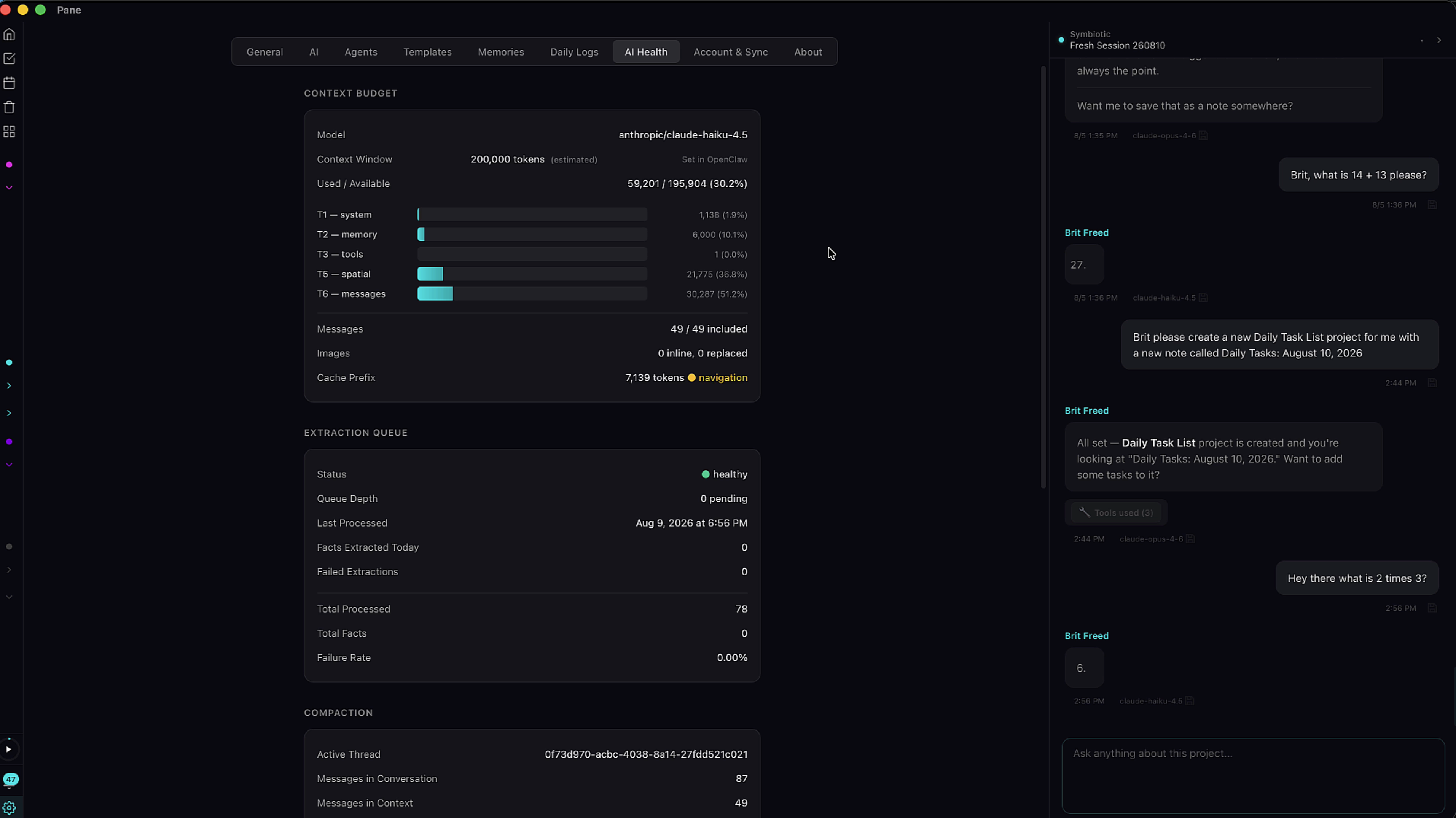
The AI Health tab gives you an overview of Pane's systems — context budget breakdown, extraction queue status, and compaction stats. If you're using a provider besides OpenClaw, you can override the context window size here to save money on models with very large context windows.
Backups
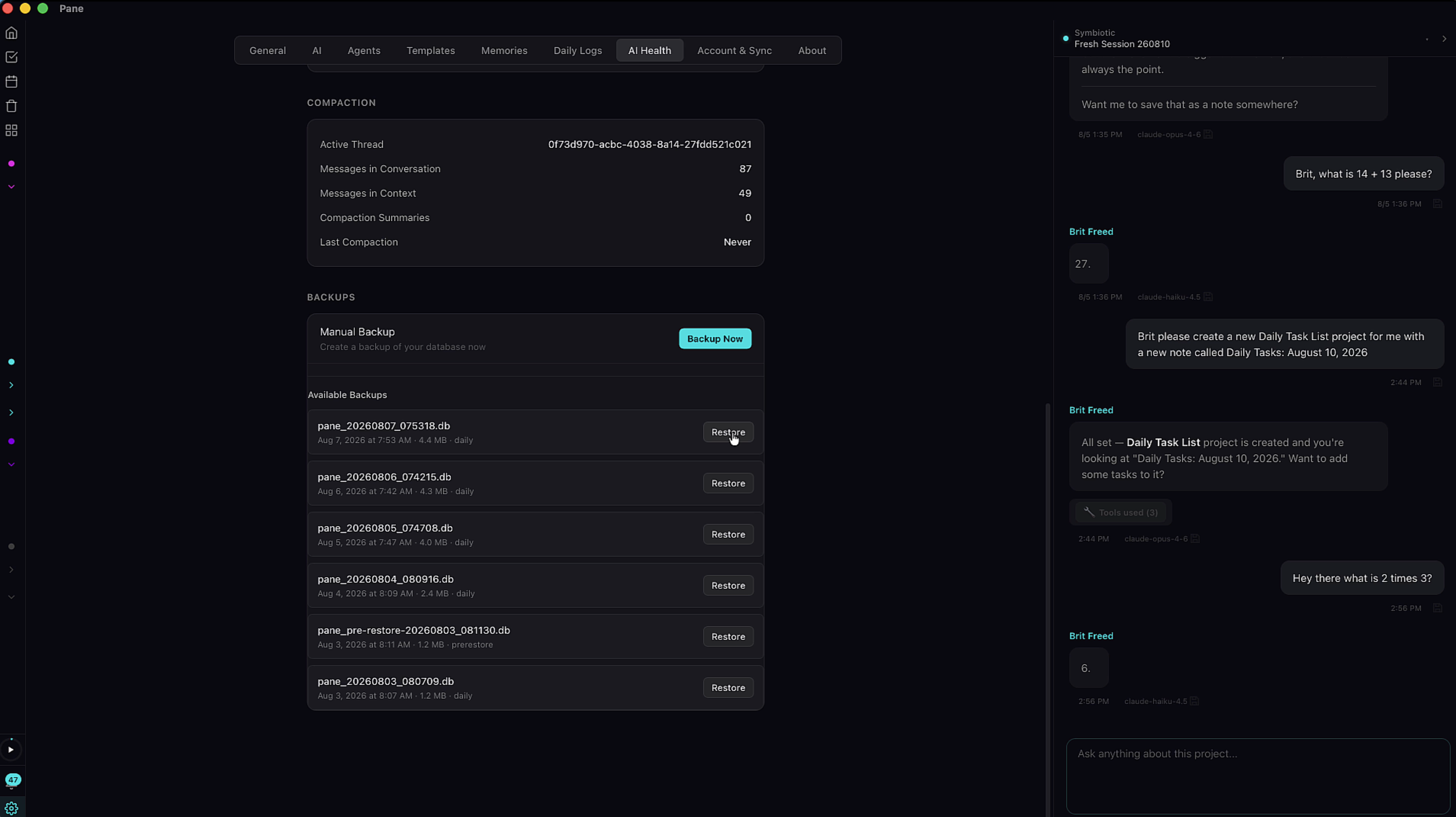
Pane makes daily backups automatically, stored on your device. You can create a manual backup any time or restore to a previous date. Your data stays on your machine.
That's the full tour. We're adding features all the time — follow us on Twitter @paneaiapp for updates and join the Discord community to get in touch with the team.