Templates
Templates are how you stop rebuilding the same note over and over. Anything you can make in a note, you can save as a template. Notes are markdown, so if you can build it once, you can reuse it forever.
Get involved: Subscribe · Discord · Twitter/X · Matt on X
1. Why templates
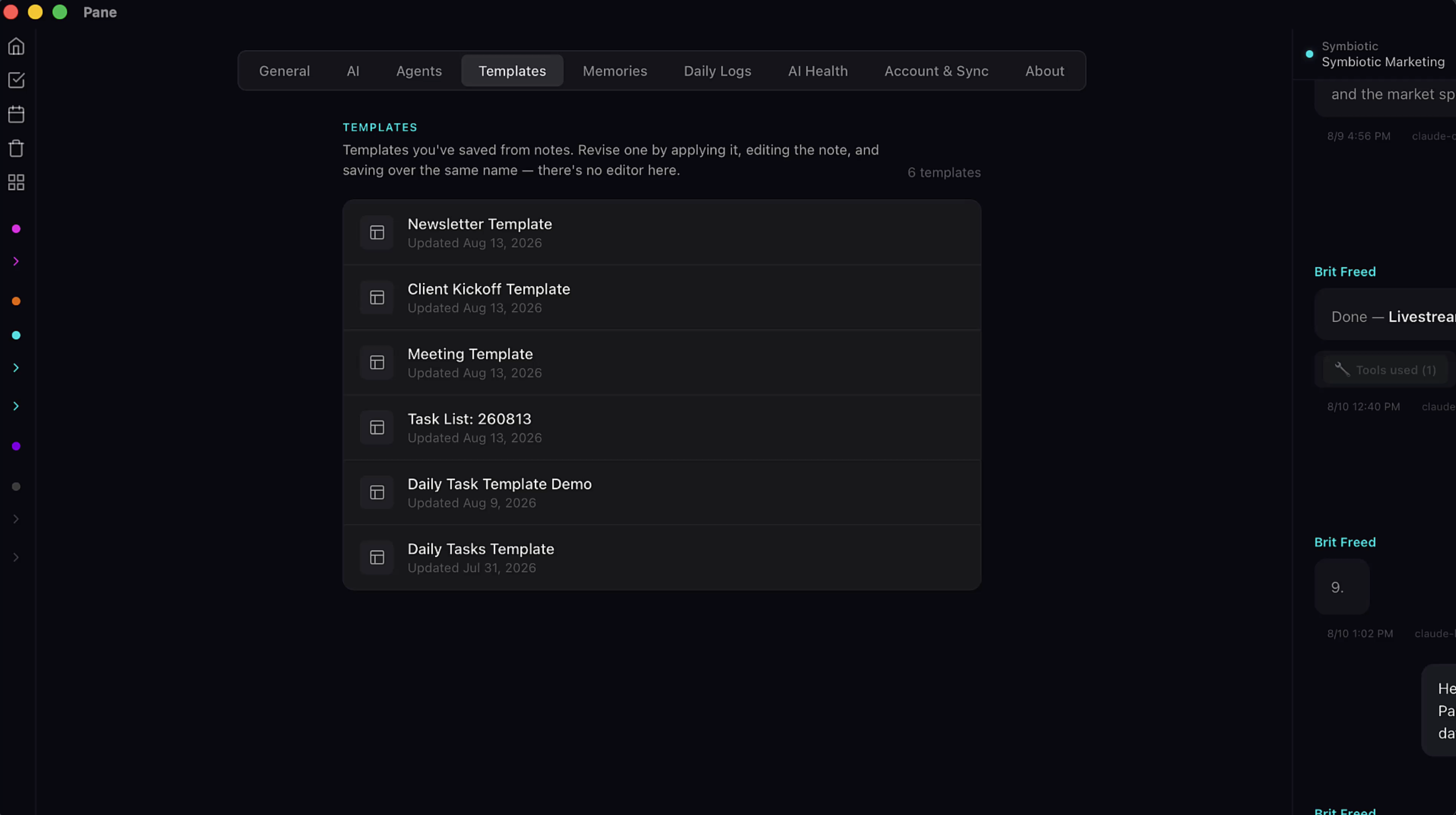
Templates are how you stop rebuilding the same note over and over. Anything you can make in a note, you can save as a template. Notes are markdown, so if you can build it once, you can reuse it forever.
2. Start with a note worth reusing
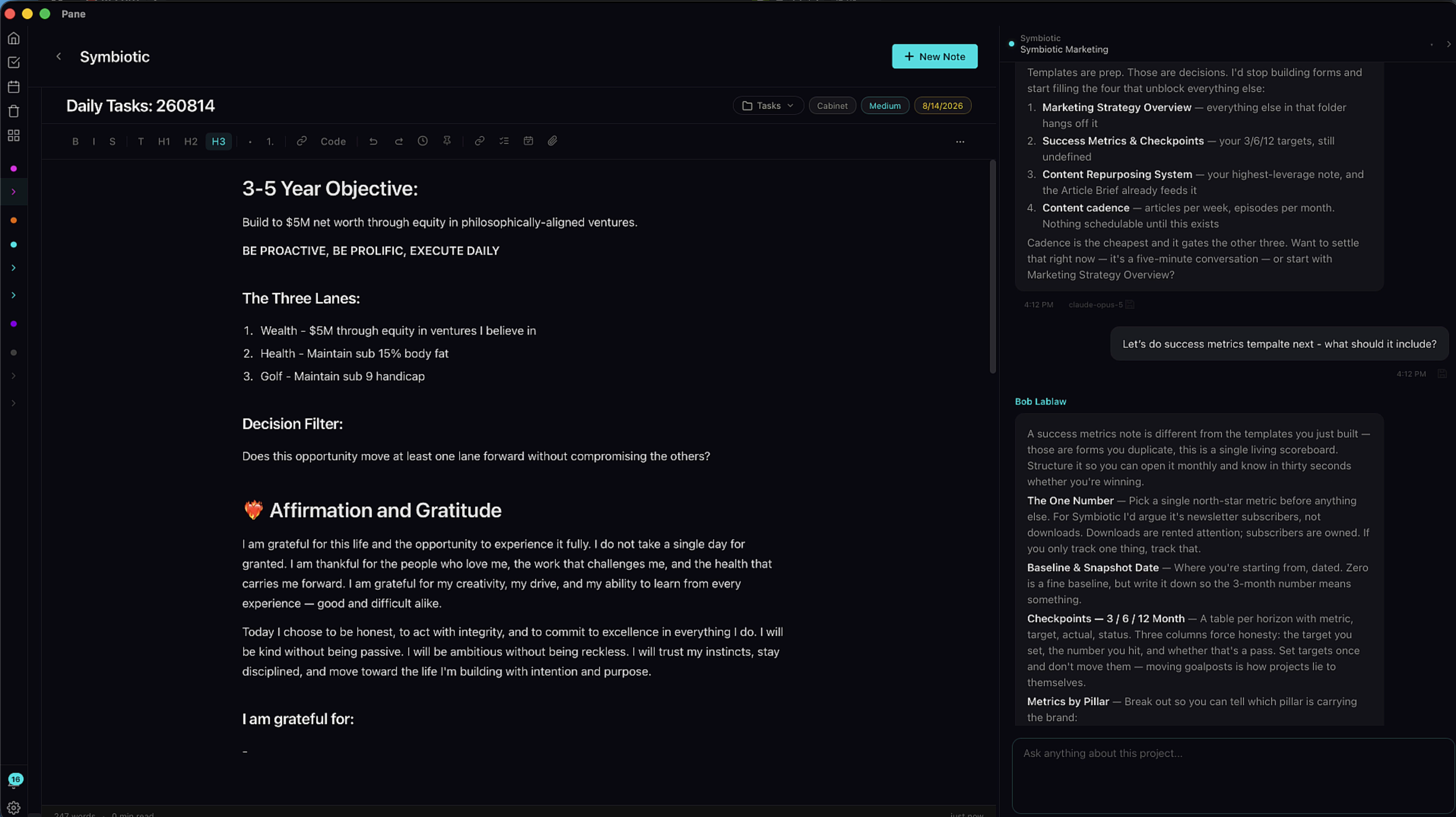
Here's my Daily Tasks note. I use this every single day. Headers for my priorities, a checklist for the todos, and a Due Today component at the top. Let's turn it into a template.
3. Save as template
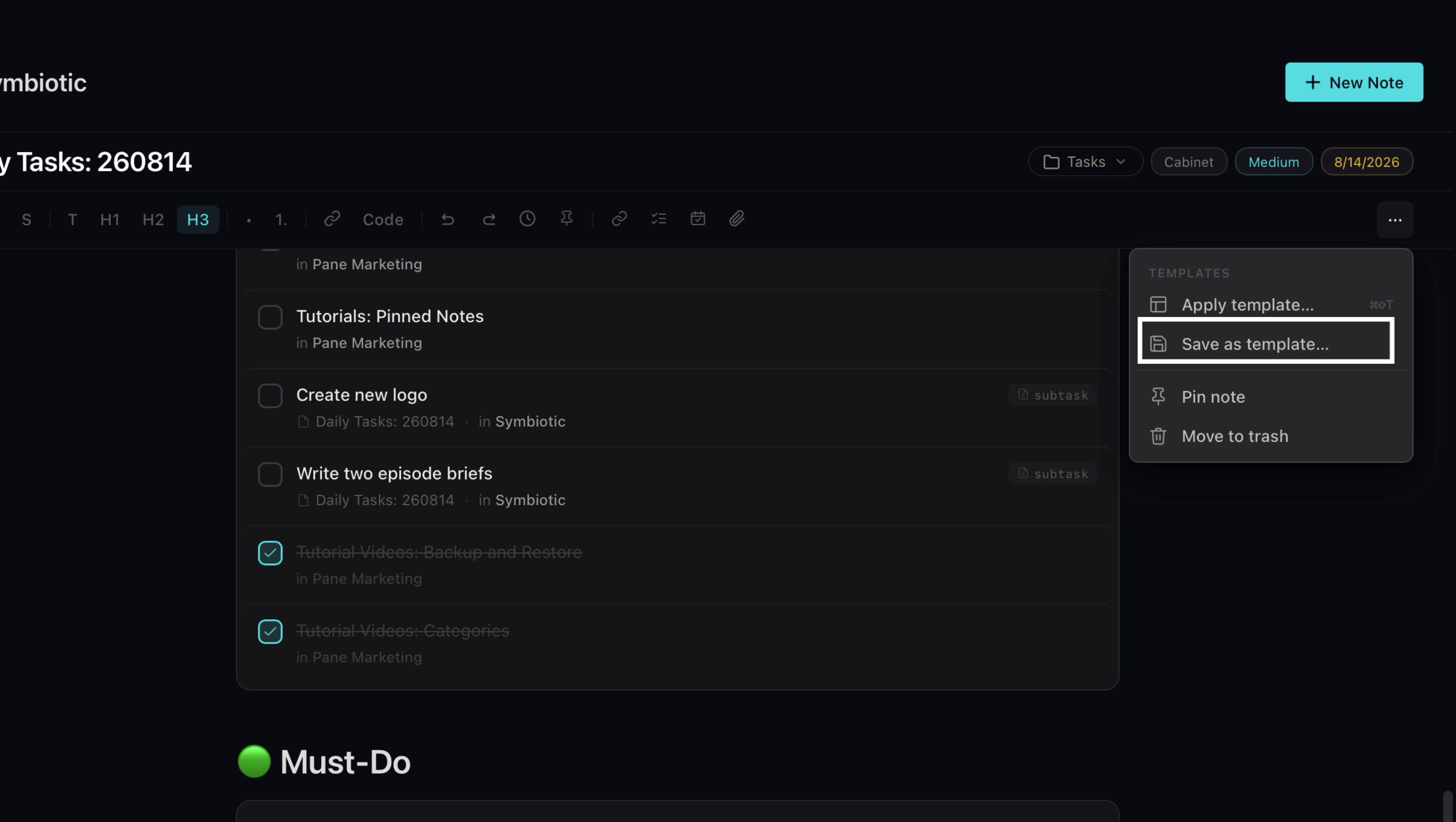
Hit the three dots in the note menu. Save as Template. Name it. Done.
4. Apply a template
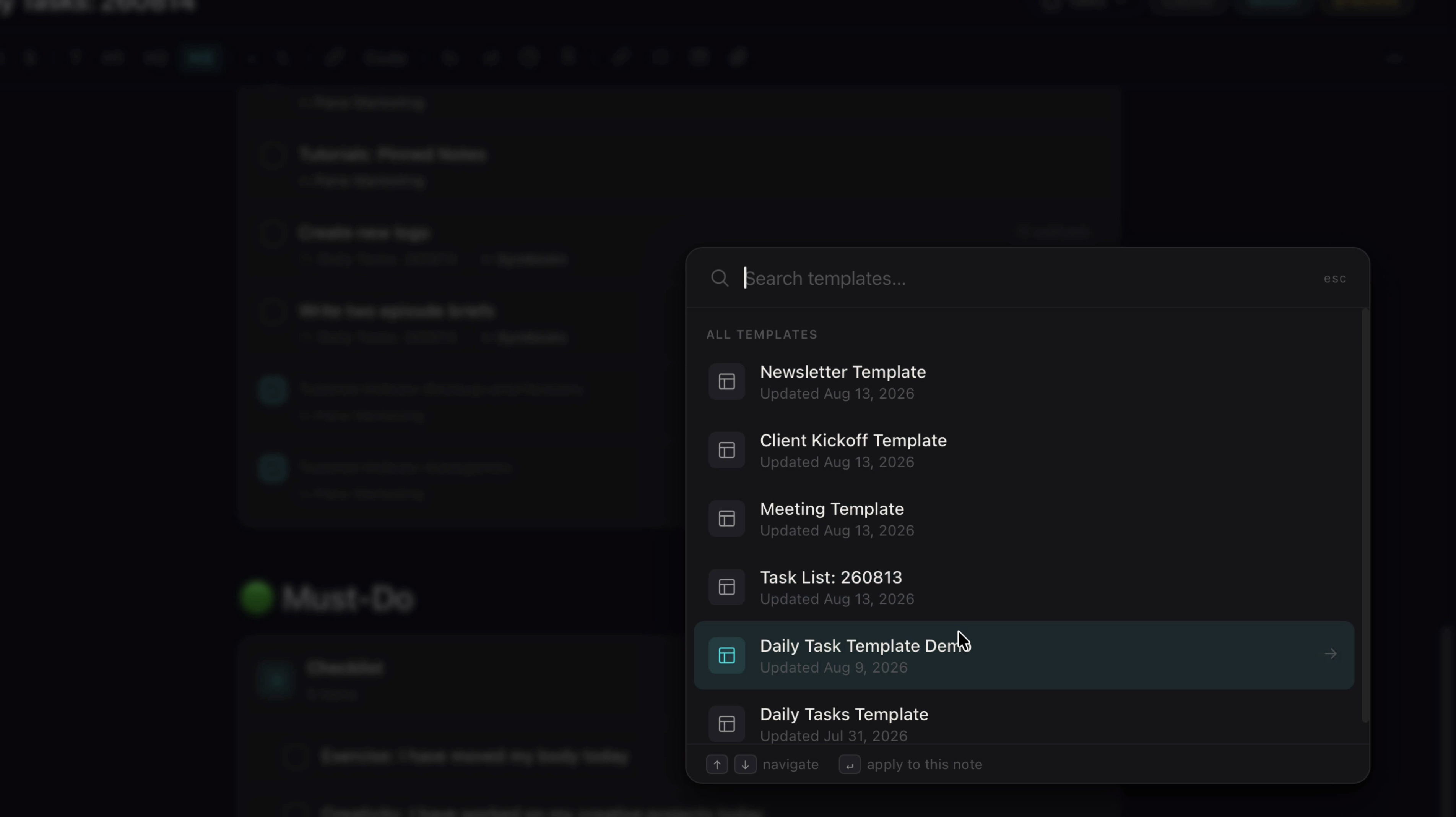
Tomorrow morning: new note, three dots, Apply Template, pick Daily Tasks. My whole day is laid out in two clicks. And that works for anything you do more than once, like Meeting Notes and Newsletter Templates.
5. Due Today component
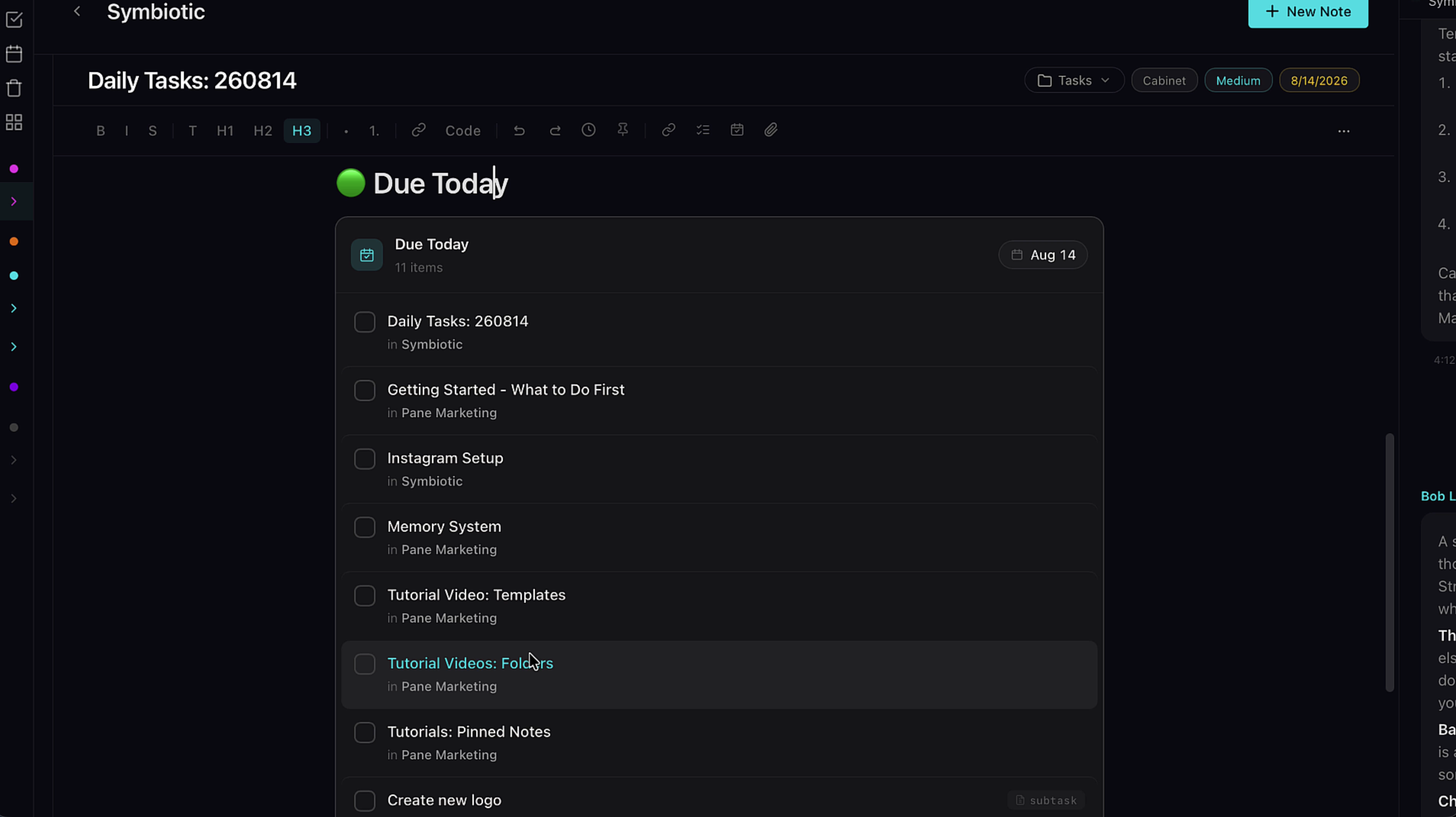
Now, two components that make templates really powerful. First, Due Today. Insert it from the menu and it pulls every item due today from across the entire app into this one note. Put it in your daily template and every morning starts with a complete picture.
6. Checklist with due dates
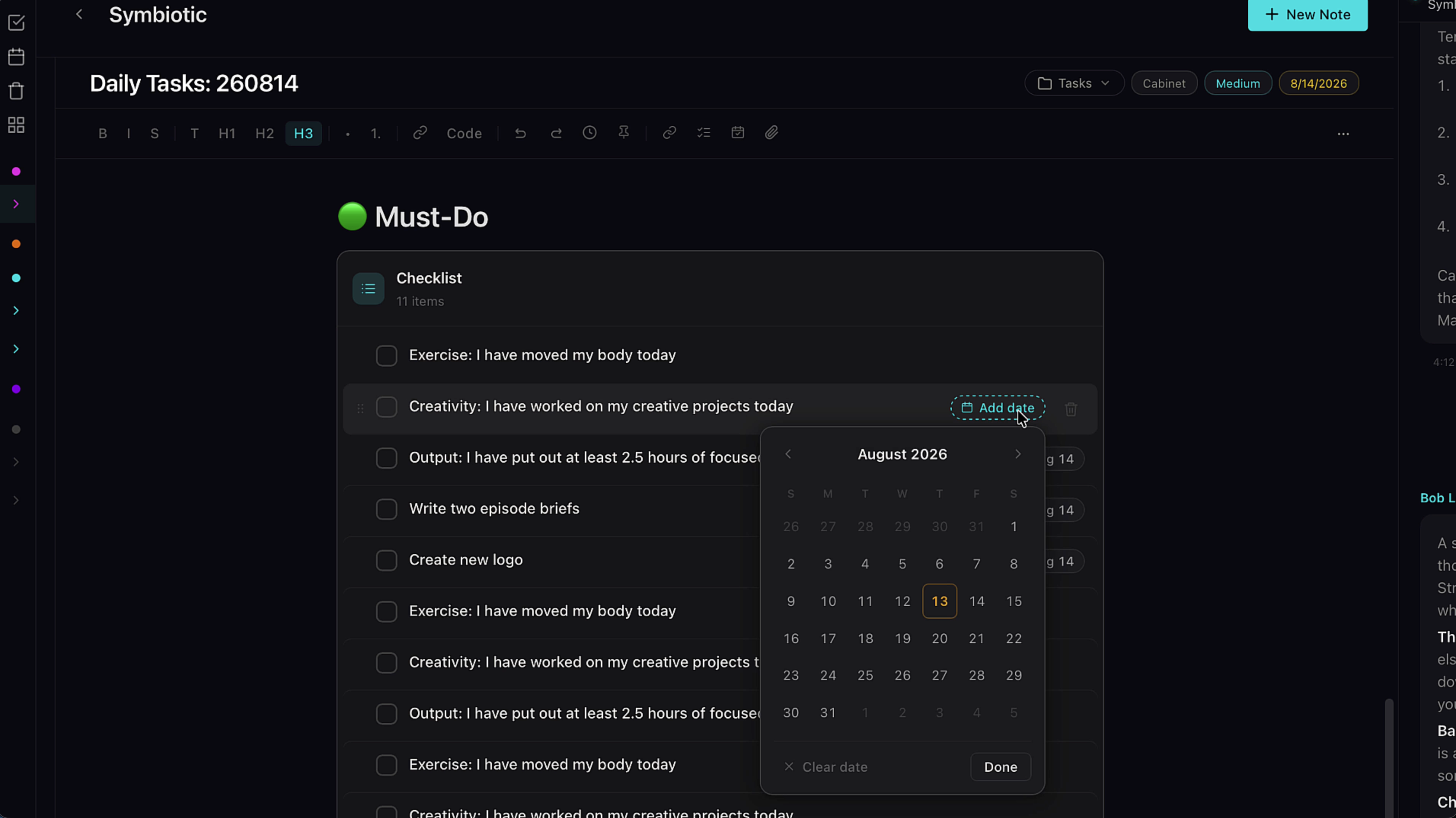
Second, the checklist. Every item can take its own due date. That turns a checkbox into a subtask. When it comes due, the notification bell lights up and routes you straight to it. So a template with a dated checklist isn't just a form — it's a system that chases the work for you.
7. Edit a template
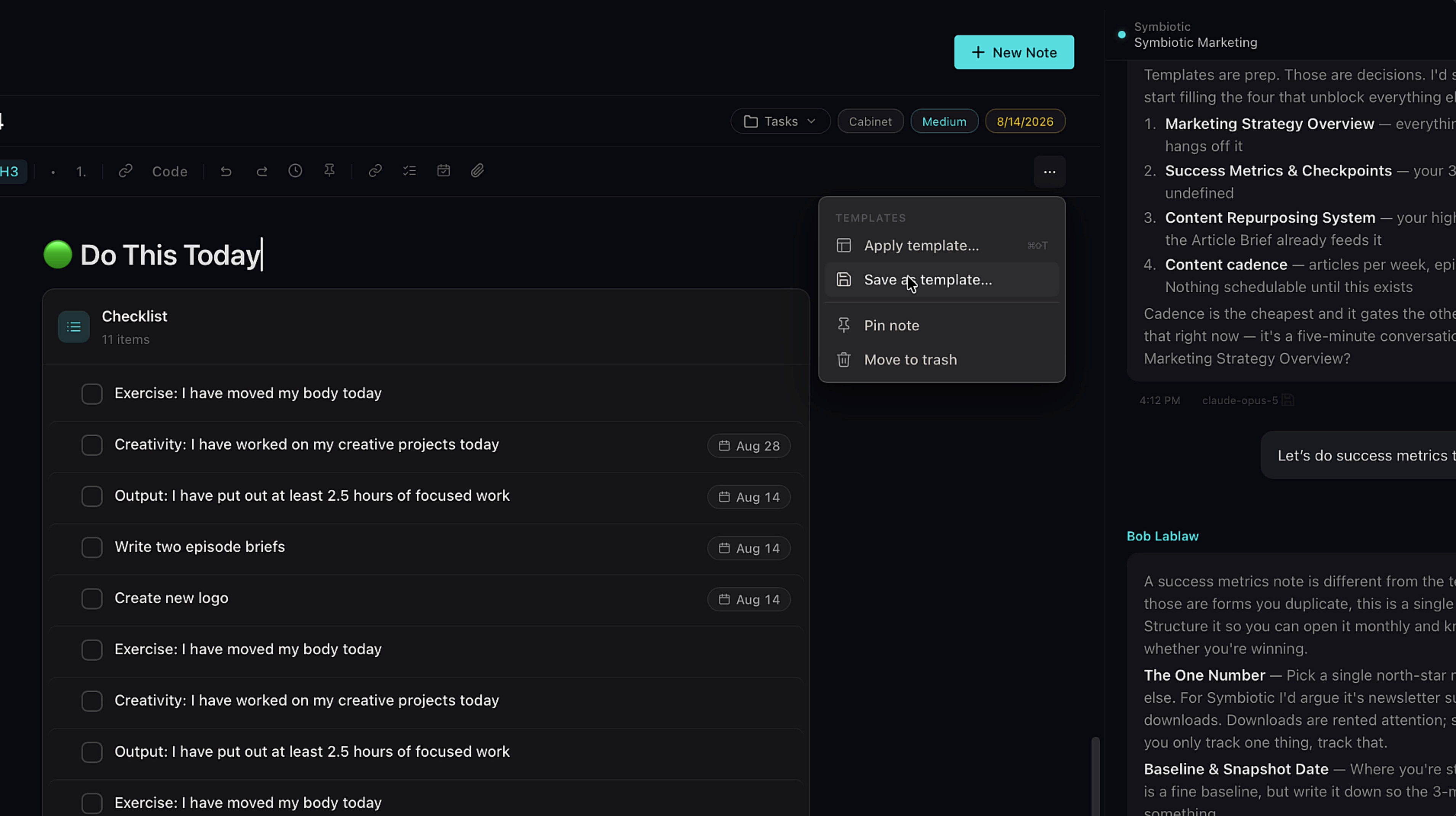
If you ever want to change a template, load it up in a note. Make your edits, and then just save it with the template name — that will overwrite the content.
8. Manage templates in settings
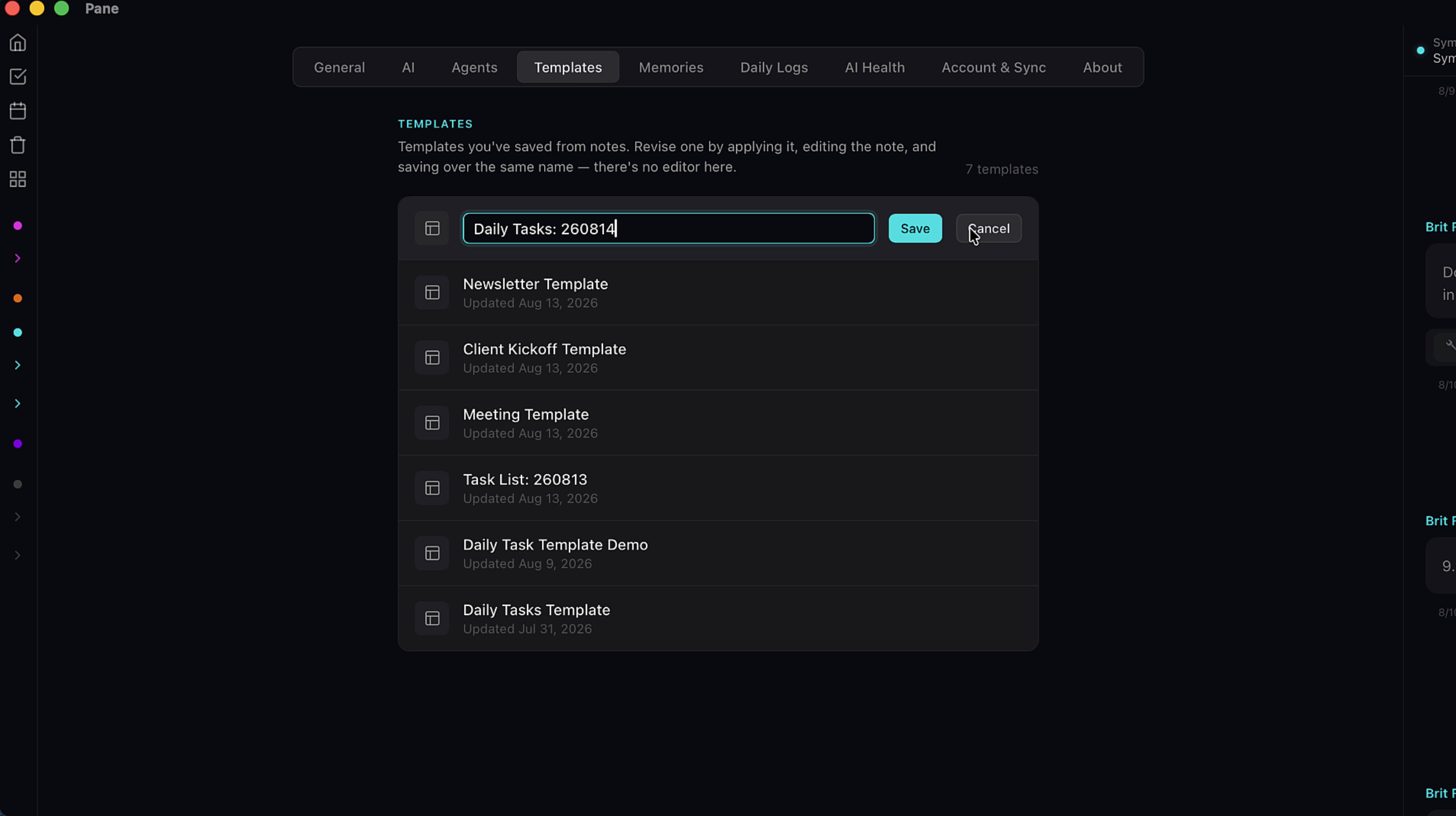
To rename or delete a template, head to the Templates tab in settings. That's templates! Build it once. Apply it every day. Let Pane do the remembering.